Revisa cada cambio que hicieron tus agentes IA
Un visor de diffs a pantalla completa integrado en AgentsRoom. Ve lo que cambió, haz preguntas sobre el código y haz commit cuando estés satisfecho. Archivo por archivo, con resaltado de sintaxis y diffs a nivel de palabra.
Qué incluye el modo de revisión
Todas las herramientas que necesitas para inspeccionar cambios generados por IA antes de hacer commit en tu repositorio.
Visor de diffs lado a lado
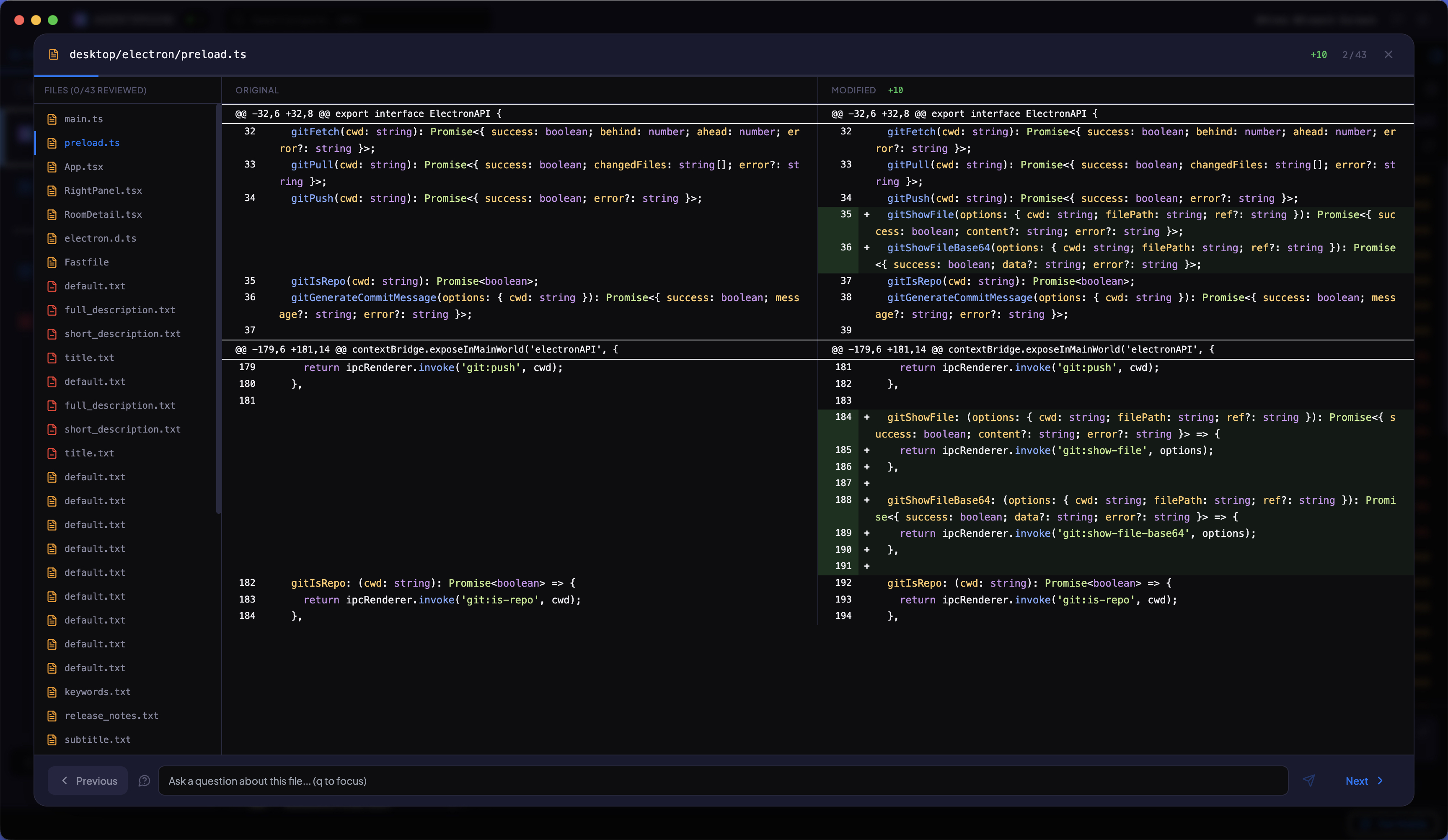
Visualiza el código anterior y nuevo lado a lado con resaltado de sintaxis vía highlight.js. Los diffs a nivel de palabra usan un algoritmo LCS para mostrar exactamente qué tokens cambiaron en cada línea.
Lista de archivos con código de colores
La barra lateral izquierda lista cada archivo modificado. Verde para agregados, rojo para eliminados, naranja para modificados. Haz clic en cualquier archivo para ir a su diff. Sigue tu progreso con la barra de revisión.
Navegación por teclado
Navega entre archivos con las flechas (izquierda/derecha) o j/k. Marca archivos como revisados con el icono de ojo. Un sonido sutil suena al navegar y un timbre al llegar al último archivo.
Comenta cualquier línea
Haz clic en Comentar esta línea en cualquier punto del diff y escribe lo que debe cambiar. Tus comentarios se acumulan mientras revisas, y luego Enviar comentarios los pone en cola para el agente como un solo mensaje, que recoge al terminar su turno actual.
Seguimiento de progreso
Una barra de progreso muestra cuántos archivos has revisado del total. Marca archivos como revisados a medida que avanzas. La pantalla de finalización aparece solo cuando cada archivo ha sido verificado.
Haz commit cuando estés listo
Una vez revisados todos los archivos, aparece una pantalla de finalización con un área de texto para el mensaje de commit. Genera un mensaje de commit con IA o escribe el tuyo. Haz clic en commit, recibe confirmación de éxito o error, y el modal se cierra automáticamente.
Cómo funciona
Cuatro pasos desde la salida del agente hasta el código comiteado.
El agente termina su trabajo
Uno o más agentes Claude completan sus tareas y modifican archivos en tu proyecto. AgentsRoom detecta los archivos modificados automáticamente.
Abre el modo de revisión
Haz clic en el botón de revisión para abrir un modal a pantalla completa. La lista de archivos se carga en la barra lateral con indicadores de estado con código de colores para cada archivo modificado.
Revisa archivo por archivo
Navega por los archivos usando atajos de teclado o la barra lateral. Inspecciona los diffs, deja un comentario en cualquier línea que lo necesite y marca cada archivo como revisado.
Haz commit de todos los cambios
Cuando cada archivo está marcado como revisado, aparece la pantalla de finalización. Escribe o genera un mensaje de commit, luego haz commit. El modal se cierra en caso de éxito.
FAQ
¿Qué formato de diff usa el modo de revisión?
El modo de revisión muestra un diff lado a lado con resaltado de sintaxis proporcionado por highlight.js. Dentro de cada línea modificada, las diferencias a nivel de palabra se calculan usando un algoritmo de subsecuencia común más larga (LCS), para que puedas ver exactamente qué tokens fueron agregados, eliminados o modificados.
¿Puedo hacer preguntas sobre el código durante la revisión?
Sí. Mientras visualizas cualquier archivo, escribe una pregunta en el campo de entrada y presiona Enter. La revisión se pausa mientras el agente procesa tu pregunta. Una vez que obtengas la respuesta, puedes continuar revisando.
¿Cómo funciona el proceso de commit?
Después de marcar todos los archivos como revisados, aparece una pantalla de finalización con un área de texto para el mensaje de commit. Puedes escribir tu propio mensaje o hacer clic en el botón sparkles para generar uno con IA. Haz clic en "Hacer commit de todos los cambios" para finalizar. Recibes confirmación de éxito o error, y el modal se cierra automáticamente en caso de éxito.
¿Qué atajos de teclado están disponibles?
Usa las flechas izquierda/derecha o j/k para navegar entre archivos. Un sonido sutil suena cuando te mueves entre archivos y un timbre cuando llegas al último archivo de la lista.
¿Tengo que revisar cada archivo antes de hacer commit?
Sí. La pantalla de commit solo aparece después de que cada archivo ha sido marcado como revisado. Esto asegura que hayas inspeccionado todos los cambios antes de hacer commit en tu repositorio.
Para profundizar
¿Deberías seguir revisando el código de tu agente de IA?
Tus agentes escriben mejor código que la mitad de las solicitudes de extracción que solías fusionar. Entonces, ¿todavía lees cada línea? El caso honesto para ambos lados, las 10 señales que te dicen que un agente cometió un error y cuánto merece realmente cada cambio una revisión.
Claude ya pone marca de agua en todo lo que escribe. Tu código apenas se ve afectado.
Anthropic ya pone marca de agua en las salidas de Claude. Qué marca en realidad, por qué el código escapa, quién puede detectarla y por qué tu SEO no cambia.
Revisa los cambios de código IA con confianza
Descarga AgentsRoom e inspecciona cada archivo que tus agentes modifican antes de que llegue a tu repositorio. Gratis para hasta 2 proyectos.
App complementaria: supervisa tus agentes en movimiento
Usa Claude, Codex, Antigravity CLI u otro proveedor de IA.
Envía bugs y peticiones directamente a tu backlog público.