كدّس رسائلك،
وأرسلها بالترتيب
Message Queue هو طابور رسائل مدمج في صندوق الكتابة. خطرت لك ثلاث أفكار بينما الوكيل مشغول؟ كدّسها فوق حقل الإدخال وأطلقها واحدة تلو الأخرى، بالترتيب الذي تريده، بدلاً من حشر كل شيء في برومبت عملاق واحد.
تحصل كل رسالة في الطابور على عنوان قصير يلخّصه الذكاء الاصطناعي، وتحتفظ بلقطات شاشتها وملفاتها المرفقة، ويمكن إعادة ترتيبها يدوياً. يبقى صندوق الكتابة المكان الوحيد الذي تكتب فيه، فلا شيء يتنازع عليه.
تنتظر الرسائل في الطابور فوق صندوق الكتابة. تعرض كل واحدة عنواناً من الذكاء الاصطناعي وعدد الملفات المرفقة. أرسلها واحدة تلو الأخرى، بالترتيب الذي تحدّده.
الطرفية تفعل شيئاً واحداً بما تكتبه: ترسله، الآن. هذا جيد إلى أن تتراكم في ذهنك عدة مهام منفصلة وتريد أن ينفّذها الوكيل بترتيب دقيق، واحدة بعد الأخرى.
طابور الرسائل يحل هذه المشكلة. تكتب رسالة، وتضغط «أضِف للطابور» بدلاً من «إرسال»، فتستقر فوق صندوق الكتابة كبطاقة مدمجة. يُفرَّغ صندوق الكتابة لتكتب الفكرة التالية. كدّس ما شئت منها، اسحبها إلى الترتيب الذي يعجبك، وأرسلها إلى وكيل الذكاء الاصطناعي حين تكون جاهزاً.
إنه الفرق بين إلقاء برومبت واحد مثقل على وكيلك وبين تغذيته بمهام واضحة ومرتّبة. تحتفظ برؤية واضحة لما هو قادم، ويتقدّم الوكيل في قائمتك مهمة واحدة في كل مرة.
ما الذي يمنحك إياه طابور الرسائل
كدّس ورتّب. كوّم عدة برومبتات فوق صندوق الكتابة ورتّبها بالترتيب الدقيق الذي تريد أن يعمل الوكيل وفقه.
عناوين من الذكاء الاصطناعي. تحصل كل رسالة في الطابور على عنوان موجز يولّده الذكاء الاصطناعي، فتميّز كل بطاقة بنظرة واحدة بدلاً من إعادة قراءة جدار من النص.
المرفقات تسافر مع الرسالة. تبقى لقطات الشاشة والملفات المسحوبة مرفقة ببطاقتها في الطابور، فلا شيء تعيد إرفاقه حين ترسلها أخيراً.
أعد الترتيب يدوياً. اسحب بطاقة إلى الأعلى أو الأسفل لتغيير ترتيب الإرسال. أعد فتح بطاقة لتعدّلها في صندوق الكتابة، أو أرسلها الآن، أو احذفها.
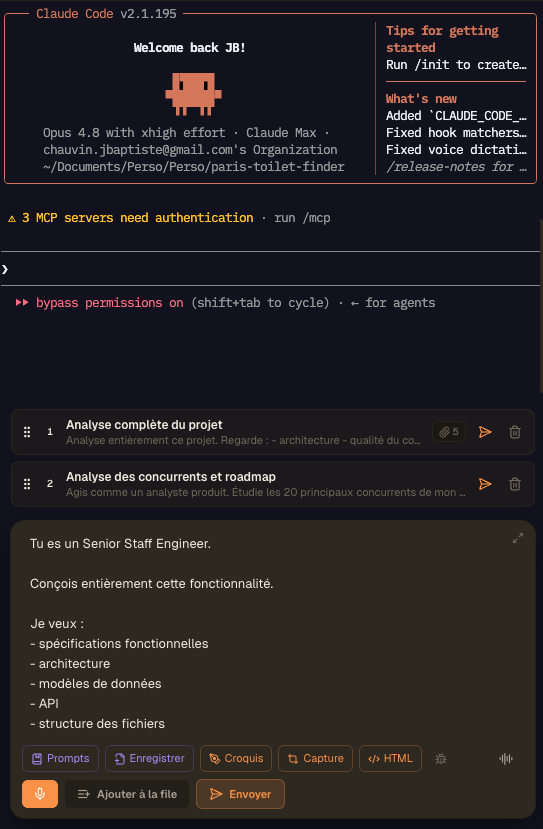
رسالتان في الطابور فوق صندوق الكتابة النشط، لكل منهما عنوانها من الذكاء الاصطناعي ومرفقاتها، في انتظار إرسالهما إلى الوكيل واحدة تلو الأخرى.
توقّف عن إثقال الوكيل
رسالة عملاقة واحدة مقابل طابور نظيف ومرتّب. الثاني يعطي نتائج أفضل.
بدون طابور
- : تحشر خمس مهام منفصلة في برومبت واحد فيخلط الوكيل الأولويات.
- : أو ترسل واحدة، وتنتظر، وتحاول تذكّر الفكرة التالية من ذاكرتك.
- : الأفكار التي تخطر بينما يعمل الوكيل تضيع قبل أن تتمكّن من كتابتها.
- : تبقي دفتر ملاحظات مفتوحاً على الجانب لمجرد تتبّع ما تبقّى من مهام.
مع طابور الرسائل
- : تُفرغ ما في ذهنك فور خطور الأفكار، كل واحدة مهيّأة كرسالة مستقلة.
- : يتلقّى الوكيل مهاماً واضحة واحدة تلو الأخرى، بالترتيب الذي حدّدته.
- : تحتفظ كل رسالة في الطابور بلقطات شاشتها وملفاتها، جاهزة للإرسال.
- : ترى القائمة كاملة لما هو قادم، فلا يفلت شيء.
البرومبتات الواضحة والمرتّبة تتفوّق على برومبت ضخم واحد ضبابي. الطابور يجعل ذلك المسار الأسهل.
كيف يعمل طابور الرسائل
من فكرة عابرة إلى رسالة في الطابور، معنونة ومرتّبة، يشغّلها وكيلك عند الطلب.
اكتب رسالة
اكتب برومبتاً في صندوق الكتابة كما تفعل دائماً. أضِف لقطات شاشة أو ملفات إن احتاجت المهمة إليها.
اضغط «أضِف للطابور» بدلاً من «إرسال»
زر «أضِف للطابور» يقع بجانب «إرسال» مباشرةً ويظهر بمجرد وجود شيء جاهز. انقره فتنتقل الرسالة إلى الطابور. ويُفرَّغ صندوق الكتابة للفكرة التالية.
يظهر عنوان من الذكاء الاصطناعي
يلخّص الذكاء الاصطناعي عنواناً قصيراً في الخلفية ويستقر على البطاقة بخط عريض، مع معاينة من سطر واحد وعدد الملفات المرفقة أسفله.
كدّس وأعد الترتيب
تابع تكديس الرسائل. اسحب البطاقات إلى الأعلى والأسفل لتحديد الترتيب الدقيق الذي تريد أن يعمل الوكيل وفقه.
عدّل أو أرسل أي بطاقة
انقر بطاقة لإعادة فتحها في صندوق الكتابة وتعديلها، أو أرسلها إلى الوكيل فوراً، أو أزِلها من الطابور.
غذِّ الوكيل بوتيرتك
أرسل الرسالة التالية متى كان الوكيل جاهزاً لها. تبقى أنت المتحكّم بما يخرج ومتى يخرج.
أرسِل لاحقاً: ضع مؤقتاً على رسالة
يمكن لأي رسالة في الطابور أن تحمل موعداً. اضبطه فتخرج وحدها: بعد 15 دقيقة، أو بعد ساعة، أو عند 21:30 الليلة، سواء كنت جالساً إلى مكتبك أم لا.
أحياناً يكون الصواب ألّا ترسل الآن. الوكيل عالق خلف عطل في الخادم، أو عملية نشر لا تزال جارية، أو حد الاستخدام يُعاد ضبطه بعد ساعة، وأنت على وشك إغلاق الحاسوب. جدولة الرسالة هي الجواب الصادق: تكتب التعليمة وهي لا تزال حاضرة في ذهنك، وتختار متى ينبغي أن تصل، ثم تمضي في شأنك.
الرسالة المجدولة ليست ميزة منفصلة مركّبة على الجانب. إنها البطاقة نفسها في الطابور نفسه، وتُسلَّم عبر المسار نفسه الذي تسلكه رسالة تكتبها بيدك. الشيء الوحيد الذي يتغيّر هو من يضغط الزناد: مؤقت بدل إصبعك.
إعدادات جاهزة أو موعد محدّد
اختر 15 دقيقة، أو 30 دقيقة، أو ساعة، أو ساعتين، أو 4 ساعات، أو صباح الغد، أو اكتب موعداً محدّداً. اليوم إن كانت تلك الساعة لم تأتِ بعد، وغداً إن كانت قد مضت. تعرض البطاقة بعدها عدّاً تنازلياً حيّاً، بعد 58 دقيقة أو عند 21:30، ونقرة واحدة تعيد الجدولة أو تلغي المؤقت.
اتبع نافذة حصة الاستخدام
أرسل الرسالة عند تجدد حصة استخدام الوكيل، أو قبل وقت قصير من إعادة ضبط نافذته ذات 5 ساعات أو اليومية أو الأسبوعية أو الشهرية. وللإرسال قبل إعادة الضبط، اختر حداً أدنى للاستخدام مثل 80%، كي تبدأ المراجعة فقط عندما تتبقى حصة تستحق الاستخدام قبل أن تنتهي صلاحيتها.
اضبطه من هاتفك
صُمّمت الجدولة للحظة التي تُبعد فيها هاتفك. انقر المؤقت بجانب زر الإرسال في التطبيق المرافق، واختر المهلة، فتصبح الرسالة مضبوطة. والرسائل المعلّقة وعدّاداتها التنازلية وزر الإلغاء موجودة كلها على الهاتف أيضاً.
سطح مكتبك هو من يحمل المؤقت
الهاتف يضبط، وسطح المكتب يُطلِق. الرسالة لا معنى لها إلا داخل واجهة أوامر وكيل حيّة، وتلك الواجهة تعمل على جهازك، لذلك يُبقي AgentsRoom المؤقت في جانب سطح المكتب. والرسالة التي مرّ موعدها والتطبيق مغلق تخرج عند أول فحص بعد أن تعيد فتحه.
لا تضيع أبداً، وتُخبَر حين تخرج
إن تعذّر الوصول إلى الوكيل حين يحين الموعد، تبقى الرسالة في الطابور، وتتحوّل البطاقة إلى «في انتظار الوكيل»، ويشغّل AgentsRoom ذلك الوكيل نيابةً عنك ثم يعيد المحاولة. وحين تخرج أخيراً، يصلك إشعار فوري على هاتفك، لأن لا أحد يراقب الشاشة في تلك الساعة.
لا يوجد منتقي تاريخ كامل، وهذا مقصود. الرسالة التي تريد إرسالها الأسبوع المقبل هي تذكرة backlog، لا مسودّة معلّقة. أما العمل الذي ينبغي أن يتكرر كل صباح بدل أن يحدث مرة واحدة فمكانه المهام المجدولة، المجدوِل بأسلوب cron المرتبط أدناه.
مُحفِّز الحصة يجيب على سؤال واحد لا غير: كيف أُنفق الرصيد المتبقي لديّ قبل إعادة ضبط هذه النافذة. أما السؤالان المجاوران فلكلٍّ منهما صفحته الخاصة.
مبنيٌّ كما ينبغي
FAQ
ما هو طابور الرسائل في AgentsRoom؟
إنه طابور مدمج في صندوق الكتابة. بدلاً من إرسال البرومبت فوراً، تكدّس عدة رسائل فوق حقل الإدخال وترسلها إلى وكيل الترميز بالذكاء الاصطناعي بالترتيب الذي تختاره، واحدة تلو الأخرى.
كيف أضع رسالة في الطابور بدلاً من إرسالها؟
حين تكتب شيئاً أو ترفق ملفاً، يظهر زر «أضِف للطابور» بجانب «إرسال». انقره فتُهيّأ الرسالة فوق صندوق الكتابة كبطاقة، ويُفرَّغ صندوق الكتابة لفكرتك التالية.
هل يمكنني وضع لقطات الشاشة والملفات في الطابور، لا النص فقط؟
نعم. تحتفظ كل رسالة في الطابور بلقطات شاشتها وملفاتها المسحوبة مرفقة. تعرض البطاقة عدد المرفقات التي تحملها، وتخرج معها حين ترسلها.
من أين يأتي العنوان المولّد من الذكاء الاصطناعي؟
حين تضع رسالة نصية في الطابور، يطلب AgentsRoom من خادمه عنواناً موجزاً ويعرضه بخط عريض على البطاقة. الأمر بأفضل جهد ممكن: إن كنت غير متصل، تعود البطاقة إلى السطر الأول من الرسالة.
هل يمكنني إعادة ترتيب الرسائل في الطابور؟
نعم. اسحب بطاقة إلى الأعلى أو الأسفل لتغيير الترتيب. الطابور مخصّص لإرسال الرسائل بتسلسل دقيق، فإعادة الترتيب جزء أساسي منه.
كيف أعدّل رسالة وضعتها في الطابور؟
انقر البطاقة. تُعاد فتحها في صندوق الكتابة للتعديل. أي شيء كان في صندوق الكتابة يُحفظ أولاً في الطابور، فلا يضيع شيء.
هل تُرسَل رسائل الطابور تلقائياً؟
فقط إن طلبت ذلك. الإرسال يدوي افتراضياً، فتبقى أنت المتحكّم. اضبط بطاقة على وقت أو قاعدة لحصة الاستخدام، فتخرج تلك الرسالة وحدها، دون غيرها، تلقائياً.
هل يبقى الطابور بعد إغلاق التطبيق؟
نعم. يُحفظ الطابور محلياً لكل وكيل، فتبقى رسائلك المهيّأة موجودة بعد أن تغلق AgentsRoom وتعيد فتحه.
هل يعمل مع Claude وCodex وAntigravity؟
نعم. طابور الرسائل مستقل عن المزوّد ويتصرّف بالطريقة نفسها عبر Claude وCodex وAntigravity وغيرها من واجهات أوامر الوكلاء.
لماذا أضع الرسائل في طابور بدلاً من إرسال برومبت واحد كبير؟
البرومبت الواحد المثقل يجعل الوكيل يخلط الأولويات. تقسيم العمل إلى رسائل مرتّبة يمنح الوكيل مهمة واحدة واضحة في كل مرة ويمنحك رؤية واضحة لما لا يزال قادماً.
هل يمكنني جدولة رسالة لإرسالها لاحقاً؟
نعم. اختر إعداداً زمنياً جاهزاً، أو اكتب موعداً محدّداً، أو أرسل الرسالة عند تجدد حصة استخدام الوكيل، أو قبل وقت قصير من إعادة ضبط نافذة الحصة بعد بلوغ حد الاستخدام الذي اخترته. بعدها تخرج الرسالة وحدها تلقائياً، دون أن يبقى عليك شيء.
هل يمكنني جدولة رسالة من هاتفي؟
نعم، وهذه هي الحالة الأساسية. في التطبيق المرافق زر مؤقت بجانب الإرسال: اضبط الرسالة، وأبعِد الهاتف، فيرسلها سطح مكتبك في الموعد الذي اخترته، ثم يرسل إليك إشعاراً فورياً بمجرد خروجها.
ماذا يحدث إن لم يكن الوكيل يعمل حين يحين موعد رسالة مجدولة؟
لا تضيع أبداً. تبقى البطاقة في الطابور موسومة بأنها في انتظار الوكيل، ويطلب AgentsRoom من ذلك الوكيل أن يبدأ، ثم يعيد المحاولة. والرسالة التي مرّ موعدها بينما كان AgentsRoom مغلقاً تُرسَل فور إعادة فتحك للتطبيق.
هل يمكنني إضافة رسالة إلى الطابور من هاتفي؟
نعم. اضغط زر الساعة بجانب الإرسال واختر إضافة إلى الطابور: تصل الرسالة إلى طابور سطح مكتبك كبطاقة نصية فقط، مع ترتيبها. ومن الهاتف يمكنك أيضاً إرسال بطاقة في الطابور فوراً أو حذفها. أما إعادة الترتيب وتعديل البطاقة فيبقيان على سطح المكتب.
قراءات إضافية
كم عدد التوكنات المتبقية لي في Claude؟ الشاشتان اللتان يجب مراجعتهما.
اشتراكك في Claude ليس مقوَّماً بالتوكنات، لذلك لا توجد شاشة تعرض رصيداً من التوكنات. إليك ما يقيسه فعلياً، والشاشتان اللتان تعرضه حقاً، ولماذا يتناقص وأنت لا تكتب شيئاً، وما الذي يفعله تغيّر النافذة الأسبوعية في سبتمبر 2026 بأسبوعك.
كيفية تقليل تكاليف رموز Claude Code دون إبطاء الأداء
تقوم Claude Code بفرض رسوم عليك لكل رمز، ومعظم الإنفاق غير مرئي: سياق متضخم، النموذج الخاطئ، ملفات PDF الخام، إعادة قراءة الوكلاء لنفس الملفات. هنا يذهب المال فعليًا وكيفية تقليله، مع العادات والأدوات التي تحافظ على انخفاض فاتورتك دون إبطائك.
وكلاء البرمجة في الخلفية: اجعل ذكاءك الاصطناعي يعمل في الوردية الليلية
وكيل البرمجة لا يحتاج إلى أن تراقبه. إليك كيف تشغّل الوكلاء في الخلفية بينما تعمل على شيء آخر، وكيف تدع أسطولاً كاملاً يكتب الشيفرة طوال الليل بينما أنت نائم.
قد يعجبك أيضاً
Scratchpad
محرر برومبت في الفوتر لصياغة برومبتات طويلة ومنظّمة قبل إرسالها.
Prompt library
احفظ أفضل برومبتاتك وأعد استخدامها بنقرة واحدة، بمشاركتها مع فريقك.
Sketch
ارسم على لقطات الشاشة وعلّق عليها لإرسال ملاحظات بصرية دقيقة إلى وكيلك.
لقطة شاشة إلى الوكيل
التقط منطقة من الشاشة باختصار وأرفقها مباشرةً برسالتك التالية.
الإملاء الصوتي
أمْلِ برومبتاتك في صندوق الكتابة بدلاً من كتابتها.
لوحة مهام Backlog
لوحة kanban تحوّل المهام إلى تشغيلات وكلاء متوازية.
المهام المجدولة
جدولة بأسلوب cron لتشغيلات الوكلاء المتكررة: راجع طلبات السحب كل صباح، وافحص السجلات كل ليلة.
الرفيق المحمول
قُد وكلاء سطح مكتبك من هاتفك: أملِ الأوامر، وأرسل الملفات، وجدوِل رسالة قبل أن تغادر.
تنبيهات الاستخدام
قبل الجدار: احصل على إشعار عندما يتجاوز شريط حصة 50% أو 75% أو 90% أو عتبة اخترتها، على سطح المكتب أو على هاتفك، مرة واحدة لكل نافذة.
ضع أفكارك في الطابور، وأرسلها بالترتيب
احصل على AgentsRoom وتوقّف عن إثقال وكيل الذكاء الاصطناعي ببرومبت عملاق واحد.
التطبيق المرافق: تابع وكلاءك أينما كنت
استخدم Claude أو Codex أو Antigravity CLI أو أي مزود AI آخر.
أرسل الأخطاء والطلبات مباشرة إلى قائمة المهام العامة.