每條訊息都用對模型,
無需重啟代理
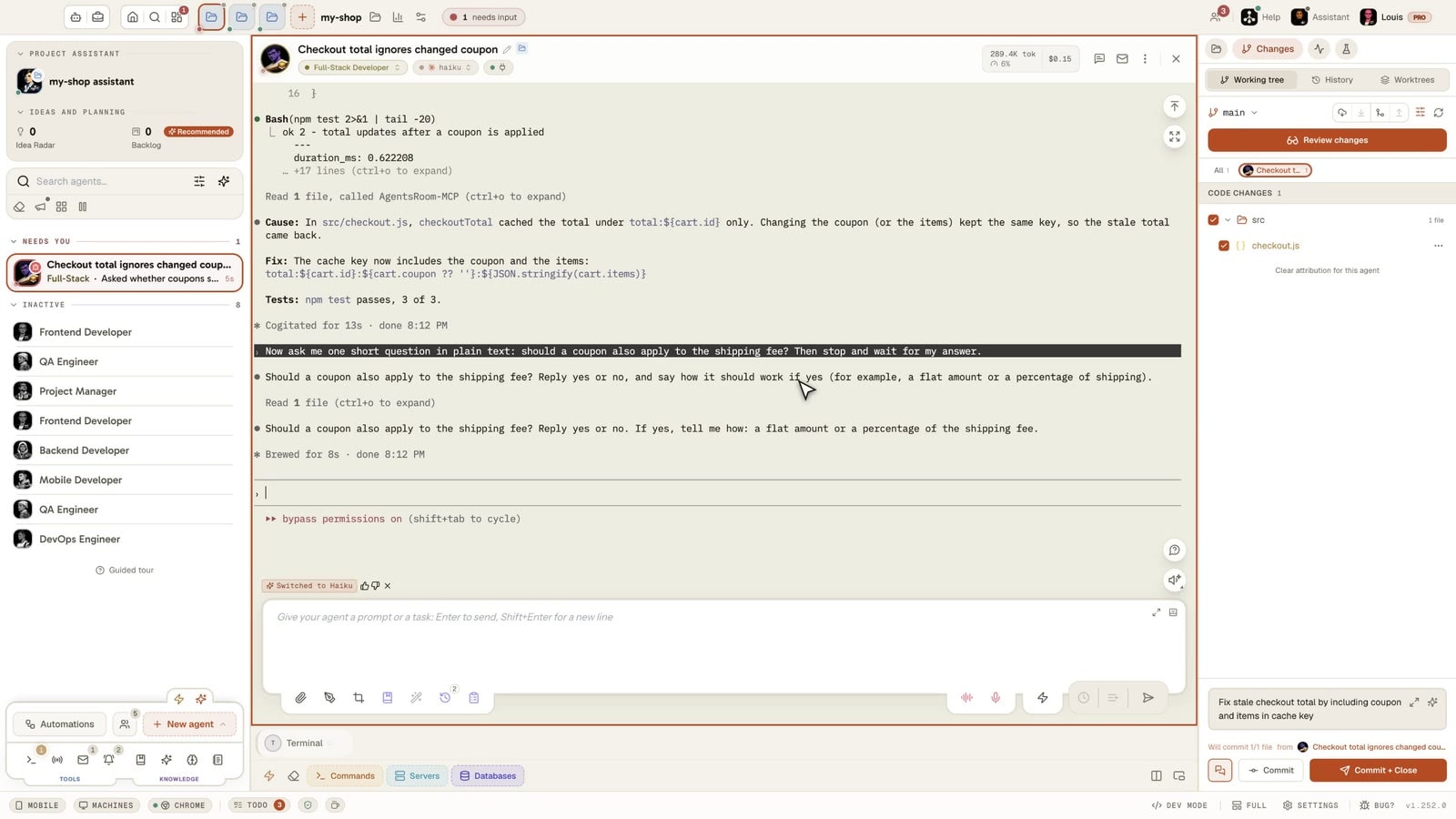
用「每條訊息」選項和「自動」開啟 Adaptive Mode:在每條訊息發出之前,AgentsRoom 會挑選仍能把活幹好的最便宜模型,你的 Claude Code 或 Codex 代理會直接切換過去,無需重啟,也不用輸入任何內容。重新命名交給 Haiku,架構問題留在 Opus。
無需安裝:沒有外掛,不用執行代理伺服器,也不需要第三方金鑰。新安裝時它預設開啟,你可以在設定中關閉它:為了選擇模型,訊息的前 500 個字元會傳送到 AgentsRoom 的伺服器。使用其他 CLI 時,輸入框上方的標籤會推薦模型,一鍵即可應用。
你會看到什麼
每次切換都顯示在你本來就在看的地方,所以你總能知道是哪個模型回答的。
輸入框上方顯示「已切換至 Haiku」
你一傳送,輸入框上方的標籤就會寫出為這條訊息選中的模型。在判定返回期間(最多 4 秒),它顯示「正在選擇模型…」。
代理的模型膠囊同步變化
模型變化時,代理的模型膠囊會播放動畫,看一眼代理就知道此刻是哪個模型在為它工作。
徽章確認實際使用的模型
一旦 API 本身報告了是哪個模型回答的,標籤上就會出現一個對勾徽章。將滑鼠懸停在上面,可以看到「已由 API 確認:由」加上模型名稱。
當前模型合適時顯示「已保留 Opus」
並不是每條訊息都需要切換。如果正在使用的模型就是合適的那個,標籤會如實說明,代理繼續使用它。
用拇指為選擇打分
每個標籤都帶有一個贊和一個踩。點一下就能告訴 AgentsRoom 這個模型是否適合這條訊息,從而改進之後的選擇。
在用量面板檢視你省下的開銷
用量面板會統計本月你有多少條訊息交給了更便宜的模型,在桌面版和手機的「用量」分頁中都能看到。
「自動」目前適用於 Claude Code、Codex 和 oh-my-pi,且僅對開啟之後啟動的代理生效。使用其他 CLI 時,同樣的標籤會推薦模型,由你決定是否接受。
Adaptive Mode 把每個任務匹配到能把它做好的最便宜模型:輕量工作用 Haiku,均衡工作用 Sonnet,繁重工作用 Opus。每個任務成本更低,每天任務更多。
執行 AI 編碼 agent 有個花錢的問題。每個模型都有價格,而便宜模型和旗艦之間的差距很大。Claude Opus 最強,也最貴。Claude Haiku 最便宜。Claude Sonnet 居中。大多數人挑一個模型就一直用下去,結果要麼給難任務的算力不足,要麼更常見地,為簡單任務多付錢。
想想你一天裡真正讓 agent 做的事。改個拼寫錯誤。重新命名一個變數。翻譯一條介面文案。寫個簡短的單元測試。給文件做個摘要。這些都不需要旗艦模型。全都跑在 Opus 上,你會為同樣的結果,以遠超所需的速度燒掉套餐的用量預算。這種浪費看不見,正因如此它才會越積越多。
Adaptive Mode 填上了這道缺口。你寫訊息時,它讀取你的草稿,判斷任務到底有多難,再從你 provider 的產品線裡推薦仍能把活幹好的最便宜模型。預設情況下,它只在對話的第一條訊息上這樣做;開啟「每條訊息」後,它會對每條訊息都這樣做;設為「自動」後,agent 會在訊息傳送前完成切換。重量級模型留給配得上它們的工作:架構、安全審計、大型重構。其餘的一切都路由到成本只有一小部分的模型。
在應用裡錄製的一次真實會話:一個新的 Claude Code 代理在 Opus 上啟動。讓它修正 README 裡的一個拼寫錯誤,訊息發出前它就切換到了 Haiku,無需重啟,也不用在終端裡輸入任何內容;接著在同一個對話裡問一個架構問題,它又立刻回到 Opus。
為什麼要把模型和任務匹配
別再為簡單任務多付錢。用旗艦去改一個拼寫錯誤,等於把錢點著燒。Adaptive Mode 把輕量工作導向輕量模型,所以每個瑣碎任務的花費,只是頂級檔位的一小部分。
把強大的模型留給難題。匹配合適並不等於一味求便宜。當任務是系統設計或安全審計時,Adaptive Mode 會提示你往上升級,讓需要深度的工作真正得到深度。
同一套套餐,每天更多工。每個任務花的預算更少,意味著你更晚才會撞上用量上限。在一整天和一支並行執行的 agent 隊伍上,這些節省會累積成實打實的額外吞吐。
工作流程零摩擦。建議會在你傳送之前,以一個小標籤的形式出現在輸入框上方。一次點選即可應用。無需翻選單,無需手動猜哪個模型合適,也不會拖慢節奏。
經濟帳:消耗更少,完成更多
同樣的 agent,同樣的套餐。區別在於每個任務吃掉你多少預算。
一個模型幹所有活
- : 每個任務都跑在你隨手留著選中的那個模型上。
- : 用旗艦處理一個拼寫錯誤或一次翻譯,成本是應有的好幾倍。
- : 套餐的用量預算,在根本不需要那種算力的工作上飛快耗盡。
- : 你在一天裡更早撞上用量牆,agent 就卡住了。
- : 手動切換模型很麻煩,所以沒人願意去弄。
Adaptive Mode 已開啟
- : 每個任務都匹配到能把它做好的最便宜模型。
- : 輕量工作路由到輕量模型,花費只是一小部分。
- : 旗艦留給重構、審計和架構。
- : 每個任務預算更少,意味著撞上任何用量上限之前能跑更多工。
- : 一次點選就應用對的模型,於是匹配合適真的發生了。
路由本身幾乎免費:一個又小又快的模型用遠不到一美分的成本完成分析,然後讓開路。
說出你要做什麼。
代理就以對的模型開啟。
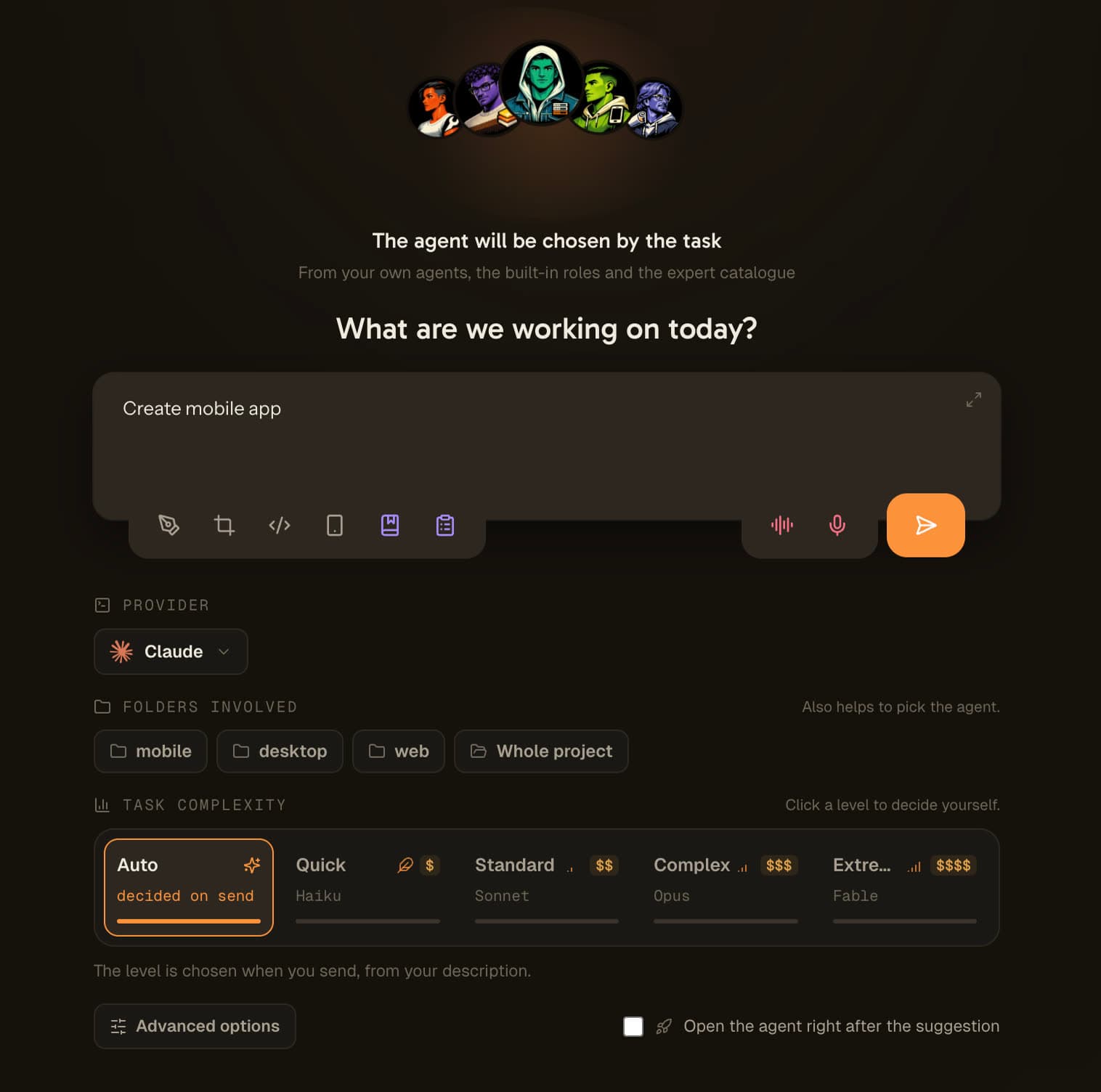
AI Suggestion 把同一個決定往前挪到唯一不花代價的那一刻:會話還不存在的時候。點選代理卡片上的建議按鈕,或者在你還沒選代理時點選工作區 dock 上方欄裡的那個按鈕,你看到的就不是終端,而是一個問你這個代理接下來要做什麼的輸入框。你用一句話回答。一次呼叫讀完它,返回模型、會話名字,以及在你沒選代理時,該由誰來接這件事。
然後會話開啟,設定已經就緒,你的那句話就是第一條訊息。你沒有貼上任何東西,沒有等 CLI 起來之後再去改,也沒有為了改個拼寫錯誤付旗艦的價錢。
一句話進去。一個複雜度級別亮起。代理以這個級別對應的模型開啟,會話名字已經取好。
為什麼這個決定必須發生在會話開啟之前
同樣的建議,同樣的模型,兩種截然不同的結局。唯一的變數是你在什麼時候被問到。
在終端開啟之後才問
- : CLI 已經用當時配置的模型起來了。
- : prompt 已經寫好,你離傳送只差一個鍵。
- : 現在換模型,等於扔掉你剛開的這個會話。
- : 建議讀起來就是打擾,於是被關掉。
- : 旗艦照樣處理這個瑣碎任務,什麼也沒學到。
在會話還不存在時就問
- : 還什麼都沒開始,所以沒有什麼可推翻的。
- : 你本來就在描述任務,而那正是這個決定需要的輸入。
- : 模型、會話名字和代理在一次呼叫裡全部落定。
- : 會話開啟時已經配置好,你的描述就是第一條訊息。
- : 選便宜的模型不會讓你損失什麼,所以它真的會發生。
整個想法就是這樣。不是更聰明的建議,而是同一個建議,放在說「好」不用付出代價的時刻。
四個級別,對應到你的提供商的真實模型
複雜度軌道是這個決定看得見的部分。保持自動,分析會點亮其中一個級別。自己點一個級別,它就成了你的決定:什麼都不會傳送,會話立即開啟。
輕量
01背後沒有邏輯的文案或配置改動。一個拼寫錯誤、一個標籤、一條翻譯字串、一次版本號更新。這是旗艦模型永遠不該看到的級別,也是它最常拿到的級別。
標準
02解決辦法已經清楚的小改動。給按鈕加個狀態、接上一個已有的元件、寫一個簡短的測試。沒有什麼要排查的,只有活要幹。
複雜
03要做的功能、要排查的缺陷、要推進的重構。一開始路徑並不明顯,所以模型需要餘地去探索,然後才決定採用哪種方案。
極難
04架構、審計、原因不明的問題。旗艦模型就是為這些而存在的,而正因為把它留給這類任務,在這裡用它才負擔得起。
功能裡沒有寫死任何模型標識。四個級別是從代理所在提供商的模型目錄中解析出來的,按能力從強到弱排序。如果這個提供商提供的模型不足四個,這張表會向上摺疊:只有三個模型時,複雜和極難都落在旗艦上,絕不會反過來。選小了會白白浪費一整輪執行,選大了只是多付一次呼叫的差價。
AI Suggestion 是怎麼運作的,一步一步來
六個步驟,其中四個可選,總共只有一次呼叫。
你請求一條建議
點選代理卡片上的閃光按鈕「根據我的提示詞推薦模型」,或者點選工作區 dock 上方欄裡的那個按鈕,讓任務連代理一起選。意圖介面隨即開啟:動態背景上的代理頭像、一個指向單個輸入框的箭頭,下方還有一個「直接開啟」連結,供你改主意時使用。像平常一樣點選代理,它依然會直接開啟。
你用一句話描述任務
用平常的說法,用你自己的語言。不是 prompt,也不是規格說明,就是這個代理接下來要做的事。這句話是唯一必填的輸入,它會成為會話的第一條訊息。
可選:指出涉及的資料夾
專案的資料夾以資料夾形狀的小標籤顯示。點一個,就給了代理它的範圍,也讓難度估計更準,因為同一個缺陷在行動版應用裡和在網站裡並不是同一個任務。
可選:展開高階選項
摺疊在輸入框下面:工作的型別、面向誰、你期望的交付物、諸如不要提交或必須寫測試之類的約束,以及貼上的報錯、工單號這類自由上下文。它們隨同一次呼叫一起發出,並被放在代理第一條 prompt 的開頭。
一次呼叫做決定,或者一次都不呼叫
保持自動時,傳送會觸發一個請求,返回級別、模型、會話名字,以及在沒有指定代理時返回代理。如果你自己點了一個級別,就沒有任何請求:會話直接以該級別對應的模型開啟。
會話開啟,已經設好
代理以選定的模型啟動,掛在生成好的會話名字下,你的描述透過 CLI 自己的啟動引數作為第一條訊息送達,而不是在啟動之後粘進終端。
連代理你都不必自己選
如果你開啟這塊螢幕時沒有指定代理,問題就變寬了。光球會顯示一個被三張面孔圍住的問號,而你敲下的這句話決定誰來接這個任務:你房間裡已有的某個代理、十四個內建角色之一,或者目錄裡那兩百六十來位專家之一。
現在新建專案給你的也是這個。它不再僅僅因為總得建立點什麼,就悄悄建一個全棧代理。它先問你在做什麼,再挑出這個答案所需要的代理。
代理、模型和會話名字來自同一次呼叫,因為把三個請求串起來會讓這塊螢幕的延遲變成三倍,而它全部的價值恰恰在於比先開終端再回頭改模型更快。
會話開啟之後的一個問題
代理跑起來之後,一條細條問一次:推薦的模型合適嗎?三個答案:有幫助、太輕、太重。
是三個而不是兩個,因為「選錯了」沒法用。能用的是錯的方向。太輕和太重是相反的修正,只有方向才能告訴定檔策略該往哪邊挪。
這條細條從不阻攔任何事,每個會話只問一次,而且只有在你開啟了使用資料共享時才會把答案發出去。
預設是一個按鈕,在划算的地方才自動
除非你主動要求,這塊螢幕絕不會擋在你和終端之間。點選代理,它的開啟方式和這個功能出現之前一模一樣;建議只差一個按鈕;要不要開啟自動模式,由你決定。
直接開啟
輸入框下方有一個「直接開啟」連結,點它會像沒有這個功能時一樣開啟會話。沒有呼叫,沒有分析,沒有延遲。
級別你自己定
點選軌道上的一個級別,它就成了你的決定。完全不會發出請求,會話立即以對應的模型開啟。
對這個代理、這個專案,或者全域自動開啟
想每次開啟代理都看到這塊螢幕?在設定裡開啟 AI Suggestion。它預設關閉,並且先看代理,再看專案,最後看應用,所以你可以只在划算的代理上保留它,讓其他代理直接開啟。
就在當下的位置關掉
當螢幕自動彈出時,它的「為什麼會有這個介面?」彈出框裡就有三個關閉開關:這個代理、這個專案、全域。你在它煩到你的那一刻就能關掉,而不是三層選單之後。
自動化的代理根本看不到這塊螢幕:QA 機器人、待辦工單、定時任務、原型稿、團隊步驟和臨時代理本來就帶著自己的任務說明,也沒有人坐在它們面前。
Adaptive Mode 如何運作,一步一步
預設情況下,它在你的第一條訊息之前執行一次。兩個選項可以讓它在每條訊息上執行,並替你切換模型。
你開始輸入 prompt
用任意 agent 開一個全新對話,寫下你想做的事。預設情況下 Adaptive Mode 只看全新的對話,所以除非你開啟「每條訊息」,它從不打斷已經進行中的會話。
它讀取任務並加以分析
當你的草稿足夠充實、你停頓片刻時,Adaptive Mode 會把草稿的前一部分發給一個又小又快的路由模型,由它判斷任務有多吃力。
出現一條模型建議
輸入框上方浮現一個標籤:「切換到 Haiku」、「切換到 Sonnet」或「切換到 Opus」,取最具價效比的那一個。如果你當前的模型已經是最佳選擇,它會反過來這樣告訴你。
你一次點選就應用
點選標籤,模型即被應用。如果某個會話已在執行,Adaptive Mode 會即時切換它。這個選擇也會儲存到 agent 上,所以下次啟動會直接用對的模型開始。
或者重新計算,或者忽略
重寫了 prompt?點一下重新整理,為新草稿重新計算推薦。對當前模型滿意?忽略標籤直接傳送。每一個決定的主動權都在你手裡。
「每條訊息」和「自動」,按需開啟
預設情況下,它每個對話只建議一次,之後保持安靜。開啟「每條訊息」後,之後的每條訊息也會被分析,模型可以隨每條訊息而變。在 Claude Code、Codex 和 oh-my-pi 上,把「找到更合適的模型時」設為「自動」,agent 會在你的訊息傳送前完成切換,然後顯示「已切換至 Haiku」(或 Sonnet、Opus),你可以用按讚或點踩來評價這次選擇;API 確認是哪個模型作答後,還會出現一個對勾徽標。
不依賴 provider 的模型路由
Adaptive Mode 讀取你所用 provider 的模型產品線,並從該目錄中推薦。它不綁定任何單一廠商。
Claude
在 Haiku、Sonnet 和 Opus 之間路由。Haiku 用於快速修改、重新命名、翻譯、簡短測試和摘要。Sonnet 用於 pull request 評審、新 endpoint、複雜除錯和重構。Opus 用於系統架構、安全審計、大型遺留重構和深度效能最佳化。
Codex
在 Codex 產品線內路由:從處理小 bug 和快速提問的快速、便宜 mini 模型,到承擔端到端功能和測試的均衡預設模型,再到用於複雜系統設計和深度程式碼評審的旗艦推理模型。
Antigravity
在用於小修改、翻譯和摘要的快速 Antigravity 模型,和用於實現功能、除錯與更深入分析的強力 Antigravity 模型之間路由。
其他 provider
對任何 provider,Adaptive Mode 都回退到一條簡單規則:輕量工作用最便宜的模型,普通工作用均衡的模型,難活用最強的模型。新增一個 provider,它就會在那個 provider 自己的模型里路由。
FAQ
AgentsRoom 裡的 Adaptive Mode 是什麼?
Adaptive Mode 是面向你 AI 編碼 agent 的智慧模型路由。它讀取你即將傳送的訊息,從你 provider 的產品線裡推薦仍能把任務幹好的最具價效比模型。輕任務拿到輕量、便宜的模型;重任務拿到旗艦。預設情況下,它在對話的第一條訊息上執行;開啟一個選項後,它會在每條訊息上執行。目標很簡單:別再用強大的模型為不需要它的工作多付錢。
Adaptive Mode 怎麼挑模型?
它把你草稿的前一部分發給一個又小又快的路由模型,這個模型事先用「哪類任務適配哪個模型檔位」的示例做過引導。然後它返回適配該任務的最便宜模型,並對照你當前 provider 實際提供的模型加以校驗。如果你當前的模型已經是最佳選擇,它會告訴你模型已最優,而不是硬推一次切換。
這到底是怎麼幫我省錢的?
對同一個簡單任務,便宜模型的成本只是旗艦的一小部分。如果你把改拼寫、重新命名、翻譯和簡短測試都跑在頂級模型上,就會以遠超所需的速度燒掉套餐的用量預算。Adaptive Mode 把這些輕量工作導向輕量模型,於是每個任務花得更少,你也能在撞上用量上限前跑更多工。在一天和大量並行 agent 上,這些節省會累積起來。
它能推薦哪些模型?
你的 provider 提供什麼,它就能推薦什麼。在 Claude 上是 Haiku、Sonnet 和 Opus。在 Codex 上覆蓋快速 mini 模型、均衡預設模型和旗艦推理模型。在 Antigravity 上覆蓋快速模型和強力模型。對其他 provider,則回退到最便宜、均衡和最強三檔。Adaptive Mode 讀取即時的模型列表,所以它推薦的總是你真正能跑起來的模型。
它會自動切換模型嗎?
只有你要求時才會。預設情況下 Adaptive Mode 只做建議,你在標籤上點一下就應用變更:執行中的會話會即時切換,選擇也會儲存到 agent,使下次啟動直接用對的模型開始。把「找到更合適的模型時」設為「自動」(設定 > 最佳化 > 自適應模型),agent 會在你的訊息傳送前切換到選中的模型,然後顯示它選了哪個模型,你可以用按讚或點踩來評價這次選擇。一條訊息最多等待判定 4 秒,絕不會被阻塞。
建議什麼時候出現?
預設情況下,在一個全新對話裡,當你輸入了一段充實的 prompt 並停頓片刻之後。它每個對話執行一次,所以從不打斷進行中的會話。開啟「每條訊息」後,對話中之後的每條訊息也會被分析。agent 仍在工作時傳送的訊息不會被分析,因為切換只能在當前輪次之後生效。
我可以重新計算建議嗎?
可以。如果你重寫了 prompt,點標籤上的重新整理按鈕,為新草稿重新計算推薦。一次手動重算會用掉你每月建議次數中的一次,所以它在你需要時隨手可得,又不會每敲一個鍵就執行。
我的 prompt 是私密的嗎?
為了算出一條建議,只有你訊息的前 500 個字元會被傳送到 AgentsRoom 伺服器,且僅在 Adaptive Mode 開啟時:預設每個對話一次,開啟「每條訊息」後每條訊息一次。如果你更想自己選模型,可以在設定裡徹底關閉這個功能。
Adaptive Mode 是否也支援 Codex 和 Antigravity,而不只是 Claude?
是的。Adaptive Mode 不依賴 provider。它讀取 agent 所用 provider 的模型目錄,並從該目錄中推薦,無論是 Claude、Codex、Antigravity 還是其他受支援的 provider。模型切換命令會針對你所在的 provider 來建置。無需點選即可切換模型的「自動」選專案前適用於 Claude Code、Codex 和 oh-my-pi;在其他 CLI 上,則由標籤來建議模型。
我怎麼開啟或關閉 Adaptive Mode?
新安裝時它預設開啟,輸入框上方的提示讓你選擇保留它或將其關閉。之後,開啟 AgentsRoom 設定,進入最佳化分頁,取消勾選 Adaptive Mode 即可關閉它:同一個核取方塊也能把它重新開啟。只要它是關閉的,就沒有任何東西會分析你的草稿,也沒有任何與草稿相關的內容離開你的機器。
Adaptive Mode 能像 Jev 路由器那樣在每條訊息上更換模型嗎?
能。在 設定 > 最佳化 > 自適應模型 中開啟「每條訊息」,你傳送的每條訊息都會被分析,而不只是第一條。再加上「自動」,模型會在訊息傳送前更換,無需安裝外掛、單獨的代理伺服器或額外的 API 金鑰。「自動」目前適用於 Claude Code、Codex 和 oh-my-pi:這些 agent 啟動時就連線到 AgentsRoom 內建的一個小型本地伺服器,模型在那裡更換,無需重啟(已經開啟的 agent 請重啟)。在其他 CLI 上,則由標籤來建議模型。標籤上的對勾徽標會確認 API 實際使用的是哪個模型。遠端 SSH 主機上的 agent,或已經指向你自己的代理伺服器的 agent,會改用 CLI 的模型命令,Codex 則改為恢復對話。每次切換都會丟掉上一個模型的 prompt 快取,所以新模型上的第一條訊息會按全價重新讀取歷史。在 oh-my-pi 上,AgentsRoom 會改為在你的訊息傳送前傳送 /switch 命令。
我可以選擇 Adaptive Mode 能選用哪些模型,或強制使用 1M 上下文嗎?
可以。在 設定 > 最佳化 > 自適應模型 中,「可選用的模型」列出了每個已安裝 CLI 的模型:取消勾選其中一個,Adaptive Mode 就永遠不會選它,例如只用 Opus 和 Sonnet,從不用 Haiku。待辦工單的 AI 分類也遵循同一份列表,並且每個 CLI 至少保留一個已勾選的模型。將「所選模型的上下文」設為「始終最大」,它應用的每個模型都會使用其最大的上下文視窗(在提供 1M 的 Claude 模型上為 1M)。同一頁面現在還包含分類在新工單上填寫的內容(代理、推理強度、型別、標籤、標題),在它最初幾次修改工單時,吉祥物會在欄位上方提示,並附上指向這些設定的連結。模型和上下文的選擇儲存在你的帳戶中,因此手機和你的其他電腦也會沿用。
AgentsRoom 裡的 AI Suggestion 是什麼?
AI Suggestion 是代理會話開始之前開啟的一塊短螢幕,入口是代理卡片或工作區 dock 上方欄裡的建議按鈕。你用一句話描述任務,一次呼叫就返回你的提供商目錄裡能幹成這件事的最便宜模型、一個會話名字,以及在你沒選代理時返回該由誰來接。隨後會話開啟時已經配置好,你的那句話就是它的第一條訊息。在設定裡開啟後,每次開啟代理時它也會自動出現。
如果我已經知道這個任務有多難呢?
在軌道上點那個級別。它就成了你的決定,呼叫被完全跳過,會話立即以該級別對應的模型開啟。當你已經知道答案時,這塊螢幕是最快的。
如果呼叫失敗或者我離線了會怎樣?
代理照樣開啟,用的是沒有這個功能時它本來會用的模型。網路斷了、觸發限額、返回的內容沒法用,三種情況的結局一樣,因為一塊能攔住你開啟代理的螢幕,比沒有螢幕更糟。當機器確定處於離線狀態時,這塊螢幕壓根不會出現。
它除了選模型,還能選代理嗎?
能,前提是你開啟這塊螢幕時沒有指定代理。任務會拿去和你房間裡已有的代理、十四個內建角色以及專家目錄做匹配。現在新建專案走的也是這條路,而不是因為總得建立點什麼就悄悄建一個全棧代理。
搭配使用更佳
CLI Doctor
當 Claude Code、Codex 或任何代理 CLI 啟動即掛時,AgentsRoom 會讀取錯誤、實際執行的命令,以及每個啟動引數的來源,然後說明哪裡壞了、該怎麼修。
代理建議
不確定使用哪個 AI 代理?用簡單的語言描述您的任務,AgentsRoom 會建議合適的代理:來自您的房間、14 個內建角色或 260 多個目錄專家,並附上一行理由。一次點選即可分配任務。
AI 模型對照表
哪個 Codex、Gemini 或 Grok 模型對應 Claude Opus、Sonnet 或 Haiku?一張即時表格,按檔位列出每個程式設計代理 CLI 的模型,並標出開發者啟動最多的模型。
Adaptive Mode 對比 Claude Code 的 Jev
已經在看 jev-router 或 jev-route?AgentsRoom 按訊息路由與它們相比如何,以及 Jev 路由器領先的地方。
Adaptive Mode 對比 Codex 的 Jev
在用 jev-codex?AgentsRoom 如何無需安裝任何東西就路由每條 Codex 訊息,以及模型切換時會發生什麼變化。
Claude Code Token 用量
即時檢視每個會話的 token 消耗和成本。與 Adaptive Mode 相輔相成:聰明地路由,然後看著節省落袋。
Agent 委派
一個開發 agent 透過 MCP 把測試交給更便宜的 QA agent。和 Adaptive Mode 同一個思路,應用到整個 agent 上。
多 provider
讓 Claude、Codex 和其他 CLI 並肩執行,每個模型都標出它在你最熟悉的提供商那裡的對應模型。
專案統計
按專案和按 agent 統計的時間、prompt、token 和成本。這正是 Adaptive Mode 幫你守護的那筆預算的儀表盤檢視。
Agent 狀態追蹤
覆蓋每個專案中每個 agent 的即時狀態,讓你隨時知道誰在幹活、誰需要你。
恢復會話
退出後再回來,每個 agent、終端和模型選擇都停在你離開時的樣子。
延伸閱讀
如何在不降低速度的情況下減少您的Claude Code令牌成本
Claude Code按令牌計費,而大部分支出是看不見的:臃腫的上下文、錯誤的模型、原始PDF、代理重複讀取相同檔案。這裡是資金實際去向以及如何削減開支的方法,結合保持帳單低廉而不降低速度的習慣和工具。
如何檢查Claude Code令牌使用情況:4種檢視您的代理支出的方式
四種檢查Claude Code令牌使用情況的方法:/cost命令、會話記錄、ccusage CLI和即時每會話計量器。準確檢視每個代理的支出。
你應該為你的專案選擇哪個AI代理?
一個前端代理寫你的營銷文案是一個無聲的失敗。如何將每個任務匹配到合適的AI代理:角色、目錄專家、自定義代理,以及當你不知道該讓誰來做這項工作時該怎麼辦。
別再為你用不上的 AI 模型算力多付錢
下載 AgentsRoom,讓 Adaptive Mode 為每個任務挑選最具價效比的模型。輕量工作用輕量模型,難題用旗艦,每個任務燒的預算更少,每天交付的任務更多。
配套應用:隨時隨地監控你的 Agent
使用 Claude、Codex、Antigravity CLI 或其他 AI 提供商。
把 Bug 和需求直接傳送到您的公開待辦清單。