Your phone,
a remote for your agents
Dictate a prompt. Attach a photo. When you share screenshots from another app, choose their project, then an agent or the backlog. The current project is selected for you.
Dictation and file attachments in Companion, plus photo sharing from the iOS and Android Share menu. Choose the project and destination from your phone.
Dictation and picked files go to the focused composer. Shared photos let you choose a project and an agent or its backlog.
Use the Companion screen (Activity, then Companion) to dictate prompts and attach files to your focused desktop agent. To share screenshots from another app, choose AgentsRoom in the system Share menu, then pick the project and an agent or its backlog.
Dictation and picked files land in your focused agent composer for you to review. Shared photos open a project picker above any discussion: confirm the current project or choose another, then select an agent or save a task in its backlog.
Agent messages and attachments use the same end-to-end encrypted relay as the rest of AgentsRoom, on WiFi or cellular. Photos saved in the backlog use your account storage and do not need a connected desktop.
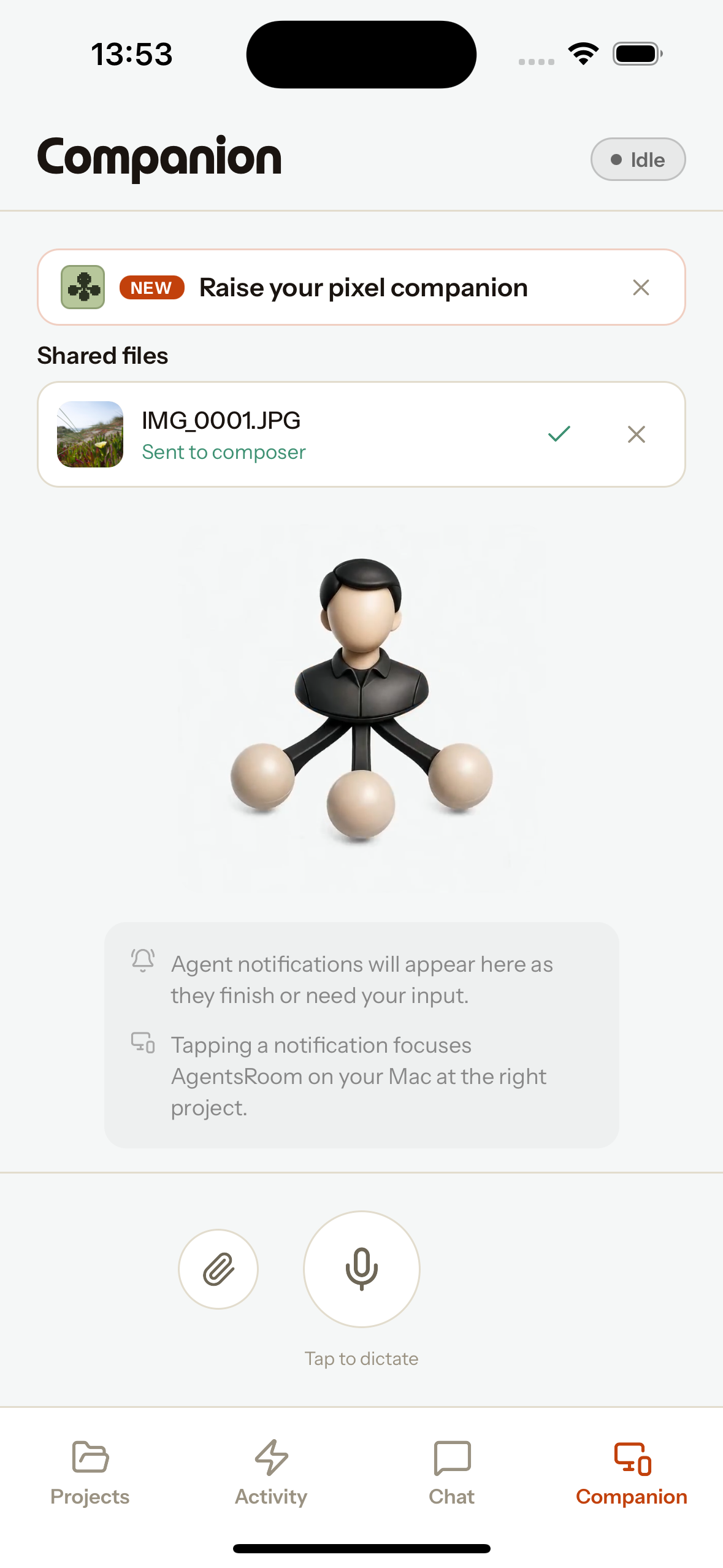
The Companion screen: dictate with the mic, attach with the paperclip, and see shared files land in the composer.
Three ways to reach your agent
Pick whatever is fastest in the moment. Voice, a file, or the system share sheet.
Dictate with your voice
Tap once to start, tap again to stop. The phone mic records, the audio is transcribed, and the text drops into the composer of your focused agent. No microphone on your dev machine? Use the one in your pocket.
Attach a photo or file
The paperclip next to the mic opens your photo library or file picker. The file lands in the agent composer as an attachment, exactly like a screenshot pasted on the desktop. Images are resized and compressed first so it sends fast.
Share from any app
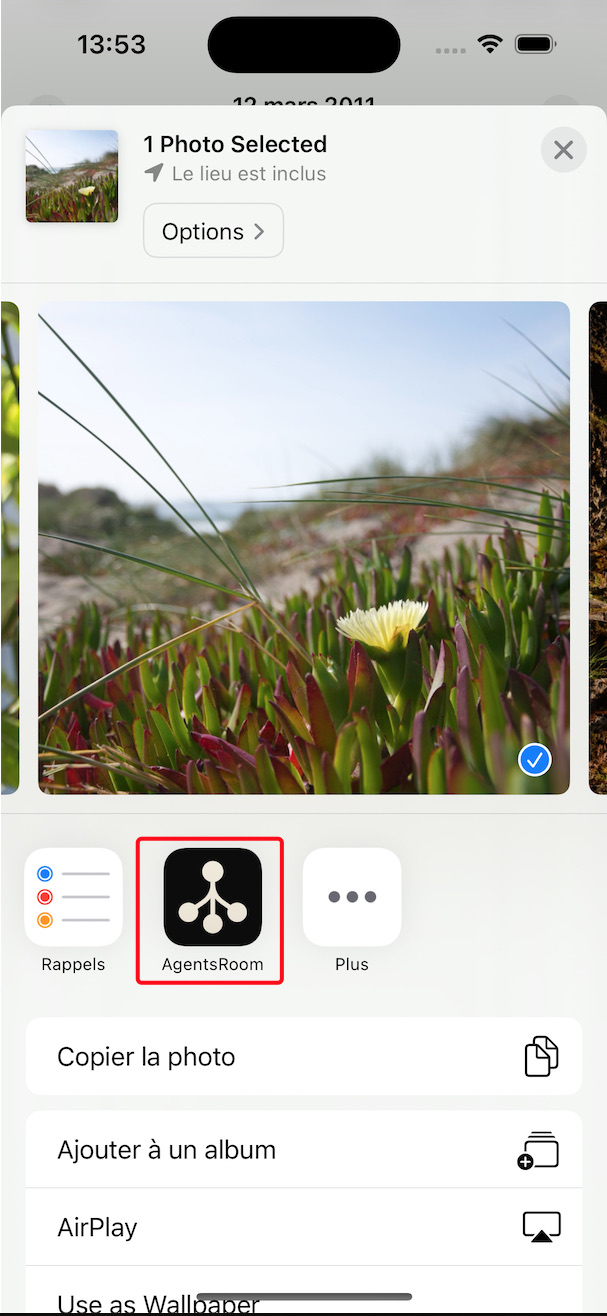
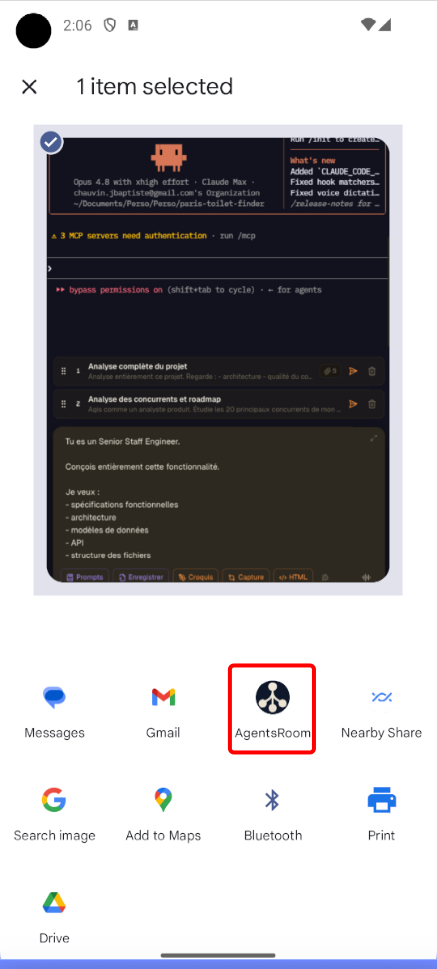
AgentsRoom appears in the iOS and Android share sheet. Shared photos open a project picker with your current project selected. Choose an agent, which starts if closed, or save the photos in a backlog task. Add instructions if needed, then send.
Built for the way you actually work
Dictation lands in the composer, not the raw terminal. That is the whole point: you talk, the transcript appears in the input, and you reread and tweak before sending. No half-finished command fired into a prompt by accident.
File attachments reuse the same path as a desktop screenshot. The image is written into the project and attached to the focused agent's composer as a real attachment chip, ready to send with your next message. For mobile dev especially, this is how you report a bug: take the screenshot on the phone, share it, done.
Shared screenshots open a separate screen above any discussion already open in the app. The current project is selected. Confirm it or search another project, choose an agent or the backlog, add instructions and send.
Dictation and picked files follow the focused desktop agent. Shared photos use the project and target you explicitly choose. An agent starts if closed; a backlog task keeps the photos in your account for later.
What is a share extension, and why it matters here
A share extension is the native way an app plugs into the system share sheet, the menu you get when you tap Share on iOS or Android. Once installed, AgentsRoom appears in that menu next to Messages, Mail and the rest. You do not open the app first: you share to it.
Tap AgentsRoom in the share sheet. Shared photos open the project picker, then the choice of an agent or its backlog. Other files keep using the Companion queue and the focused desktop composer.
What the Mobile Companion gives you
Dictation and files for the focused composer. Shared photos for a project and target you choose.
Voice dictation
Tap to talk. The phone mic records, the transcript lands in the desktop agent composer with a live voice analyzer while you speak.
File and photo attach
Pick a photo or any file from the phone and drop it into the agent composer as an attachment, no desktop needed to grab it.
iOS and Android share extension
Share screenshots from any iOS or Android app, then choose a project and an agent or its backlog.
Right project, right agent
The desktop resolves the focused agent and the open project, so dictation and files land in the exact input you are working in.
Smart image handling
Images are resized and JPEG-compressed before sending, so a phone photo goes through fast, even on cellular.
End-to-end encrypted
Agent messages and attachments use the encrypted relay. Backlog photos are stored with their task in your account.
Offline share queue
Other shared files wait in the Companion queue. Shared photos stay in the destination screen if sending fails, ready to retry.
iOS and Android
The companion, the dictation and the share extension all work on both iPhone and Android, paired with macOS, Windows or Linux.
No desktop mic needed
Dictate with the microphone in your pocket. Handy on a machine with no mic, or when you would rather talk than type.
How it works
Pair your phone with your desktop
Sign in to the same account on both. The phone and desktop talk over the AgentsRoom encrypted relay, so you do not need to be on the same WiFi.
Open the Companion screen
Open the Companion screen from Activity for dictation and file attachments. Sharing photos from another app opens the project picker directly, above any discussion.
Dictate, attach, or share
Tap the mic to dictate a prompt, tap the paperclip to attach a photo or file, or share a screenshot to AgentsRoom from any app on the phone.
Choose the destination for shared photos
Confirm the current project or choose another, then select an agent or its backlog. Dictation and picked files still land in the focused desktop composer.
Review and send
Add instructions to the shared photos, then send from the phone. A closed agent starts automatically. For the backlog, enter a title and save the task with its photos.
Desktop off? Use the backlog
Sending to an agent needs the desktop. Saving photos in the backlog only needs your account connection. A failed upload keeps the photos available to retry.
Why this is rare
Most AI coding tools live entirely on the desktop. AgentsRoom ties your phone and your IDE together in real time.
Desktop-only AI coding tools
Most editors and agent CLIs stay on the machine. To bring a phone screenshot into an agent, you copy it off the phone, move it to your computer, then paste it. The phone is not part of the loop.
AgentsRoom Mobile Companion
Dictate or attach a file from your phone to your focused desktop composer. Shared screenshots let you choose a project, then an agent or a backlog task, directly from the iOS or Android share sheet.
Talk to your agent from your phone or send a screenshot to the right project and target.
What is the AgentsRoom Mobile Companion?
What is a share extension?
Where does my dictated prompt go?
Can I send a screenshot from my phone to an AI agent?
Does it work on both iOS and Android?
What happens if I share a file while offline?
Do I need to be on the same WiFi as my computer?
Does it work with Claude Code and Codex?
Can I copy what an agent printed, from the phone?
Part of a phone-to-desktop workflow
The Mobile Companion sits alongside the rest of the AgentsRoom mobile experience: a live two-way sync with your desktop, voice dictation in the composer, and screenshot-to-agent on the desktop. Together they make the phone a real input for your agents. And when the instruction is not for the agent you have open but for your whole account, your personal assistant takes it from Siri, the Action button, a widget or the Assistant tab.


























Put your agents in your pocket
Download AgentsRoom and turn your phone into a remote for your AI coding agents.
Companion app: monitor your agents on the go
Bring your own: Claude, Codex, Antigravity CLI, or other AI provider.
Push bugs and requests straight to your public backlog.
Agents you read like a conversation
Each agent has a role, a face, and a thread you read like a messaging app.