Your backlog,
their execution
You have ten features in your head. Write them down as tasks, drag one to In Progress, and a Claude agent starts coding it. Your brain stays clear. Your agents stay busy.
Now your clients can feed the backlog
Open the same task board to your clients, designers and end users. They report bugs, request features and upvote tickets on a public feedback portal, through an embeddable widget pinned on your production site, or via the Chrome extension that captures any page with a screenshot, the exact CSS selector, the URL and the full DOM context. It's also the shortest path to pull Figma mockups, design references and visual specs straight into a ticket: drop the frame, add a two-line brief, and your agent gets the pixel-perfect context it needs. Non-technical users open a ticket in three clicks, without ever leaving the browser, and you track it all side by side with your own tasks. Every ticket lands directly in your backlog: drag it to In Progress and an agent running Claude, Codex, GitHub Copilot CLI, Cursor or any of the 10 other agent CLIs AgentsRoom supports ships it. A client-driven backlog, with zero triage tax, no parallel Jira board, no lost email.
Discover the Remote BacklogA kanban board built for AI agents
Not another project manager. A task board where dragging a card to In Progress literally starts a Claude agent on that task.
Drag to run
Move a task card from TODO to In Progress. AgentsRoom spawns a Claude agent with the task title as prompt. No buttons, no menus. Just drag.
Four-column workflow
TODO for ideas, In Progress for active agents, Pending for blocked tasks, Done for completed work. Each column shows a live count of tasks.
Assign agent roles
Assign a specific agent role to each task. Your Security Engineer handles the auth fix, your Frontend Developer builds the new component. Right agent, right task.
Live agent status on cards
Each In Progress task card shows the linked agent's status in real time: working, waiting for input, done or idle. You see progress without opening the terminal.
Attach images to tasks
Add screenshots, mockups, or design references directly to task cards. Your agents receive the visual context they need to deliver accurate results.
Parallel task execution
Drag multiple tasks to In Progress at once. Each one spawns its own agent. Five features in parallel, each with its own terminal, its own status, its own review.
Stored in your repo
Tasks are synced to the cloud and linked to your project. Team members see the same backlog. Progress persists across sessions and machines.
Offload your brain
Stop juggling features in your head. Write them down, prioritize visually, and let agents handle execution. You focus on what matters: reviewing and shipping.
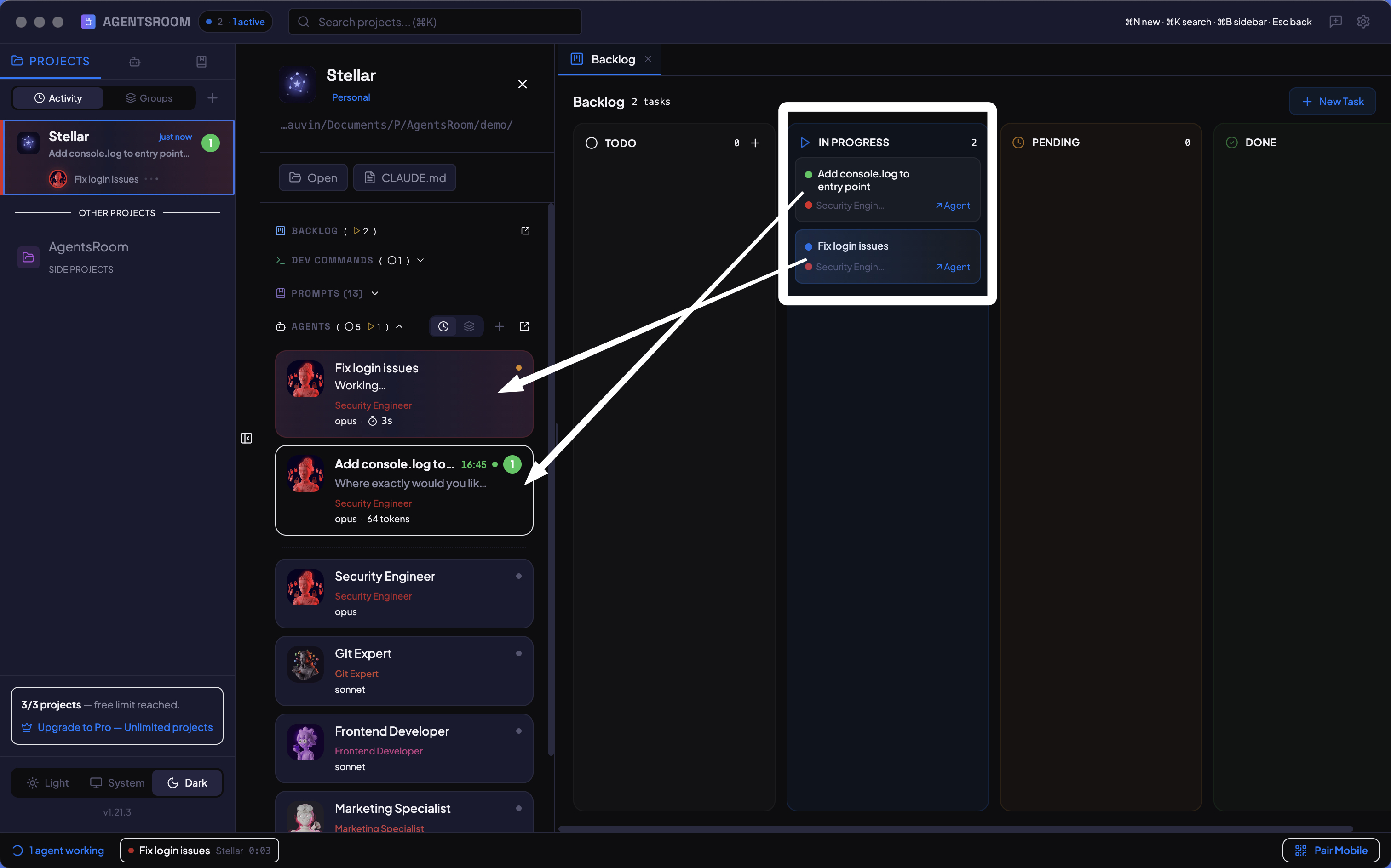
Four columns, unlimited tasks. Drag to execute, track visually.
How it works
Create your tasks
Click + New Task. Give it a title, an optional description, tags, and assign an agent role. Add screenshots or mockups if needed. Your task appears in the TODO column.
Drag to In Progress
Grab a task card and drop it into the In Progress column. AgentsRoom immediately spawns a temporary Claude agent with the task title as its prompt. The agent terminal opens automatically.
Watch agents work
Each task card shows a live status indicator linked to its agent. Yellow pulsing means thinking, green means done. Click the card to jump to the agent's terminal and see the full output.
Review and move to Done
When an agent finishes, review its changes in the diff viewer. Satisfied? Drag the task to Done. Need changes? Leave it in In Progress and give new instructions to the agent.
Repeat at scale
Add ten tasks for your sprint. Drag three to In Progress in parallel. While agents code, add more tasks you just thought of. Your backlog grows, your agents deliver, your brain stays clear.
Tasks that execute themselves
In Jira, Linear, or Notion, tasks are static cards. You read the task, then switch to your IDE, then start coding. In AgentsRoom, dragging a task to In Progress spawns an agent that starts coding immediately. The board is not just for tracking: it is the trigger.
Your tickets from GitHub Issues, JIRA Cloud and Notion
Part of the work already lives in another tool. Pick a source, connect it, choose what to bring in, preview, import. Then replay the same import whenever you want.
Three sources, one board
GitHub Issues with a repository, a state and labels. JIRA Cloud with a project or a JQL query. Notion with a database shared with the integration. You preview the result before anything lands on the board, and a search field finds the one issue you already know the key of. Only need that one? Paste its reference straight into the TODO column and it comes in on its own.
Replay the import, no duplicates
Running the same import again updates the tickets already imported instead of creating copies. Title, description, type, labels and the screenshots attached to the issue are rewritten from the source on every pass, so the two boards stop drifting apart.
Your own work is never overwritten
The assigned agent, the internal notes, the order on the board and the links between tickets survive every refresh. A ticket already in progress or done here never drops back to TODO, and an issue that leaves the query keeps its ticket.
Read only, never written back
The import reads, and only reads. Nothing is ever pushed back to GitHub, JIRA or Notion: no status change, no comment, no issue closed, even once the ticket ships here.
The token stays on your machine
Your access token is encrypted locally and never reaches our servers. Only the query is saved on your account, so the refresh follows the project from one machine to the next.
Every ticket says where it comes from
An imported ticket shows its source, links back to the original issue one click away, and can be brought back in step on its own without replaying the whole query. Setup happens on the desktop; from the phone you can refresh the whole import or bring in a single ticket, and both run on your computer.
A board for ideas that have no project yet
Some ideas are not ready for a repository. Drop them in the idea box, a kanban attached to your account rather than to a project, and move each ticket to the right board the day it becomes real work.
Tickets without a project
The idea box is a regular backlog board with one difference: it belongs to you, not to a repository. Write the idea down as a ticket, with a description, tags and screenshots, and stop carrying it in your head. It is synced on your account like every other board, and the mobile app opens it from the lightbulb icon in the projects list.
Move a ticket to another board
From the card menu, or with several tickets selected, choose Move to another board and pick a project. The ticket travels as is, with its description, its attachments and its history, and lands at the top of its column. It also works between two projects, for the ticket that was filed on the wrong board.
Starting an idea means moving it
The idea box never starts an agent: there is no project to run it in. Drag an idea to In Progress, or press Start, and AgentsRoom asks which project to move it to. The board follows the ticket, and the agent starts there, on real code.
Change board without closing it
The project name at the top of the board is a menu: the idea box first, then the projects open in this session, then the others. Pick one and the board switches to it, without closing the window and clicking through the sidebar.
FAQ
How does dragging a task to In Progress start an agent?
When you drop a task into the In Progress column, AgentsRoom creates a temporary agent with the task title as its initial prompt. If you assigned a specific agent role to the task, that role's system prompt is used. The agent's terminal opens automatically so you can watch it work.
Can I run multiple tasks in parallel?
Yes. Drag as many tasks as you want to In Progress. Each one spawns its own agent with its own terminal. You can run five, ten, or twenty tasks at the same time, limited only by your machine and your provider's rate limits.
What happens if an agent finishes but I am not satisfied?
The task stays in In Progress. You can give new instructions to the agent directly from its terminal. When you are happy with the result, drag the task to Done. You can also move it to Pending if you need to wait for something else before continuing.
Are tasks shared across my devices?
Yes. Tasks are synced to the AgentsRoom cloud and linked to your project via a stable backlog ID stored in .agentsroom/project.json. Any device with the same project sees the same backlog.
Can I attach images or screenshots to tasks?
Yes. Each task supports image attachments. Add mockups, screenshots, error captures, or design references directly to the task card. These are uploaded and stored securely.
Can I merge duplicate tickets?
Yes. Select several tickets on the board, or use the card menu, and merge them into one. The AI recombines their titles and descriptions into a draft you edit before confirming, upvotes add up, and comments, screenshots and links move to the survivor. The rule that matters: no reporter is ever lost. Everyone who reported an absorbed ticket stays subscribed to the survivor and is notified when the fix ships, and the public links already sent to them redirect to it.
Can one ticket run on a different provider or model from the rest?
Yes. A ticket can pin its own provider, model, reasoning effort, account profile and skills, and those overrides win over the default agent profile when the ticket spawns its agent. Columns can also be sorted on demand, on desktop and on mobile, and agents can create, update, comment, reorder and delete tickets over MCP without leaving the terminal.
Can a ticket wait for another one to be finished?
Yes. Link two tickets as blocks and blocked by, and the board enforces the link instead of just documenting it: while the blocker is still open, the blocked ticket sits in Pending rather than TODO, so Start next never picks it up. It returns to TODO on its own when the last blocker closes, and goes back to Pending if that blocker is reopened. A ticket already in review or done is never parked, and a ticket you parked by hand stays where you put it. Agents handle the links themselves over MCP: one that discovers a prerequisite mid-run creates that ticket and links it in a single call, and a ticket that turns out to be blocked while in progress is moved out of the way without killing the terminal running it.
Where do I keep ideas that do not belong to any project yet?
In the idea box, a board attached to your account rather than to a project. Open the backlog board of any project, click the project name at the top and pick Idea box. Tickets there work like the others: title, description, tags, screenshots, synced on your account and visible from the mobile app. The one thing the idea box cannot do is start an agent, since there is no project to run it in: starting an idea opens the move dialog, and the ticket runs on the project you pick.
Can I move a ticket to another project?
Yes. Open the card menu, or select several tickets, and choose Move to another board. The ticket keeps its description, its attachments and its history and lands at the top of its column on the target board, from the desktop or from the ticket detail on the phone. Two things are left behind on purpose: the agent assigned on this machine, and the links to other tickets, because a dependency between two boards could not be seen from either. A ticket reported by a client through the public backlog never moves: its public page and its conversation thread belong to the board it was submitted to.
Does a ticket keep a history of its versions?
Yes, since AgentsRoom 1.194.0. Every save that changes a ticket's text or configuration (title, description, type, tags, private note, assigned agent or team, skills, provider, model, reasoning effort, account profile, worktree options, reviewer) keeps the previous version, including a change made by an agent through MCP. On the desktop, open History from the ticket header to compare any earlier version with the current one and restore it; on the phone the version is loaded into the ticket form as a draft and saved normally. Board state is not versioned: dragging a card, changing its priority or marking it won't fix creates no version. The same history now exists for scheduled agents and for memory notes (memory on the desktop only), next to the one prompts and skills already had.
Can my agents leave notes on a ticket for the rest of the team?
Yes. Every ticket has a Comments section, the team's internal thread: you write in it from the ticket, your agents through the AgentsRoom MCP, to log progress, a hand-off, a blocker or a question. It is never shown to the person who reported the ticket and never emailed. The card shows how many comments a ticket has, and an agent started on the ticket reads the latest ones before it begins. In the project settings you can name a lead agent, a role such as the product manager or one saved agent: each time another agent comments, the lead gets a message so it can answer on the ticket, reassign it or bring you in.
How do I see which tickets will run in their own worktree?
On the card. A ticket set to run in a separate worktree shows its branch name at the bottom of the card, on the desktop and on the phone, and hovering it gives the full branch and whether it merges back on its own. Two tickets planned in parallel no longer look like two tickets sharing the same checkout.
You may also like
Ticket scoping
Before an agent builds a feedback ticket, scope it: a Product Manager AI agent frames the request into a mockup faithful to your product and validates it with the reporter.
Public remote backlog
Let clients and teammates file feedback tickets that land straight in the backlog your agents execute against.
Further reading
A Feedback Board for AI Agents: Let Your Users Write the Prompt
Feedback tools collect requests. None of them can build one. When the board your users write into is the same board your coding agents execute from, the rewriting step disappears.
How to Run 3 to 8 Coding Agents in Parallel Without Losing Track
Launching multiple Claude Code or Codex agents at once is easy. Keeping control is where it falls apart. Here's the method that actually works.
Agents Write the Code Now. Here Is What the Developer's Job Became.
Writing code was one link in a six-link chain, and it is the link agents took. The other five got heavier. A walkthrough of the job that is left: hearing what to build, deciding, briefing, running, reviewing, shipping.
Turn your backlog into running agents
Download AgentsRoom and start dragging tasks to execution. Free for up to 2 projects.
Companion app: monitor your agents on the go
Bring your own: Claude, Codex, Antigravity CLI, or other AI provider.
Push bugs and requests straight to your public backlog.