Every AI agent on screen,
side by side, in one window
AgentsRoom split view tiles your workspace into multiple panes so you can see several AI agent sessions at the same time. A Claude Code agent on the backend in one pane, a Codex agent on the frontend in another, a Antigravity QA agent in a third: it's all visible at a single glance.
Drag one agent's terminal onto another, drop it on an edge, and the screen splits into columns or rows. Switch the whole layout between horizontal and vertical in one click. Color-coded roles on every pane, live status, the focused pane highlighted. Total visibility over your fleet of parallel agents.
Drag an agent onto an edge: right for a column split, bottom for a stacked row split. Switch horizontal and vertical in one click.
Parallel multi-agent work has a blind spot: visibility. You launch three, five, ten AI agents, but a classic terminal only shows you one at a time. You spend your day clicking from tab to tab to check who's progressing, who's done, who got stuck. AgentsRoom split view fixes that by showing several agent sessions at the same time, side by side, in one window.
The idea is a tiling window manager, but built for AI agents. You grab one agent's terminal, drag it onto another pane, and depending on the edge you drop it on, the screen splits into columns (left/right) or stacked rows (top/bottom). It's the exact gesture from iTerm2, except here each pane isn't an anonymous shell: it's an agent with its role, its color, its avatar and its live status.
In practice: you put your backend agent and your frontend agent side by side to watch them progress in parallel, you add a third pane for the QA agent, and you keep an eye on all three while they work. No more tab-hopping. No more blind checking. A full overview, all the time.
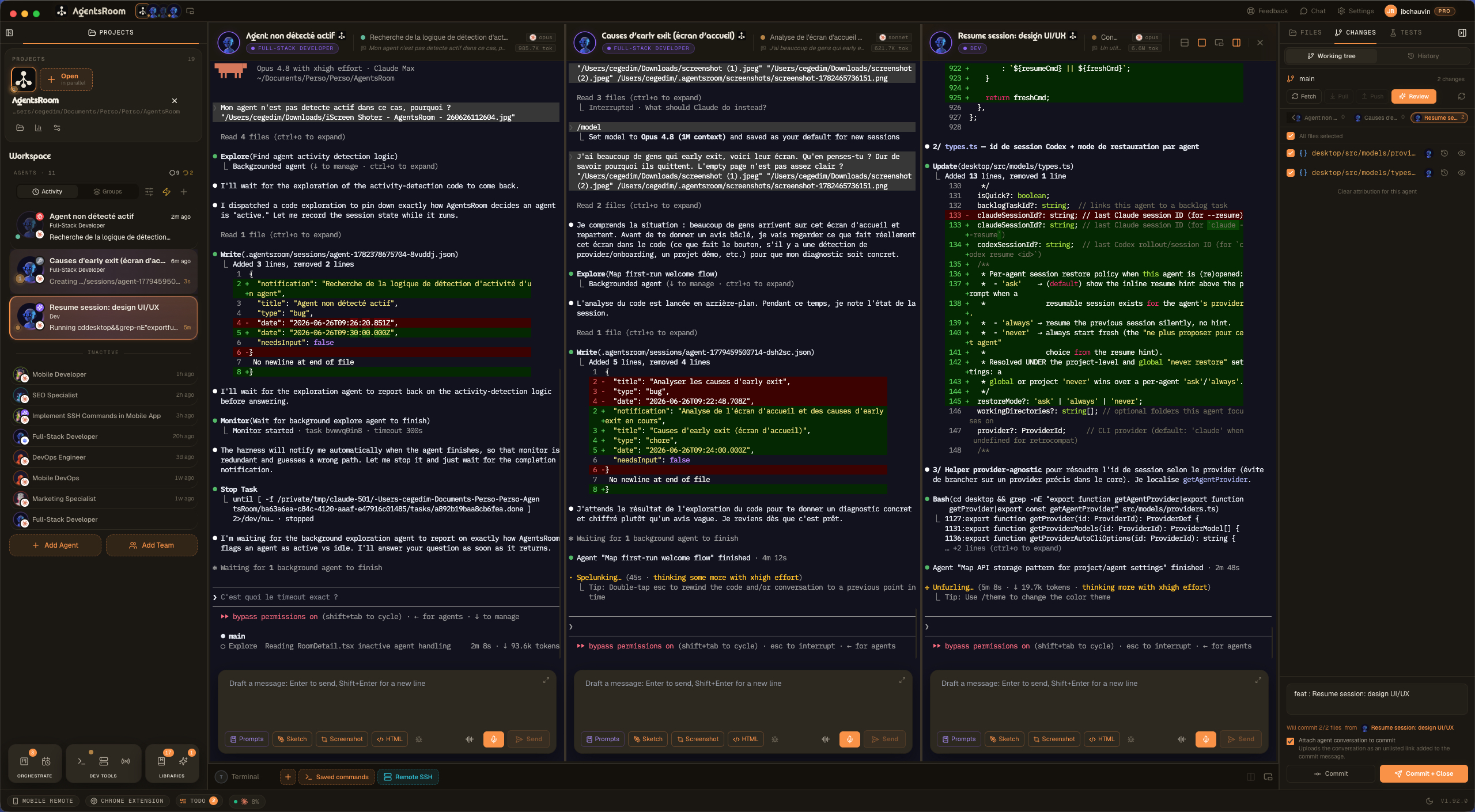
AgentsRoom split view in real conditions: several AI agents side by side, each in its own pane, with its role color and status. You follow multiple parallel sessions at a single glance.
Why an agent-aware split view changes everything
When you watch a single agent, any terminal will do. When you drive five in parallel, the problem isn't launching them, it's watching them: knowing, to the second, which one is working, which one finished, which one is waiting on you. A single-view terminal forces you to click to check. Split view shows it.
Tiling the workspace does exactly that job. Each agent gets its own pane, keeps its role color and shows its animated status dot. The active pane gets a focus ring in the role color, inactive panes are slightly dimmed. You spot the working agent, the finished one and the stuck one without reading a single line.
The split is N-way: you're not capped at two panes. Tile into two, three, four panes depending on your screen real estate and your number of agents. The whole layout shares one orientation (columns or rows) that you flip with a click: columns to compare output across the width, stacked rows to follow long conversations down the height. On a large monitor, three or four agents sit comfortably side by side.
And the layout is persistent. AgentsRoom remembers your pane groups and their orientation per project. Close the app at night, reopen it the next day: your split is restored exactly, gone agents are filtered out cleanly, you pick up right where you left off. Split view isn't only for agents: your dev command terminals (server, build, tests) split the same way, with a right-click Split Horizontal / Split Vertical.
Pinning is what turns the split into a workspace. Without it, clicking an agent that is not on screen swaps the whole layout for that agent's own one, so the pair you had assembled falls apart the moment you go read something else. Pin a pane and it keeps its slot: the agents you browse take the pane next to it, one after the other. Pin two or three and the pinned panes become the fixed frame of your screen, with a single free pane cycling through the rest of your fleet. You pin from the pane header or by right-clicking any agent in the sidebar, and the layout comes back pinned the next time you open the project.
Two orientations, one click to switch
Split view works both ways. Columns side by side to compare terminal output across the width, stacked rows to follow a long conversation down the height. Switch the layout without losing anything.
Everything the multi-pane split view does
Tiling built for visibility: see several agents at once, read their status at a glance, organize the screen however you want.
Drag-and-drop split
Drag one agent's terminal onto another pane and drop it on an edge. The gesture is instant, no menu and no shortcut to memorize.
Pinned panes
Pin an agent and its pane stops moving. Every other agent you open lands in the pane beside it, so your reference session, your architect or your test runner stays in view all day.
Edge drop, iTerm2 style
The targeted edge decides the split: left or right for columns, top or bottom for stacked rows. The targeted half highlights during the drag.
Horizontal and vertical
Panes side by side in columns or stacked in rows. Flip the whole layout with one click via the orientation button in the toolbar.
N-way split
Two panes, three, four: tile as much as your screen and your agents allow. No hard-coded limit, your monitor size is the real cap.
Status per pane
Each pane keeps its agent's role color, avatar and animated status dot. Working, done, waiting for input: visible on every pane.
Active pane highlighted
The focused pane gets a ring in its role color, the others are slightly dimmed. You always know where you're typing.
Layout restored
Your pane groups and their orientation are saved per project and restored on relaunch. No setup to redo every morning.
Background groups
Click a different agent: its pane shows, and your previous split stays alive in the background. Come back and it's intact.
Works for dev terminals too
Server, build, tests: your command terminals split like agents, with a right-click Split Horizontal or Split Vertical.
How it works day to day
Launch several agents on a project
Open a project, add your agents with their role (DevOps, Frontend, QA, Architect). At first, a single agent terminal fills the view.
Drag an agent onto an edge
Grab a second agent's terminal by its badge and drag it toward the right edge of the pane. The right half highlights to show where it will land.
Drop to split into columns
Release: the screen tiles into two side-by-side panes. Your two agents now progress in parallel, in front of you, each in its own column.
Add a third pane
Drag a third agent onto an edge to add a column, or switch orientation to stack the panes into rows. Three agents, one view.
Flip horizontal or vertical in one click
The orientation button in the toolbar flips the whole layout from columns to stacked rows and back. Pick whichever fits what you're comparing.
Get your split back on relaunch
Close AgentsRoom, reopen it: your panes, their group and their orientation are restored per project. You pick up exactly where you were.
iTerm2, tmux or Zellij splits: what's the difference?
Split-screen has been in terminals forever. But it tiles anonymous shells. AgentsRoom split view tiles AI agents, with everything that comes with them.
iTerm2, Warp, Ghostty, Kitty, WezTerm
Great at splitting shells. But a pane is still a terminal with no role, no color, no status. At five panes you've lost track of which is which.
tmux, Zellij, screen
Powerful multiplexers with panes, layouts and shortcuts. Except you need a config and muscle memory, and your agents still have no avatar and no visible status.
AgentsRoom Split View
Each pane is an agent: role, color, avatar, animated status, focus ring. Drag-and-drop split, one-click orientation, layout restored per project. Split-screen built for multi-agent.
Split view isn't just one more terminal gadget. It's the piece that makes parallel multi-agent work genuinely legible: several sessions on screen, each identifiable at a glance, never losing the thread.
FAQ
How do I split the screen between two agents?
Grab one agent's terminal by its badge at the top of the pane, drag it onto another agent's pane and drop it on an edge. Left or right edge: the screen tiles into side-by-side columns. Top or bottom edge: the panes stack into rows. The gesture is the iTerm2 one, and the targeted half highlights during the drag to show where the pane will land.
How many panes can I show at once?
There's no hard-coded maximum. The split is N-way: two, three, four panes and beyond. The real limit is your screen size and the number of agents in the project. On a large monitor, three or four agents sit comfortably side by side.
Can I split both horizontally and vertically?
Yes. The whole layout shares one orientation that you flip with a click: side-by-side columns (horizontal split) or stacked rows (vertical split). The edge you drop a pane on during the drag also sets the orientation. The orientation button in the toolbar flips the whole layout between the two modes.
Is my pane layout kept when I restart?
Yes. AgentsRoom saves your pane groups and their orientation per project, and restores them on reopen. Agents that no longer exist are filtered out cleanly, so you get a coherent split back, exactly where you left it.
If I click a different agent, do I lose my split?
No. Clicking an agent that isn't in the split shows its pane, but your split group stays alive in the background. Come back to one of its agents and the split reappears intact, scrollback and context preserved.
Does split view work for dev command terminals?
Yes. Your command terminals (dev server, build, tests, watchers) split exactly like AI agents. Right-clicking a terminal offers Split Horizontal and Split Vertical, with the same interaction and the same persistence.
Can I mix agents from different providers in one split?
Yes. Because each pane is an independent session, you can have a Claude Code agent, a Codex CLI agent and a Antigravity CLI agent side by side in the same split, each with its own role and color. Split view is provider-agnostic.
Is split view available on the mobile app?
The drag-and-drop multi-pane split view is a desktop app feature, where you have the screen room to show several panes. On mobile, you follow your agents one at a time with their live status and switch between them, synced in real time with the desktop over the encrypted relay.
How is pinning different from simply splitting the view?
A split shows several agents at once, but it stays tied to the agent you have focused: click an agent that is not on screen and the app switches to that agent's own layout, so the split you assembled disappears. Pinning breaks that link. A pinned pane is never the one a click reuses, so it stays exactly where it is while the agents you open take the panes around it. Pin as many as you want: every pinned pane holds its slot, and the free pane follows you. Pins are saved per project and restored when you relaunch.
Does Claude Code have a split screen mode of its own?
No. Claude Code is a single terminal session: one prompt, one conversation, one column of output, and nothing in the CLI splits the screen. When people run several Claude Code sessions side by side, they split the terminal around it instead: tmux or Zellij panes, the split terminal of VS Code or Cursor, iTerm2 or Ghostty panes. That works, but every pane is a plain terminal, so nothing tells you which session is waiting for you, which one has finished, or which project each one belongs to. AgentsRoom split view is that same side-by-side layout with the agent awareness added: each pane carries the agent's name, its role color and its live status, the layout survives a relaunch, and Codex, Antigravity and the other agent CLIs sit in the same grid as Claude Code.
Split view, a piece of the multi-agent cockpit
Split view is the display layer of the AgentsRoom multi-project, multi-agent cockpit. The sidebar gives you the overview of all your projects and agents; split view zooms into one project and puts several of its agents side by side.
And if you also split your dev servers and commands, take a look at AgentsRoom dev terminals: same panes, same drag-and-drop, plus a detachable window and remote command launch from mobile.
Further reading
Too many terminals, too many AI agents: the cognitive debt slowing you down (and how to get out)
Juggling ten AI-agent terminals builds a cognitive, documentation and financial debt that costs you time and tokens. Here is how to take back control.
Git worktrees: the foundation for running multiple AI agents without conflicts
Your agents overwrite each other when they run in parallel. Git worktrees fix it in two commands. Here's how to use them.
Put every AI agent on screen
Download AgentsRoom and tile your workspace into as many panes as you have agents. See several sessions at once, side by side, without ever losing the thread. Free for up to 2 projects.
Companion app: monitor your agents on the go
Bring your own: Claude, Codex, Antigravity CLI, or other AI provider.
Push bugs and requests straight to your public backlog.