Your GitLab issues,
worked by the agent you choose
The milestone lives in GitLab. The bugs and tasks of the project are there, with their labels, their description and the screenshots dropped into them. What you want is an agent on each of them, on your own machine, in the CLI that suits the task.
AgentsRoom imports the issues of a GitLab project into the project's backlog, with their Markdown description, their labels and their attached files. Each one becomes a ticket you hand to Claude Code, Codex, GitHub Copilot CLI, Cursor or another agent CLI, one agent per ticket. The import only reads: nothing is ever written back to GitLab.
Two GitLab projects, a state and a label, one agent per ticket: the import reads GitLab and never writes to it.
GitLab is where a lot of teams keep the work: the issue board, the milestone, the bug a customer reported this morning. Claude Code, Codex and the other agent CLIs are where more and more of that work gets done. Between the two, the usual method is copy and paste: the title into a prompt, the description after it, the screenshots lost on the way because they sit behind your GitLab login.
The GitLab Issues import does that step for you. You connect GitLab, gitlab.com or your own instance, with the GitLab CLI or a personal access token, you pick a project, a state and labels, you preview the issues and import them. They land in the TODO column of the project's backlog as ordinary tickets, with the description, the labels and the attached files, and you start an agent on each one like on any other ticket.
It is not a two-way sync. AgentsRoom only sends read requests to GitLab: no label changed, no comment, no issue closed. If you want an agent to comment on an issue or close it, that is what GitLab's own MCP server is for, and the two work together, as explained below.
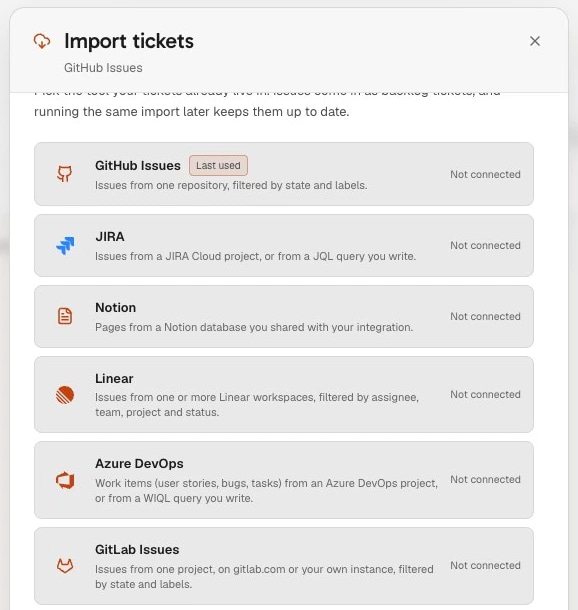
What the GitLab Issues import does
One more source on the backlog, next to Jira, Linear, GitHub Issues, Azure DevOps, YouTrack and Notion.
A project, a state, labels
Pick the project from your list, with a search field when there are dozens, or type group/project; the project address or its clone URL work too. Choose open, closed or all issues and add labels to narrow it down. The query is saved with the project, so Refresh replays it later.
One issue, by its number
Only need the bug you were just given? Paste group/project#42, #42 alone for the project the board already imports from, or the issue link (the /-/issues/ and /-/work_items/ forms both work) with the import button of the TODO column. It arrives on its own, at the top of the column.
Description and context included
The import keeps GitLab's Markdown as written, with the links to uploaded files made absolute, and adds a short context block for what a ticket has no field for: the work item type when it is not a plain issue, the milestone, the assignees, the due date and the weight.
Files the agent can open
Images and files dropped into an issue sit behind your GitLab login, so a link would be useless to the agent. The import downloads them on your computer, from the instance you connected, and attaches them to the ticket: up to 10 per issue, 8 MB each, from GitLab 17.4 on.
Labels that set the type
Every label becomes a tag. Common labels such as bug, enhancement, documentation, security or performance set the ticket type, and so do GitLab's scoped labels (type::bug, kind::, category::). Without one, an incident becomes a bug and a test case a test. A closed issue arrives as done.
Read only, token on your machine
The import sends read requests only. With the GitLab CLI, its own sign-in is reused; with a personal access token, read_api is enough, and the token is encrypted on your computer and never reaches our servers.
How it works
Four steps. The first one happens once per machine.
- 1
Connect GitLab
In the project's backlog, click Import tickets and pick GitLab Issues. Keep gitlab.com or enter the address of your own instance, then click Connect with GitLab CLI if glab is signed in on the computer, or paste a personal access token with the read_api scope.
- 2
Choose the project and the filters
Pick the project from your projects or type group/project, then choose a state (open, closed or all) and, if you want, labels separated by commas.
- 3
Preview and import
Click Preview. Search the list by number or title, tick the issues you want and import them, up to 500 at a time.
- 4
Hand each ticket to an agent
The issues are now tickets in TODO, each with a link back to GitLab. Assign an agent and a model, tick Code in a separate worktree for this task if you want it on its own branch, and drag the ticket to Development. Refresh brings the board back in step later.
What GitLab and the agent CLIs already do on their own
GitLab has its own MCP server, generally available since GitLab 19.5 (October 2026) on the Free, Premium and Ultimate tiers, for gitlab.com, self-managed and Dedicated. It answers at your instance address followed by /api/v4/mcp, signs in with OAuth or a fine-grained personal access token, and the top-level group (on gitlab.com) or the instance must allow access to the MCP server. GitLab's documentation gives claude mcp add -s user --transport http GitLab https://gitlab.example.com/api/v4/mcp for Claude Code, and codex mcp add GitLab --url "https://gitlab.example.com/api/v4/mcp" followed by codex mcp login GitLab for Codex.
Its tools search, read, create and update work items such as issues, add comments, and work on merge requests and pipelines, with the permissions of your account. The experimental glab mcp serve command was removed from the GitLab CLI in version 1.131.0 in favour of this server. GitLab also runs agents inside GitLab: on Premium and Ultimate, the GitLab Duo Agent Platform can turn an issue into a draft merge request, and Claude Code and Codex can be mentioned or assigned in an issue as external agents. Facts checked on GitLab's documentation on 17 November 2026.
The AgentsRoom import answers another need: the issues on a board, next to the rest of your tickets, with one agent per issue on your own machine and in the CLI you choose, without giving any of them write access to GitLab. The two are not exclusive: import the issues to plan and run the work, and give an agent the GitLab MCP server when it should comment on or close its issue itself.
What to know
- One GitLab instance per computer, gitlab.com or self-hosted, the same connection the repository import uses. To import from a second instance, connect it instead of the first.
- One way only: nothing goes back to GitLab, even once the ticket ships here. Close the issue yourself, let the merge request close it, or give the agent the GitLab MCP server.
- The connection stays on the computer that made it. On another machine, you connect GitLab again before you refresh the import there.
- Up to 500 issues per import, and up to 10 attached files of 8 MB per issue.
- Files are attached from GitLab 17.4 on. On an older instance, only the files of public projects come along.
- Comments, linked issues, epics, tasks and merge requests are not imported: the ticket carries the title, the description, the context block, the labels as tags and the files.
- Connecting GitLab and choosing the filters happen on the desktop. From the phone you can refresh the import or bring in one issue by its number; both run on your computer, which must be on.
Frequently asked questions
Ask us something elseIs this the same thing as the GitLab MCP server?
Can Claude Code work on GitLab issues?
Does Codex work with GitLab?
Does AgentsRoom close the issue when the agent is done?
Can I import only my issues, or only one milestone?
Can I bring in only the issue I was just assigned?
Does it work with a self-hosted GitLab?
Does my GitLab token leave my computer?
You may also like
Ticket import
Bring your Jira, Linear, GitHub Issues, GitLab Issues, Azure DevOps, YouTrack or Notion tickets onto one backlog and hand each one to Claude Code, Codex, Cursor or any agent CLI on your own machine. Read only.
Repository import
Connect GitHub or GitLab, browse the repositories you actually have access to, and clone several at once. Each one becomes a project with its own AI coding agents. Self-hosted GitLab instances supported.
GitHub Issues import
Import GitHub issues into AgentsRoom and hand each one to Claude Code, Codex, Cursor or any agent CLI on your own machine. Filter by state and labels, one agent per issue. Read only.
Task management
Visual kanban board to orchestrate AI agents with drag-and-drop. Create tasks in TODO, drag them to Development to automatically spawn a Claude agent, and track completion through Pending and Done columns. Backlog-driven development for parallel AI coding.
Git Worktrees
Give each AI agent or ticket its own git worktree, ready to build (dependencies installed, .env copied), then review, commit and merge it from one window.
































Bring your GitLab issues to your agents
Download AgentsRoom, open your repository as a project, then click Import tickets in its backlog and pick GitLab Issues.
Companion app: monitor your agents on the go
Bring your own: Claude, Codex, Antigravity CLI, or other AI provider.
Push bugs and requests straight to your public backlog.