A scratchpad for your
AI agent prompts
Stop drafting prompts directly in the terminal, or in a separate Notes or Obsidian window. The AgentsRoom composer sits under every agent, and the Expand button turns it into a proper Compose panel. Write, reread, revise, polish long and structured prompts, then send the whole thing to that agent in a single keystroke.
Every agent keeps its own draft, and it is still there when you come back, even after you quit the app or restart your computer. Press Cmd/Ctrl+Enter to send. Save a good draft as a reusable prompt in one click. A real prompt editor, built into the app.
AgentsRoom Scratchpad : the prompt editor of the agent composer, with a docked mode and an expanded Compose panel, and one keystroke to send.
The Scratchpad is the drafting side of the AgentsRoom composer, the text area sitting under each agent terminal. Docked, it gives you room for a paragraph. Click Expand and it opens a near-fullscreen Compose panel for the longer prompts you restructure four or five times before sending. The composer keeps whatever you were writing, so you never lose the draft you left half-finished.
It was designed for one simple problem : writing a good, structured, multi-paragraph prompt for your AI coding agent without typing it straight into the terminal, where every return key can fire the prompt too early, where going back to fix a line is painful, and where your text disappears the moment the window closes. And without opening Notes, Obsidian or VS Code on the side just to copy-paste into the shell.
Instead, the composer gives you a proper writing space, inside the app, right under the agent it targets. What you type stays safe, and one keystroke sends the whole prompt to that agent. No more half-executed prompts, no more broken pastes, no more lost drafts.
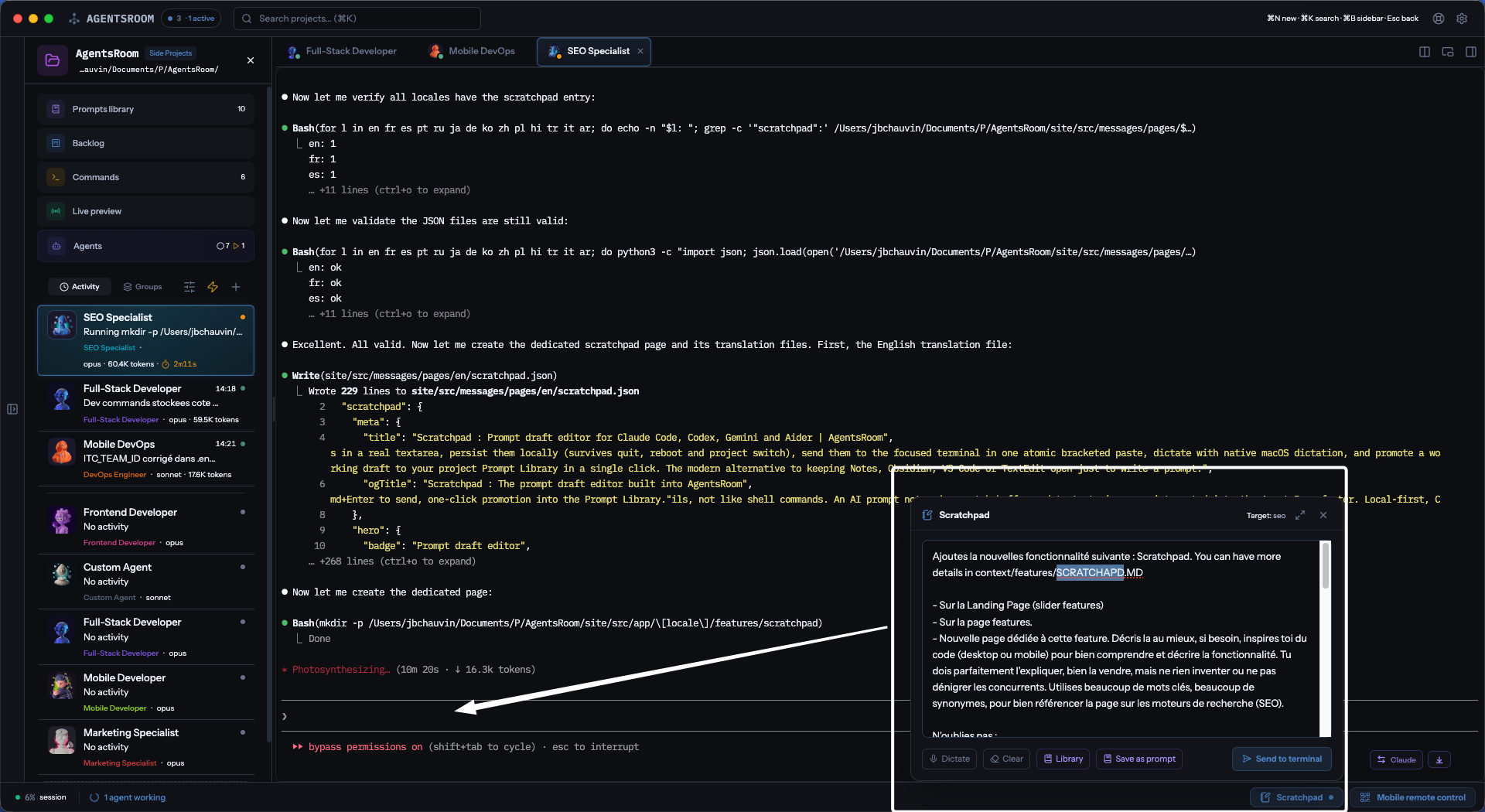
AgentsRoom Scratchpad : the prompt editor of the agent composer, one Expand away.
A real editor, not a single-line input
The composer is a proper text area, not a one-line input. Docked, it gives you plenty of vertical space for a few paragraphs. Expanded, the Compose panel fills the window so you can write a 500-word prompt, a detailed spec or a structured plan without squinting. The expanded state is remembered, so the editor opens the way you like it, every time.
Your draft is saved automatically as you type, per agent. Collapse the panel, switch to another agent, switch project, quit the app, restart your computer, come back tomorrow : each agent's prompt is still exactly where you left it. This matters. A good prompt is rarely one-shot. You write a first pass, you step away, you come back, you notice the missing piece, you fix it, you send. The composer is the buffer that lets you work that way.
Sending is simple and predictable. Each composer belongs to one agent and sends to that agent, so there is no target to pick and nothing to guess. If the agent is mid-turn, the message is queued rather than dropped. No hidden picker, no surprise.
The prompt arrives clean. No premature execution, no broken lines, no missing characters. Your text lands in the agent exactly the way you wrote it, even if it spans five paragraphs and includes blank lines, tabs or special characters. So you can stop worrying and focus on the content of the prompt, not on the plumbing.
Everything you need to write a great AI prompt
A focused editor, a draft per agent, a bridge to your Prompt Library, a keyboard-first sender. All in the composer you already type in.
A real text area, not a terminal
Plenty of room for long prompts. Proper backspace, cursor, selection, copy-paste, multi-line editing. You write a prompt the way you write an email : with care.
One draft per agent, never lost
Everything you type is saved on your machine automatically, keyed to the agent you were writing to. It survives app quit, computer restart, agent switch and project switch. Come back tomorrow : your prompt is still there.
Docked and expanded modes
Docked for a quick paragraph, Expand for a near-fullscreen Compose panel and 500-word prompts. One click to toggle, and the state is remembered between sessions.
Clean, complete delivery
Your prompt is sent to the agent as one block. Every line break, tab and special character is preserved. No premature execution, no partial paste, no surprise.
Cmd/Ctrl+Enter to send
Keyboard-first. Press Cmd/Ctrl+Enter in the expanded Compose panel and the full prompt goes straight to that agent's terminal. No mouse, no menu, no friction.
Sends to its own agent
Every agent has its own composer, and it sends to that agent. No picker, no ambiguity, and a message written while the agent is mid-turn is queued instead of being lost.
Visual send confirmation
A quick green Sent indicator flashes after delivery, then the button returns to normal. Zero doubt that the prompt actually reached the agent.
Draft stays after sending
After sending, you keep control of the buffer : edit, resend, rephrase, iterate. Clear wipes the draft when you decide it is done.
Dictate, built in
Click Dictate and speak. The microphone lives in the composer itself : the recording is transcribed and the text lands in your draft at the caret, ready to reread. No system setting to configure, no second app.
Save as reusable prompt
A good draft becomes a reusable prompt in one click. Save opens the Prompt Library pre-filled, ready to name and file. Your team inherits it with the project.
Prompt Library, one click away
Click Prompts : the project Prompt Library opens without touching your draft. Pick a snippet, close, come back, your work is intact, ready to complete and send.
Stays on your machine
The draft is on purpose kept on your own machine. Nothing leaves your machine. If you want a prompt shared across machines or teammates, save it as a reusable prompt in the Library.
Keep only the buttons you use
Every composer action, Dictate, Prompts, Save, Sketch, Screenshot, can be hidden from the settings. All of them are on by default so you discover them, none of them is mandatory.
Your prompt arrives whole, every time
If you have ever pasted a long prompt into a terminal and watched it run halfway through, you know the problem. A blank line between two paragraphs becomes a premature Enter, and your prompt breaks into two separate commands, neither of which makes sense.
The composer solves this. Your text is sent to the agent as one single block, exactly as you wrote it. Your paragraphs stay paragraphs, your blank lines stay blank lines, nothing runs too early. The difference between writing a good prompt and fighting the terminal.
Your prompt is never lost
Every character you type is saved to your machine as you type it, under the agent you were writing to. The composer picks up exactly where you left it, no matter what happens in between.
This is deliberate. A good prompt takes time. You start it, you walk away, you come back. You answer another agent for ten minutes, you switch to another project for thirty, you return. You quit the app at 7 PM, you open it again at 9 AM. Your draft is always there. Your half-rewritten plan is always there. Your five-paragraph brief is always there.
Dictate your prompt, out loud
The microphone is part of the composer. Click Dictate, speak, click again to stop : the recording is transcribed and inserted into your draft at the caret. Nothing is sent automatically, so you reread the text, fix the one word that came out wrong, and press Enter when you are ready.
There is no system setting to arm first and no second app to open. Think out loud on the walk to your desk, dictate a prompt while pacing the kitchen, turn a messy thought into a clean multi-sentence brief for your agent without ever touching the keyboard.
A bridge to your Prompt Library
Two buttons link the composer to your project Prompt Library. Save pushes your current draft into the library as a named, reusable template. It can now travel with your project, be shared with your team and reused anytime you need that exact prompt again.
Prompts opens the full Prompt Library without touching your draft. Browse your saved prompts, copy a snippet, see what worked last week, then close : the composer is still right there with your in-progress prompt exactly as you left it. A clean back-and-forth between the buffer and the library, one click each way.
The two bad options developers used to have
Option A : type the prompt directly in the terminal. No proper rereading. No comfortable correction. Zero persistence if the window closes. Terminals are interactive command lines. They were not designed to compose a structured 500-word brief for a coding agent.
Option B : open Notes, Obsidian or VS Code on the side, draft there, then copy-paste into the terminal. Flow broken. Contexts split. Windows overlap. And the paste into the shell often breaks, swallows characters or triggers partial execution anyway.
Neither is a real solution. Both are workarounds. The composer replaces both : one editor, in the right app, under the right agent, that remembers what you wrote. That is all, and that is enough.
How it works
Expand the composer
Every agent has a composer under its terminal. Click Expand and it opens as the Compose panel, close to fullscreen, with the draft you already had.
Draft your prompt
Type your prompt in the editor. Stay docked for a paragraph, or work in the expanded Compose panel for longer prompts. The expanded state is remembered.
Reread, revise, iterate
The editor has everything you expect : multi-line editing, cursor, selection, copy-paste, undo. Restructure your prompt as many times as you like. Nothing is lost, ever.
Dictate if you prefer
Click Dictate and speak. The recording is transcribed and lands as text in your draft at the caret, ready to reread and correct before you send.
Send with Cmd/Ctrl+Enter
Press Cmd/Ctrl+Enter, or click Send. The full prompt goes straight to that agent's terminal, in one block. If the agent is mid-turn, it is queued rather than dropped.
Save or iterate
Your draft is yours to keep or clear after sending, so you can edit and resend if needed. Or click Save to promote it to the Prompt Library as a reusable template.
A prompt editor by many names
The Scratchpad is the kind of tool people have been reinventing on their own for years. Here is the vocabulary it replaces, all inside a single integrated experience for your AI coding agents.
FAQ
What exactly is the AgentsRoom Scratchpad ?
It is the prompt editor of the AgentsRoom composer, the text area under every agent terminal. You use it to draft long, structured prompts for your AI coding agents, without typing them directly into the terminal or opening a separate Notes window. Click Expand for a near-fullscreen Compose panel, your draft is saved automatically per agent, and one keystroke sends the whole prompt.
Why not just type the prompt directly in the terminal ?
Terminals were not designed for composing structured multi-paragraph prompts. Rereading is awkward, correcting a past line is painful, blank lines can trigger premature execution, and the text disappears the moment the window closes. The composer gives you a proper editor with automatic save, so you can write serious prompts without any of that friction.
Will my prompt arrive complete, even with blank lines or special characters ?
Yes. Your text is sent to the agent as one single block, exactly as you wrote it. Paragraphs stay paragraphs, blank lines stay blank lines, tabs and special characters are preserved. Nothing runs too early, nothing is swallowed, nothing breaks.
Where is my draft stored ? Is it in the cloud ?
Your draft stays on your own machine, stored per agent. Nothing leaves your machine. The composer draft is on purpose kept local. If you want a prompt shared across machines or teammates, save it as a reusable prompt in the Prompt Library, which travels with your project.
Which agent does the composer send to ?
The agent it belongs to. Every agent terminal has its own composer and its own draft, so there is no target to choose : what you write under an agent goes to that agent. Claude, Codex, GitHub Copilot CLI, Cursor and 10 other agent CLIs behave the same way, and a message written while the agent is mid-turn is queued instead of being dropped.
What is the difference between Scratchpad and Prompt Library ?
The composer draft is the prompt you are writing right now for one agent : one draft per agent, local to your machine. The Prompt Library is a permanent collection of reusable prompts organized in folders, shared with your team through your project. Save promotes a working draft into the library. They work together : the composer for writing, the library for reuse.
Does dictation really work ?
Yes, and it is built in. Click Dictate, speak, click again to stop : the recording is transcribed and inserted into your draft at the caret. Nothing is sent automatically, so you reread before pressing Enter. There is no operating system setting to arm first, on any of the three platforms.
Can I hide the composer buttons I do not use ?
Yes. Each composer action, Dictate, Prompts, Save, Sketch, Screenshot, has its own toggle in the AgentsRoom settings. They are all on by default so you discover them, and none of them is mandatory.
Does sending the prompt clear the draft ?
No. After a successful send, the text is still yours : you can edit it, resend a corrected version, amend and send again, or clear it explicitly with the Clear button.
Is this an alternative to Notes, Obsidian or VS Code for prompts ?
Yes, for prompt writing. Keeping a second app open just to draft a prompt, then copy-pasting into a terminal, is the old workflow. The composer replaces that : one editor, in the right app, wired to the right agent, with automatic save. You still use Notes or Obsidian for everything else, you just stop opening them for prompts.
Is this the scratchpad folder Claude Code mentions in its session ?
No, same word, different thing. The AgentsRoom Scratchpad is the prompt editor in the composer. Claude Code's scratchpad is a temporary folder the CLI creates for each session and names in its system prompt: on macOS and Linux it is /tmp/claude-<your uid>/<project path with slashes turned into dashes>/<session id>/scratchpad (macOS shows it under /private/tmp), on Windows %TEMP%\claude\<project>\<session id>\scratchpad. Nothing in the CLI shows it; the quickest way to find it is to ask the agent to print its scratchpad path, or to list /tmp/claude-$(id -u)/. It lives under the temp directory, so a temp cleanup or a reboot can erase it: anything worth keeping goes into the project or into a folder you choose. In AgentsRoom, File > Open File (Cmd/Ctrl+O) opens any file from that folder in the preview, marked as outside the project.
You may also like
Message Queue
Stack several messages above the composer and send them to your agent in the order you choose, one at a time.
Prompt Library
Save your best prompts as reusable templates, organized in folders, shared with your team through your project.
Prompt Engineering for AI coding
The practical guide to writing prompts that ship code. Structure, context, constraints : the patterns that actually work with AI agents.
Dev Terminals
Run and watch your local dev commands right in AgentsRoom, and control them from your phone when you need to step away.
Review the changes
Browse every file change from your AI agents, side-by-side diffs with syntax highlighting. Commit when you are ready.
Further reading
Where Claude Code Keeps Its Scratchpad, and Why It Disappears
Every Claude Code session announces a scratchpad directory and then never shows it again. Here is the exact path on macOS, Linux and Windows, what sits next to it, why a reboot or a temp cleanup erases it, what you can and cannot configure, and the one rule we gave the seven agents that write into it every night.
Convert PDF to Markdown to Save LLM Tokens: The MarkItDown Guide
Feeding PDFs straight to Claude or any LLM quietly burns tokens: every page is also turned into an image. Convert the file to Markdown first with MarkItDown, Microsoft's free open-source tool, and cut your token bill by up to 80%. Full guide with CLI, Python, and MCP setup.
How to Communicate With Your AI Agents: Claude, Codex, Antigravity, Grok Build
Code is no longer the bottleneck, communication is. Here is how to talk to your AI agents Claude, Codex, Antigravity and Grok Build to ship faster, more precisely and with fewer tokens.
Write your prompts like they deserve
Download AgentsRoom, open any project, click Expand on any agent composer and start drafting prompts the way your agents deserve. Free for up to 2 projects.
Companion app: monitor your agents on the go
Bring your own: Claude, Codex, Antigravity CLI, or other AI provider.
Push bugs and requests straight to your public backlog.