Your Azure DevOps work items,
worked by the agent you choose
The sprint lives in Azure Boards. The user stories and bugs assigned to you are there, with their repro steps, their acceptance criteria and their screenshots. What you want is an agent on each of them, on your own machine, in the CLI that suits the task.
AgentsRoom imports those work items into the project's backlog, with their description, their repro steps, their acceptance criteria and their attached files. Each one becomes a ticket you hand to Claude Code, Codex, GitHub Copilot CLI, Cursor or another agent CLI, one agent per ticket. The import only reads: nothing is ever written back to Azure DevOps.
Two Azure DevOps projects, one WIQL query, one agent per ticket: the import reads Azure DevOps and never writes to it.
Azure Boards is where a lot of teams on Microsoft's stack plan the work: the backlog, the sprint, the bug that came in this morning. Claude Code, Codex and the other agent CLIs are where more and more of that work gets done. Between the two, the usual method is copy and paste: the title into a prompt, the repro steps after it, the screenshots lost on the way.
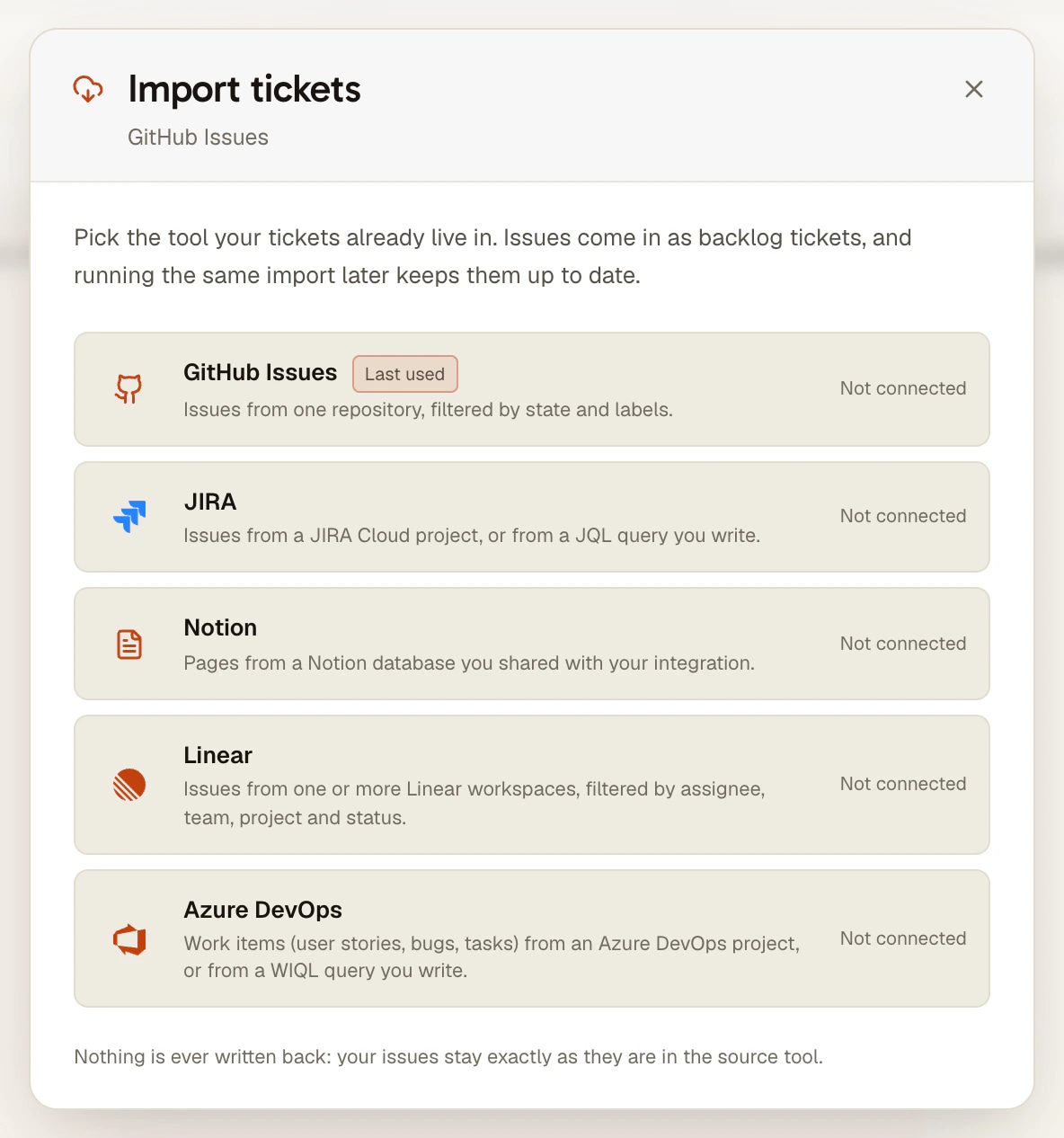
The Azure DevOps import does that step for you. You connect your organization with a personal access token, you pick a project or write a WIQL query, you preview the work items and import them. They land in the TODO column of the project's backlog as ordinary tickets, with the description, the repro steps and the acceptance criteria converted to Markdown and the attached files downloaded, and you start an agent on each one like on any other ticket.
It is not a two-way sync. AgentsRoom only sends read requests to Azure DevOps: no state change, no comment, no field updated. If you want an agent to comment on a work item or close it, that is what Microsoft's own MCP server for Azure DevOps is for, and the two work together, as explained below.
What the Azure DevOps import does
One more source on the backlog, next to Jira, Linear, GitHub Issues and Notion.
A project or your own WIQL
Pick one of your projects from the list, with a search field when there are dozens, and the query is written for you: everything still open in that project, most recently changed first. Or write the WIQL yourself: an area path, an iteration, a tag, or AND [System.AssignedTo] = @Me to keep only your work items.
One work item, by its number
Only need the bug you were just given? Paste 1234, #1234, AB#1234 or the work item link with the import button of the TODO column. It arrives on its own, at the top of the column, without touching the saved import.
Repro steps and acceptance criteria included
Azure DevOps keeps the spec in several HTML fields. The import converts the description, the repro steps and the acceptance criteria to Markdown, then adds a short context block: type, state, area, iteration, priority, story points and parent. The agent reads the spec as the team wrote it.
Attachments the agent can open
Files attached to the work item, and the images pasted into its text, sit behind your Azure DevOps login, so a link would be useless to the agent. The import downloads them on your computer and attaches them to the ticket, up to 10 per work item.
Type and state that make sense
Bug, User Story, Product Backlog Item, Feature, Epic, Task: the built-in types of the Basic, Agile, Scrum and CMMI processes map to the ticket type, and the work item type stays as a tag. Done is read from the category of the state, not its name, so a work item closed in your process arrives as done whether the state is called Closed, Done or something of your own.
Read only, token on your machine
The token needs two read scopes and nothing more. It is encrypted on your computer and never reaches our servers; only the query follows the project to your other machines, where you paste the token again.
How it works
Four steps. The first two happen once per machine.
- 1
Create a personal access token
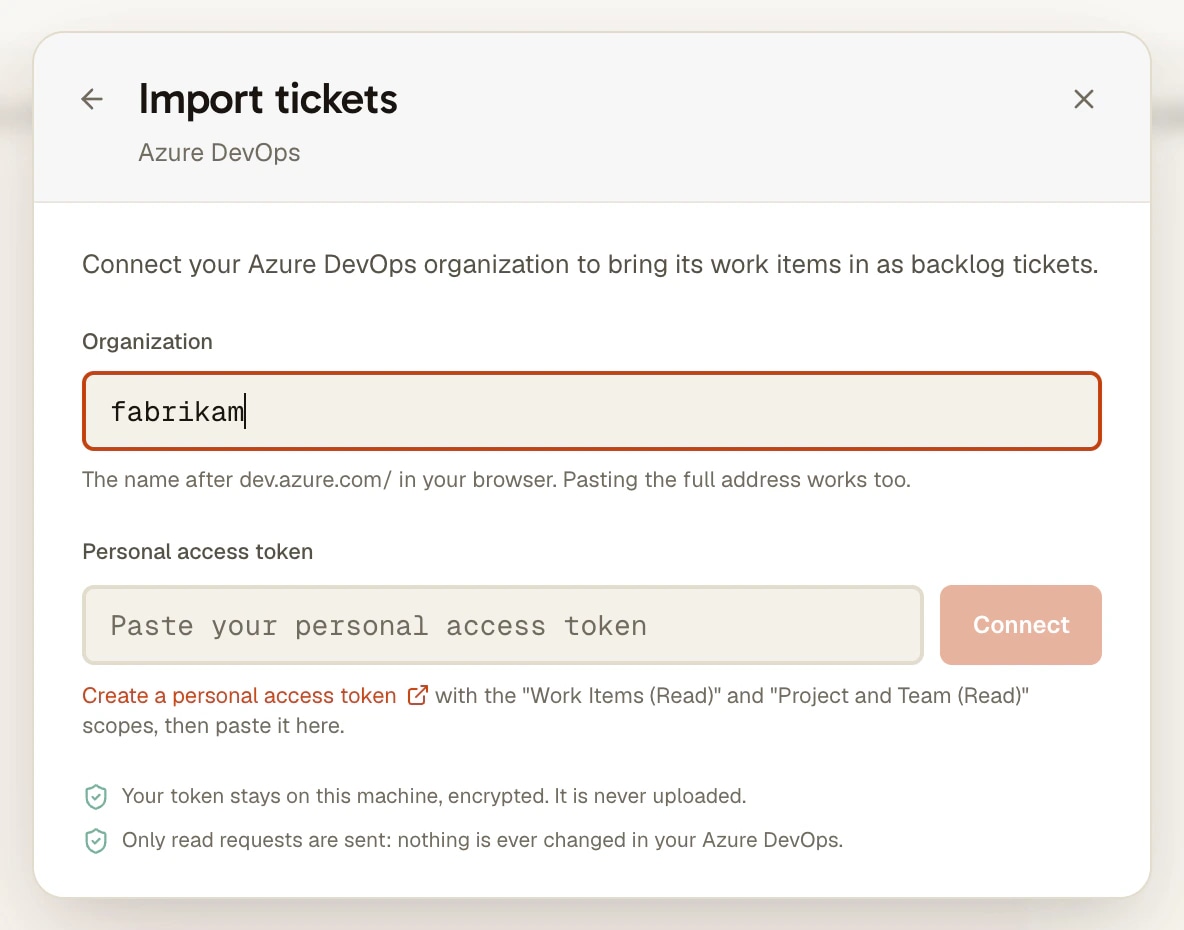
In Azure DevOps, open User settings, then Personal access tokens, and create a token for your organization with two scopes: Work Items (Read) and Project and Team (Read). Nothing that can write is needed.
- 2
Connect your organization
In the project's backlog, click Import tickets and pick Azure DevOps. Enter the organization name (the part after dev.azure.com/, or paste the full address) and the token.
- 3
Choose and preview
Pick a project or write a WIQL query, then click Preview. Search the list by number or title, tick the work items you want and import them, up to 500 at a time.
- 4
Hand each ticket to an agent
The work items are now tickets in TODO, each with a link back to Azure DevOps. Assign an agent and a model, tick Code in a separate worktree for this task if you want it on its own branch, and drag the ticket to In Progress. Refresh brings the board back in step later.
What Microsoft and the agent CLIs already do on their own
Microsoft publishes an MCP server for Azure DevOps (microsoft/azure-devops-mcp on GitHub). For the local server, its documentation gives claude mcp add --transport stdio azure-devops -- npx -y @azure-devops/mcp contoso for Claude Code and codex mcp add azure-devops -- npx -y @azure-devops/mcp contoso for Codex, where contoso stands for your organization name; by default a browser opens so you sign in with your Microsoft account. The agent then gets tools for work items, repositories, pipelines, wikis and test plans from inside its session.
Microsoft also runs a hosted version of that server, generally available since 5 August 2026. Its announcement says Claude Code, Claude Desktop, ChatGPT and Cursor cannot connect to it yet, because they need an OAuth registration Microsoft Entra does not offer them for now, so those users stay on the local server. Azure Boards can also send a work item to GitHub Copilot coding agent with the Copilot button of the work item, generally available since December 2025: the code has to live in a GitHub repository, and the agent answers with a draft pull request on GitHub, not with a session on your computer.
The AgentsRoom import answers another need: the work items on a board, next to the rest of your tickets, with one agent per work item on your own machine and in the CLI you choose, including the CLIs that have no Azure DevOps integration at all, and whether the code lives in Azure Repos, GitHub or anywhere else. The two are not exclusive: import the work items to plan and run the work, and give an agent Microsoft's MCP server when it should comment on or close its work item itself.
What to know
- Azure DevOps Services only (dev.azure.com). Azure DevOps Server, installed on your own servers, is not supported.
- One organization per computer. To import from a second organization, connect it instead of the first one.
- One way only: nothing goes back to Azure DevOps, even once the ticket ships here. Close the work item yourself, or give the agent Microsoft's MCP server.
- The token stays on the computer that connected it. On another machine, the board button reads Reconnect, with an Azure DevOps not connected badge, until you paste a token there too.
- Up to 500 work items per import, and up to 10 attached files per work item.
- Comments, assignee, links other than the parent, and history are not imported: the ticket carries the title, the description, the repro steps, the acceptance criteria, the context block, the tags and the files.
- Connecting Azure DevOps and writing the query happen on the desktop. From the phone you can refresh the import or bring in one work item by its number; both run on your computer, which must be on.
Frequently asked questions
Is this the same thing as Microsoft's Azure DevOps MCP server?
No. Microsoft's MCP server gives one agent tools to read and change Azure DevOps from inside its session, on the CLIs that support MCP. The AgentsRoom import brings the work items onto the project's backlog before any agent starts, so you can plan them, give each one to a different agent and follow them on the board. You can use both: the import to organise the work, the MCP server for an agent that should comment on or close its work item.
Can Claude Code use Azure DevOps?
Yes, two ways. Inside a session, add Microsoft's local MCP server with claude mcp add --transport stdio azure-devops -- npx -y @azure-devops/mcp contoso (your organization name in place of contoso): the agent can then search, read and update work items itself. Microsoft's hosted MCP server does not accept Claude Code yet, according to its announcement of 5 August 2026. Before the session, import the work items into AgentsRoom and hand each one to a Claude Code agent: the description, the repro steps, the acceptance criteria and the files reach the agent with its task.
Does AgentsRoom update the work item when the agent is done?
No. The import only sends read requests, with a token that has read scopes only: no state change, no comment, no field updated. When the ticket ships here, you move the work item in Azure DevOps yourself, or you let an agent do it through Microsoft's MCP server.
Can I import only the work items assigned to me?
Yes, with WIQL: pick the project, then add AND [System.AssignedTo] = @Me to the query it writes. You can also filter on an iteration path, an area path or a tag. The query is saved with the project, so Refresh replays it later.
Can I bring in only the work item I was just assigned?
Yes. Use the import button of the TODO column and paste its number (1234, #1234 or AB#1234) or its link. It lands at the top of TODO without changing the saved import, and it can be refreshed on its own later from the ticket.
Does my Azure DevOps token leave my computer?
No. It is stored encrypted on the computer that connected it, with the organization name, and never reaches our servers. Attachments are downloaded only from the organization you connected, so the token is never sent to another host. Only the import query is saved on your account, so the import follows the project to your other machines, where you paste the token again.
Which agent CLIs can work on an imported work item?
All 17 agent CLIs AgentsRoom supports (Claude, Codex, GitHub Copilot CLI, Cursor and 13 more). An imported work item is an ordinary ticket: it runs on whatever agent and model you assign it, in the shared checkout or in its own git worktree.
Does it work with Azure DevOps Server or Team Foundation Server?
Not today. The import talks to Azure DevOps Services at dev.azure.com. Teams on Azure DevOps Server, installed on their own servers, can still give an agent an Azure DevOps MCP server that supports their install.
You may also like
Ticket import
Bring your Jira, Linear, GitHub Issues, Azure DevOps or Notion tickets onto one backlog and hand each one to Claude Code, Codex, Cursor or any agent CLI on your own machine. Read only.
Jira import
Import Jira Cloud issues into AgentsRoom and hand each one to Claude Code, Codex, Cursor or any agent CLI on your own machine. Project or JQL, attachments included. Read only.
Task management
Visual kanban board to orchestrate AI agents with drag-and-drop. Create tasks in TODO, drag them to In Progress to automatically spawn a Claude agent, and track completion through Pending and Done columns. Backlog-driven development for parallel AI coding.
Git Worktrees
Give each AI agent or ticket its own git worktree, ready to build (dependencies installed, .env copied), then review, commit and merge it from one window.
MCP servers
Declare an MCP server once and hand it to Claude Code, Codex and every agent CLI. Pick it from the official MCP registry, keep keys in the Secret Manager, and sign in to OAuth servers like Notion or Linear with one Connect button.
Bring your Azure DevOps work items to your agents
Download AgentsRoom, open your repository as a project, then click Import tickets in its backlog and pick Azure DevOps.
Companion app: monitor your agents on the go
Bring your own: Claude, Codex, Antigravity CLI, or other AI provider.
Push bugs and requests straight to your public backlog.