How to Install Claude Code and Codex CLI on Windows
The exact PowerShell, CMD, WinGet and npm commands to install Claude Code and Codex CLI on Windows 10 and 11, when to pick WSL, and how to fix 'claude is not recognized' and the other errors you will meet.
Both CLIs install in one line on Windows now. Most of the trouble comes after that line: a terminal that cannot find the command, an execution policy that blocks npm, an old WSL 1 distribution, a command pasted into the wrong shell. This guide gives the exact commands for each install route, then the errors and their fixes.
Facts about the two CLIs come from Anthropic's and OpenAI's documentation and from the installer scripts themselves, read on 16 November 2026, with Claude Code 2.1.318 and Codex CLI 0.169.0. Both tools move fast: if a command below fails, check the official page linked in each section.
The short answer. Open PowerShell, not CMD, and run:
irm https://claude.ai/install.ps1 | iex
powershell -ExecutionPolicy ByPass -c "irm https://chatgpt.com/codex/install.ps1 | iex"
Then open a new terminal and run claude --version and codex --version. If Windows answers that claude is not recognized, the PATH fix is in the table of errors further down.
What each CLI needs on Windows
| Claude Code | Codex CLI | |
|---|---|---|
| Windows version | Windows 10 1809 or later, Windows Server 2019 or later | Windows 11 recommended, recent Windows 10 "best effort" |
| Processor | x64 or ARM64, never 32-bit | x64 or ARM64 |
| Account | A paid Claude plan or a Console account | A ChatGPT plan or an OpenAI API key |
| Node.js | Only for the npm route, version 22 or later | Only for the npm route |
| Git for Windows | Optional | Not required |
| Sandbox on native Windows | No, only in WSL 2 | Yes, its own Windows sandbox |
| Admin rights to install | No | No |
Two lines in this table surprise people. Claude Code no longer requires Git for Windows: without it, it uses PowerShell as its shell tool. And Codex sandboxes commands on native Windows, while Claude Code only sandboxes them inside WSL 2.
Install Claude Code on Windows
Anthropic's setup page lists four routes. The native installer is the recommended one: it needs no Node.js and updates itself in the background.
| Route | Command |
|---|---|
| PowerShell (recommended) | irm https://claude.ai/install.ps1 | iex |
| CMD | curl -fsSL https://claude.ai/install.cmd -o install.cmd && install.cmd && del install.cmd |
| WinGet | winget install Anthropic.ClaudeCode |
| npm (Node.js 22+) | npm install -g @anthropic-ai/claude-code@latest |
What each route leaves behind:
- Native installer:
claude.exein%USERPROFILE%\.local\bin, versions in%USERPROFILE%\.local\share\claude. The installer warns you when.local\binis not on your PATH, and it does not add it for you. - WinGet: no automatic updates. You update with
winget upgrade Anthropic.ClaudeCode, and Anthropic notes that an update can fail while Claude Code is running, because Windows locks the executable. - npm: with Node.js older than 22, the install ends with an
EBADENGINEwarning.
To stay one release behind the latest, on the stable channel:
& ([scriptblock]::Create((irm https://claude.ai/install.ps1))) stable
Then check the install. claude --version prints the version, and claude doctor runs a read-only diagnosis of the install and its settings.
If you have Git for Windows, Claude Code looks for Git Bash in C:\Program Files\Git, then C:\Program Files (x86)\Git, then the git on your PATH. To force another one, set CLAUDE_CODE_GIT_BASH_PATH in the env block of your settings.json. It must point to a file named bash.exe or sh.exe, not git-bash.exe.
Install Codex CLI on Windows
OpenAI's Windows page is clear: use Codex natively with its Windows sandbox by default, and pick WSL when your tooling already lives in Linux. One source lags behind: the install page of the GitHub repository still says "Windows 11 via WSL2". The official docs moved on, and so did the installer.
| Route | Command |
|---|---|
| PowerShell installer | powershell -ExecutionPolicy ByPass -c "irm https://chatgpt.com/codex/install.ps1 | iex" |
| npm | npm install -g @openai/codex |
The PowerShell installer is the easy one. Reading the script shows what it does: it installs Codex in %LOCALAPPDATA%\Programs\OpenAI\Codex\bin, adds that folder to your user PATH and to the current session, and tells you to open a new PowerShell window. Running the same command again updates Codex. With npm, you update by running the install command again.
Then sign in. Run codex and choose Sign in with ChatGPT, or run codex login. On a machine without a browser, codex login --device-auth gives you a code to type on another device. codex login status tells you who you are signed in as.
The Windows sandbox
Codex has three sandbox implementations on Windows:
mxc: the recommended one, with no admin setup. It needs Windows 11 24H2 (build 26100.9278) or 25H2 (build 26200.9278).elevated: the preferred fallback. It needs a one-time setup approved by an administrator.unelevated: weaker network isolation, and no read-only paths.
You choose in config.toml:
[features]
prefer_mxc = true

[windows]
sandbox = "elevated" # or "unelevated"
If the sandbox fails with error 1385, Windows refused the sign-in type of the sandbox account. OpenAI asks for CODEX_HOME/.sandbox/sandbox.log in that case. Never share what is in .sandbox-secrets/.
Native Windows or WSL?
| Native (PowerShell, CMD) | WSL 2 | |
|---|---|---|
| Install Claude Code | irm https://claude.ai/install.ps1 | iex | curl -fsSL https://claude.ai/install.sh | bash inside WSL |
| Install Codex | the PowerShell installer | curl -fsSL https://chatgpt.com/codex/install.sh | sh inside WSL |
| Claude Code sandbox | not available | available, with bubblewrap and socat |
| Codex sandbox | the Windows sandbox | the Linux sandbox |
| Where to keep the repository | anywhere | under ~/, not under /mnt/c/ |
Pick WSL 2 when your project builds and runs in Linux anyway, or when you want Claude Code to sandbox the commands it runs. Stay native when your project is a Windows project: .NET, PowerShell scripts, Windows paths everywhere.
Three rules if you go the WSL way:
- WSL 2, never WSL 1. Codex stopped supporting WSL 1 in version 0.115. Claude Code's sandbox refuses WSL 1 with
Sandboxing requires WSL2, and installs on WSL 1 can fail withExec format error. Convert a distribution withwsl --set-version <DistroName> 2. - Install and run inside WSL. Run the Linux command in the WSL terminal, not the PowerShell one. Running Windows Node.js from WSL is what produces
exec: node: not found: install Node.js in the distribution itself, with its package manager or nvm. - Keep the code in the Linux file system. Both vendors tell you to keep the repository out of
/mnt/c/, and Anthropic notes that Claude Code's searches are less complete there. Clone it under your Linux home.
"claude is not recognized" and the other errors
| What you see | Why | Fix |
|---|---|---|
'claude' is not recognized as an internal or external command (CMD), The term 'claude' is not recognized (PowerShell) | %USERPROFILE%\.local\bin is not on your PATH | Add it to the user PATH (commands below), then open a new terminal |
| Still not recognized after adding it | The terminal, or the editor around it, started before the change | Close and reopen the terminal, and the editor if the terminal lives in one |
| Not recognized right after an update | An update interrupted mid-swap left no claude.exe | Rename the newest claude.exe.old.* back to claude.exe (command below) |
'irm' is not recognized | You pasted the PowerShell line into CMD | Open PowerShell, or use the CMD line |
The token '&&' is not a valid statement separator | You pasted the CMD line into Windows PowerShell | Use the PowerShell line |
npm.ps1 cannot be loaded because running scripts is disabled on this system | The execution policy blocks npm's PowerShell shim | Set-ExecutionPolicy -ExecutionPolicy RemoteSigned -Scope CurrentUser, or call npm.cmd |
| An error about 32-bit Windows on a 64-bit PC | You opened "Windows PowerShell (x86)" from the Start menu | Open the regular 64-bit PowerShell |
claude opens the desktop app instead of the CLI | An old Claude desktop app put a Claude.exe in WindowsApps, ahead of the CLI on the PATH | Update the Claude desktop app |
requires either Git for Windows (for bash) or PowerShell | Claude Code found neither shell | Install Git for Windows, or check that PowerShell is on the PATH |
EBADENGINE during npm install | Node.js is older than 22 | Update Node.js, or use the native installer |
The PATH fix, in PowerShell, for the current user, no admin needed:
$currentPath = [Environment]::GetEnvironmentVariable('PATH', 'User')
[Environment]::SetEnvironmentVariable('PATH', "$currentPath;$env:USERPROFILE\.local\bin", 'User')
To check where Windows looks before you change anything:
Test-Path "$env:USERPROFILE\.local\bin\claude.exe"
where.exe claude
The rename after a broken update:
Get-ChildItem "$env:USERPROFILE\.local\bin\claude.exe.old.*" | Sort-Object Name | Select-Object -Last 1 | Rename-Item -NewName claude.exe
About the execution policy: Windows PowerShell 5.1, the one that ships with Windows, defaults to Restricted on client PCs, which is why a fresh laptop blocks npm.ps1. The CurrentUser scope does not need admin rights. The native Claude installer and the Codex installer are not affected: irm | iex and -ExecutionPolicy ByPass never load a script file from disk.
Update and uninstall
| Claude Code | Codex CLI | |
|---|---|---|
| Update now | claude update (native), winget upgrade Anthropic.ClaudeCode, or the npm install again | codex update on releases that support it, the PowerShell installer again, or npm install -g @openai/codex |
| Automatic updates | native install only, turned off with DISABLE_AUTOUPDATER=1 | not documented |
| Uninstall | delete %USERPROFILE%\.local\bin\claude.exe and %USERPROFILE%\.local\share\claude, or winget uninstall Anthropic.ClaudeCode, or npm uninstall -g @anthropic-ai/claude-code | delete the install folder, or npm uninstall -g @openai/codex |
| Settings left behind | %USERPROFILE%\.claude and %USERPROFILE%\.claude.json | %USERPROFILE%\.codex |
What we learned running agent CLIs on Windows
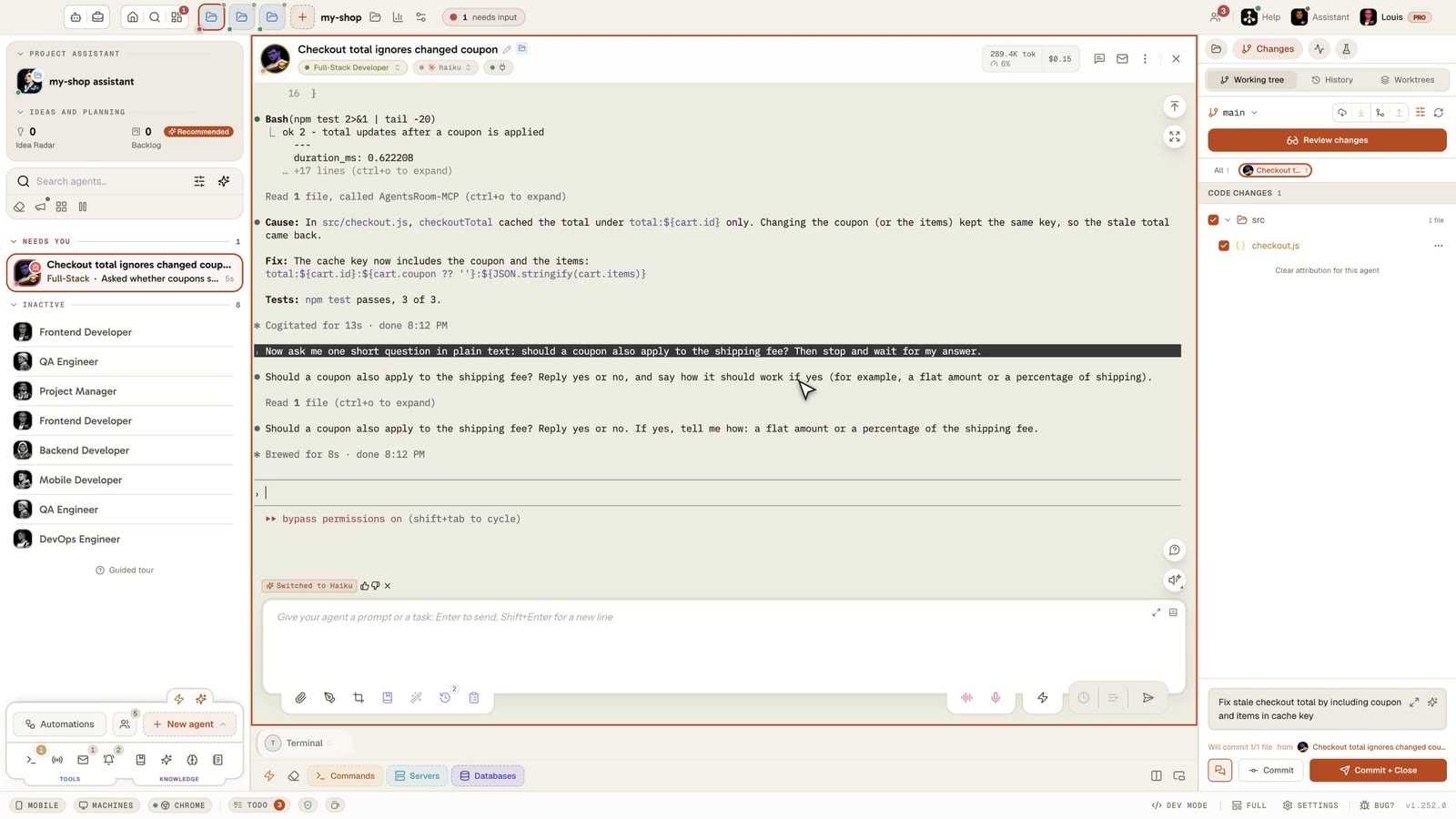
AgentsRoom launches Claude Code, Codex and the other agent CLIs side by side, and its Windows version taught us where these installs break once they leave the terminal. Four things are worth knowing even if you never use our app.
A program started from the Start menu keeps the PATH it started with. You install Claude Code, add .local\bin to the PATH, and a desktop app that was already open still cannot find claude. Restarting your terminal is not enough for apps that launch CLIs for you. AgentsRoom reads the user and machine PATH again from the registry when it looks for a CLI, so an install that just succeeded is not reported as missing.
npm does not install an .exe. npm install -g @openai/codex writes three files to %APPDATA%\npm: codex, codex.cmd and codex.ps1. A program that starts codex directly gets spawn codex ENOENT, because Windows only adds .exe to a bare name. Your terminal hides this, since PowerShell and CMD read PATHEXT. This is one more reason to prefer the native installers, which do ship an executable.
npm shims need Node.js at run time. If you install Node.js and then a CLI in the same session, the .cmd shim is found but fails with "node is not recognized" in any program started before Node.js was on the PATH. Same symptom with a Node version manager whose shims point to a version that is not active.
Starting a process costs much more on Windows. We measured 20 to 80 ms to create a process on Windows, against 1 to 3 ms on macOS, and each file check costs more because the antivirus inspects it. Our first CLI detection tried every folder, name and extension and froze the app for up to a second on Windows. Reading each folder once fixed it.
In the app, the setup assistant installs a missing CLI with the vendor's own installer for your OS (irm https://claude.ai/install.ps1 | iex for Claude Code, OpenAI's script for Codex), falls back to npm when the script fails, and runs it in a terminal you can watch. When a CLI does not start, CLI Doctor reads the error and the exact command, then tells you what broke. Once both CLIs answer --version, the getting started guide takes you from there, and the Windows release notes say what the app does on Windows.
Frequently asked questions
How do I install Claude Code on Windows?
Open PowerShell and run irm https://claude.ai/install.ps1 | iex. In CMD, use the install.cmd line from Anthropic's setup page instead, and with WinGet run winget install Anthropic.ClaudeCode. The binary lands in %USERPROFILE%\.local\bin, which the installer does not add to your PATH: add it yourself if claude is not recognized, then open a new terminal and run claude --version.
Do I need WSL to run Claude Code or Codex on Windows?
No. Both run natively in PowerShell or CMD on Windows 10 and 11. WSL 2 is worth it when your project already lives in Linux, or when you want Claude Code's sandbox, which does not run on native Windows. Use WSL 2, not WSL 1: Codex dropped WSL 1 in version 0.115.
Why does Windows say 'claude' is not recognized right after installing it?
The native installer puts claude.exe in %USERPROFILE%\.local\bin and prints a warning if that folder is not on your PATH, but it does not change the PATH itself. Add the folder to your user PATH, then close and reopen the terminal, and the editor if the terminal runs inside one. A terminal that was already open keeps its old PATH.
Does Claude Code need Git for Windows?
Not anymore. Anthropic's setup page lists Git for Windows as optional: without it, Claude Code uses PowerShell as its shell tool. With it, Claude Code finds Git Bash in C:\Program Files\Git, and you can point to another bash.exe with the CLAUDE_CODE_GIT_BASH_PATH setting.
Can I install Codex CLI on Windows without Node.js?
Yes. OpenAI's PowerShell installer downloads a standalone Codex, puts it in %LOCALAPPDATA%\Programs\OpenAI\Codex\bin and adds that folder to your user PATH. Only the npm route, npm install -g @openai/codex, needs Node.js.
Should I use PowerShell or CMD to install them?
PowerShell. Both official one-liners are PowerShell commands, and the errors people hit most often come from pasting a PowerShell line into CMD or the reverse: 'irm' is not recognized means you are in CMD, and '&&' is not a valid statement separator means you are in PowerShell. Use the 64-bit PowerShell, not the "Windows PowerShell (x86)" entry of the Start menu.
































Download AgentsRoom
Run all your AI agents, on all your projects, from a single window.
Companion app: monitor your agents on the go
Bring your own: Claude, Codex, Antigravity CLI, or other AI provider.
Push bugs and requests straight to your public backlog.
Agents you read like a conversation
Each agent has a role, a face, and a thread you read like a messaging app.
Keep reading
Voice Mode in Codex, OpenCode, Antigravity and Claude Code: Which CLI Has One?
We checked five coding agent CLIs and two apps on October 13, 2026. Codex CLI and oh-my-pi hold a spoken conversation, Claude Code and Antigravity CLI only dictate into the prompt, OpenCode has nothing built in. How to start each one, where the audio goes, and what voice costs in tokens.
Read the articleAI Agent Loops: How Self-Correcting Coding Agents Finish the Job
An AI agent loop turns prompt-and-fix into a self-correcting cycle: the agent writes a plan, builds it, reviews its own work against the plan, and loops until it is done. How the loop works in Claude Code, Codex, Antigravity CLI, Cursor and the Ralph loop.
Read the articleHow to Remove Co-Authored-By Claude From Your Git Commits
Claude Code signs your commits with a Co-Authored-By trailer and your pull requests with a Generated with Claude Code line. The setting that removes them, the file to put it in, and how to clean commits you already pushed.
Read the article