Your phone,
a remote for your agents
Dictate a prompt with your phone. Attach a photo. Share a screenshot from any app. It all lands in the composer of the agent you have open on your desktop, in the right project.
Voice dictation, file attachments, and a native iOS and Android share extension, in one Companion mode. The phone talks to your desktop IDE, not the other way around.
Dictate, attach or share from the phone. It arrives in the composer of your focused desktop agent.
The Mobile Companion turns your phone into a remote control for the AI coding agents running on your computer. Open the Companion tab and you get three ways to feed the agent you are working with: speak a prompt, attach a file, or share a screenshot from any app on the phone.
Everything lands in the composer of the focused agent on your desktop, in the right project, in the right input. You read it, edit it if you want, and send. No copy-paste, no rapatriating files from your phone to your machine, no losing the thread.
It runs through the same end-to-end encrypted relay as the rest of AgentsRoom, so it works on 4G or 5G, away from your desk, and the server never reads your content. Voice, files, and the share extension all work on iOS and Android.
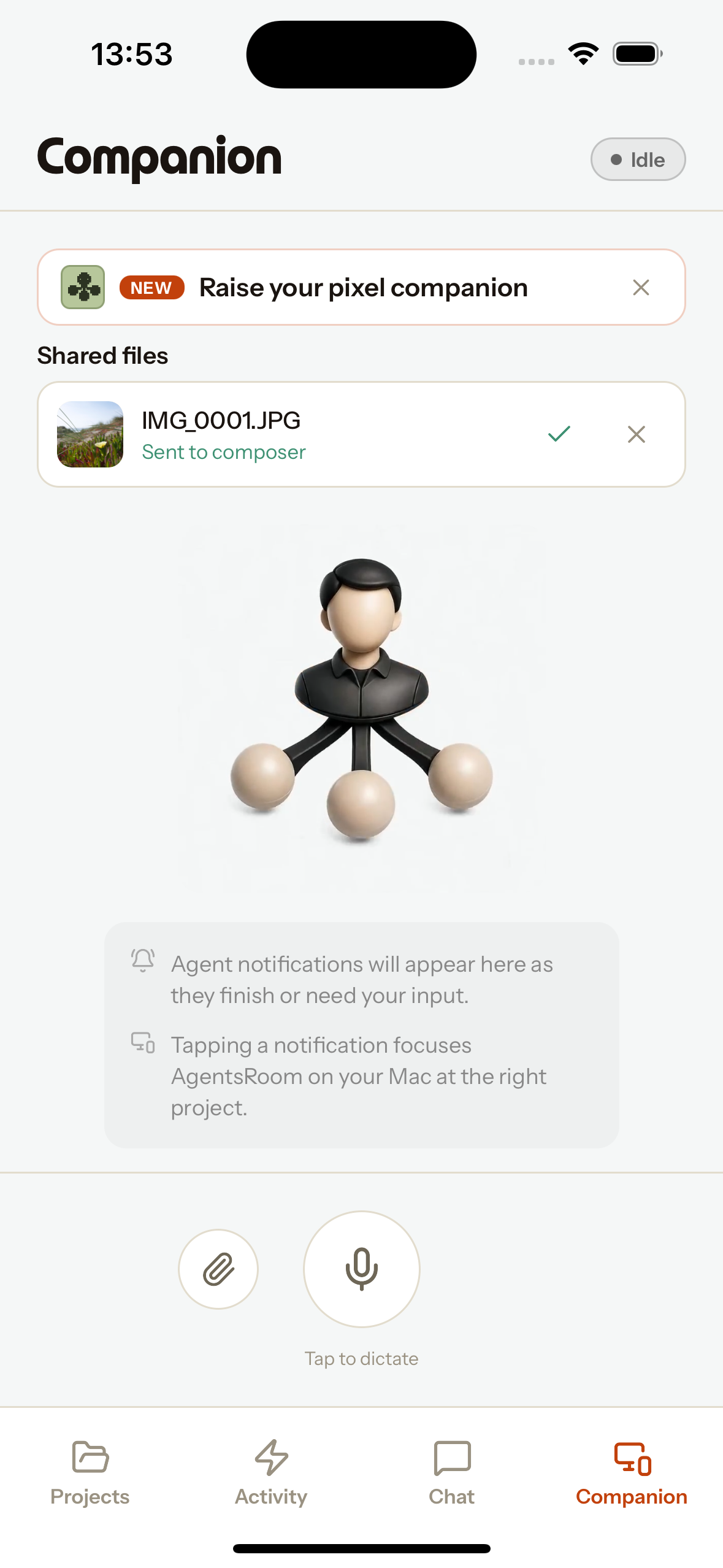
The Companion tab: dictate with the mic, attach with the paperclip, and see shared files land in the composer.
Three ways to reach your agent
Pick whatever is fastest in the moment. Voice, a file, or the system share sheet.
Dictate with your voice
Tap once to start, tap again to stop. The phone mic records, the audio is transcribed, and the text drops into the composer of your focused agent. No microphone on your dev machine? Use the one in your pocket.
Attach a photo or file
The paperclip next to the mic opens your photo library or file picker. The file lands in the agent composer as an attachment, exactly like a screenshot pasted on the desktop. Images are resized and compressed first so it sends fast.
Share from any app
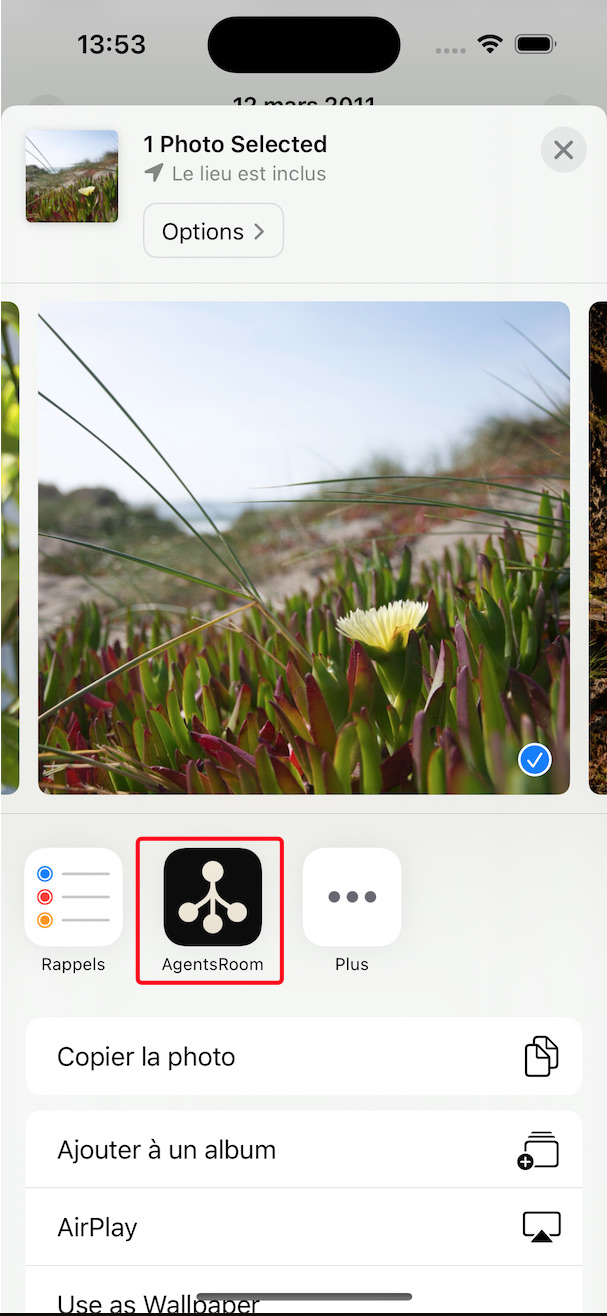
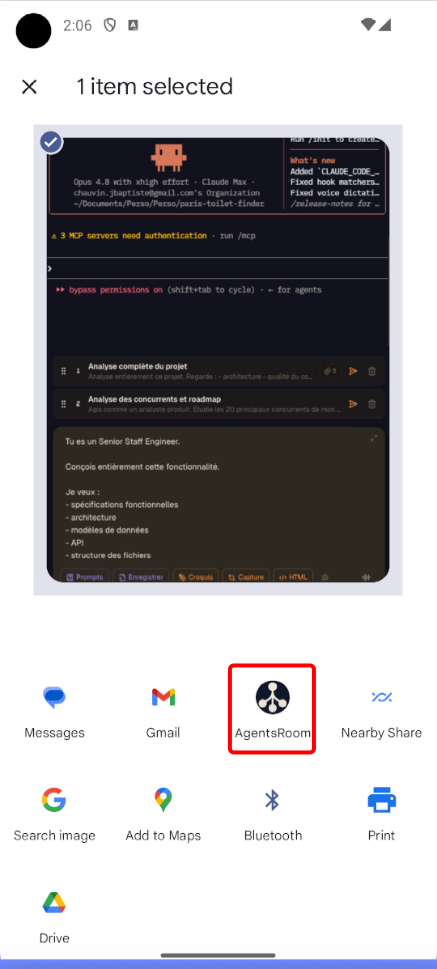
AgentsRoom shows up in the native iOS and Android share sheet. Share a screenshot from Photos, Files, or a browser, and it goes straight to the composer of your focused agent. The fastest path from a screen capture to a working agent.
Built for the way you actually work
Dictation lands in the composer, not the raw terminal. That is the whole point: you talk, the transcript appears in the input, and you reread and tweak before sending. No half-finished command fired into a prompt by accident.
File attachments reuse the same path as a desktop screenshot. The image is written into the project and attached to the focused agent's composer as a real attachment chip, ready to send with your next message. For mobile dev especially, this is how you report a bug: take the screenshot on the phone, share it, done.
The share extension is the quick lane. It is a native part of iOS and Android: an extension that registers AgentsRoom as a share target, so any app that can share a file can hand it to your agent. If you are not connected when you share, the file waits in a queue on the Companion screen and goes out the moment a desktop agent is reachable.
Every path resolves the right destination on its own. The desktop figures out which agent is focused, in which project, and drops the content into that exact input. You never re-pick a project or an agent from the phone.
What is a share extension, and why it matters here
A share extension is the native way an app plugs into the system share sheet, the menu you get when you tap Share on iOS or Android. Once installed, AgentsRoom appears in that menu next to Messages, Mail and the rest. You do not open the app first: you share to it.
Tap AgentsRoom in the share sheet and the app opens on the Companion tab with your file queued, then sends it to the composer of your focused desktop agent. A screenshot becomes context for your agent in two taps, from anywhere on the phone.
What the Mobile Companion gives you
Voice, files, and a share extension, wired to the agent you have open on your desktop.
Voice dictation
Tap to talk. The phone mic records, the transcript lands in the desktop agent composer with a live voice analyzer while you speak.
File and photo attach
Pick a photo or any file from the phone and drop it into the agent composer as an attachment, no desktop needed to grab it.
iOS and Android share extension
AgentsRoom in the native share sheet. Share a screenshot from any app straight to your focused agent.
Right project, right agent
The desktop resolves the focused agent and the open project, so dictation and files land in the exact input you are working in.
Smart image handling
Images are resized and JPEG-compressed before sending, so a phone photo goes through fast, even on cellular.
End-to-end encrypted
Everything travels over the encrypted relay. The server only sees ciphertext, never your prompts or files.
Offline share queue
Shared a file with no connection yet? It waits in the Companion queue and sends as soon as a desktop agent is reachable. Delete any you do not want.
iOS and Android
The companion, the dictation and the share extension all work on both iPhone and Android, paired with macOS, Windows or Linux.
No desktop mic needed
Dictate with the microphone in your pocket. Handy on a machine with no mic, or when you would rather talk than type.
How it works
Pair your phone with your desktop
Sign in on both, or scan the pairing code. The phone and desktop talk over the AgentsRoom encrypted relay, so you do not need to be on the same WiFi.
Open the Companion tab
On the phone, the Companion tab is your remote: a microphone button, a paperclip for files, and the list of files shared into the app.
Dictate, attach, or share
Tap the mic to dictate a prompt, tap the paperclip to attach a photo or file, or share a screenshot to AgentsRoom from any app on the phone.
It lands in the right composer
The desktop drops the text or the attachment into the composer of the agent you have focused, in the right project, ready to review.
Review and send on the desktop
Reread the dictated prompt, check the attachment, then send to the agent. Nothing is fired automatically: you stay in control.
Offline? It waits in the queue
If the desktop is not reachable when you share, the file stays in the Companion queue and goes out the moment an agent is available again.
Why this is rare
Most AI coding tools live entirely on the desktop. AgentsRoom ties your phone and your IDE together in real time.
Desktop-only AI coding tools
Most editors and agent CLIs stay on the machine. To bring a phone screenshot into an agent, you copy it off the phone, move it to your computer, then paste it. The phone is not part of the loop.
AgentsRoom Mobile Companion
Dictate, attach a file, or share a screenshot from the phone and it lands in your desktop agent's composer, in the right project. A native share extension on iOS and Android makes the phone a first-class input for your agents.
Talk to your agent from your phone, share a screenshot in two taps, and let the desktop do the work. That is the Mobile Companion.
FAQ
What is the AgentsRoom Mobile Companion?
It is a mode in the AgentsRoom mobile app that turns your phone into a remote for the AI coding agents running on your desktop. You can dictate prompts with the phone microphone, attach photos or files, and use the system share extension to send a screenshot straight into the composer of the focused agent on your computer.
What is a share extension?
A share extension is the native way an app registers in the iOS and Android share sheet, the menu you open when you tap Share. Once AgentsRoom is installed, it appears there. You share a file to AgentsRoom and it opens the Companion tab, then sends the file to your focused desktop agent. No need to open the app first.
Where does my dictated prompt go?
Into the composer of the agent you have focused on the desktop, in the right project, not the raw terminal. You reread and edit it before sending, so nothing is fired by accident.
Can I send a screenshot from my phone to an AI agent?
Yes. Either use the paperclip button on the Companion tab to pick a photo, or use the share extension to share a screenshot from any app. Either way it lands as an attachment in your focused desktop agent's composer, which is ideal for reporting mobile bugs.
Does it work on both iOS and Android?
Yes. Voice dictation, file attachments, and the share extension all work on iPhone and Android, paired with a macOS, Windows or Linux desktop.
What happens if I share a file while offline?
The file waits in a queue on the Companion screen. As soon as a desktop agent is reachable, it sends on its own. You can also delete any queued file you do not want to send.
Do I need to be on the same WiFi as my computer?
No. The phone and desktop communicate over the AgentsRoom end-to-end encrypted relay, so it works on cellular too. The server only relays ciphertext, it never reads your prompts or files.
Does it work with Claude Code and Codex?
Yes. AgentsRoom is provider-agnostic. The dictation and the shared files land in whichever agent you have focused, whether it runs on Claude Code, Codex CLI, or another supported CLI.
Part of a phone-to-desktop workflow
The Mobile Companion sits alongside the rest of the AgentsRoom mobile experience: a live two-way sync with your desktop, voice dictation in the composer, and screenshot-to-agent on the desktop. Together they make the phone a real input for your agents.
Put your agents in your pocket
Download AgentsRoom and turn your phone into a remote for your AI coding agents.
Companion app: monitor your agents on the go
Bring your own: Claude, Codex, Antigravity CLI, or other AI provider.
Push bugs and requests straight to your public backlog.
A glimpse of AgentsRoom in action.