Sketch : draw, annotate, send visual feedback to your AI agent

Sketch :
draw it, and the agent sees what you mean

Sketch is a drawing canvas built straight into the AI agent composer. Open a blank canvas to sketch a mockup or a diagram, or open a screenshot to annotate it. Circle the bug, draw an arrow, highlight the region, add a note. The drawing is attached to your message and sent to your AI coding agent.

A picture is worth a thousand words, and that goes double for an AI agent. Instead of writing 'the button in the top-right of the modal is too close to the edge', you circle it. The sketch lands next to your prompt, the agent gets the visual feedback in one shot, and you never left the terminal.

Sketch in action : open the canvas from the composer, circle the visual bug on a screenshot, attach the drawing, send it to the agent.

Here is the problem Sketch solves. You are vibe coding with an AI agent and something looks wrong on screen. A card overflows, a button sits a few pixels off, the spacing on one row is broken. To get the agent to fix it, you have to describe the visual problem in words. 'The second card in the middle column, the one with the avatar, its padding is too tight on the right.' You write three sentences, the agent guesses, it fixes the wrong element, you write three more.

Sketch removes the guessing. You take a screenshot, open it in the Sketch canvas, draw a red circle around the broken card, add an arrow and the word 'too tight here', and attach it to your message. The agent does not interpret a paragraph anymore. It looks at the drawing. The visual feedback is unambiguous because it is visual.

Sketch works the other way too. Start from a blank canvas and sketch what you want before the agent builds it : a rough mockup of a screen, a wireframe of a layout, a quick diagram of a flow. A hand-drawn sketch frames the agent better than a wall of text. You draw the prototype, the agent codes it.

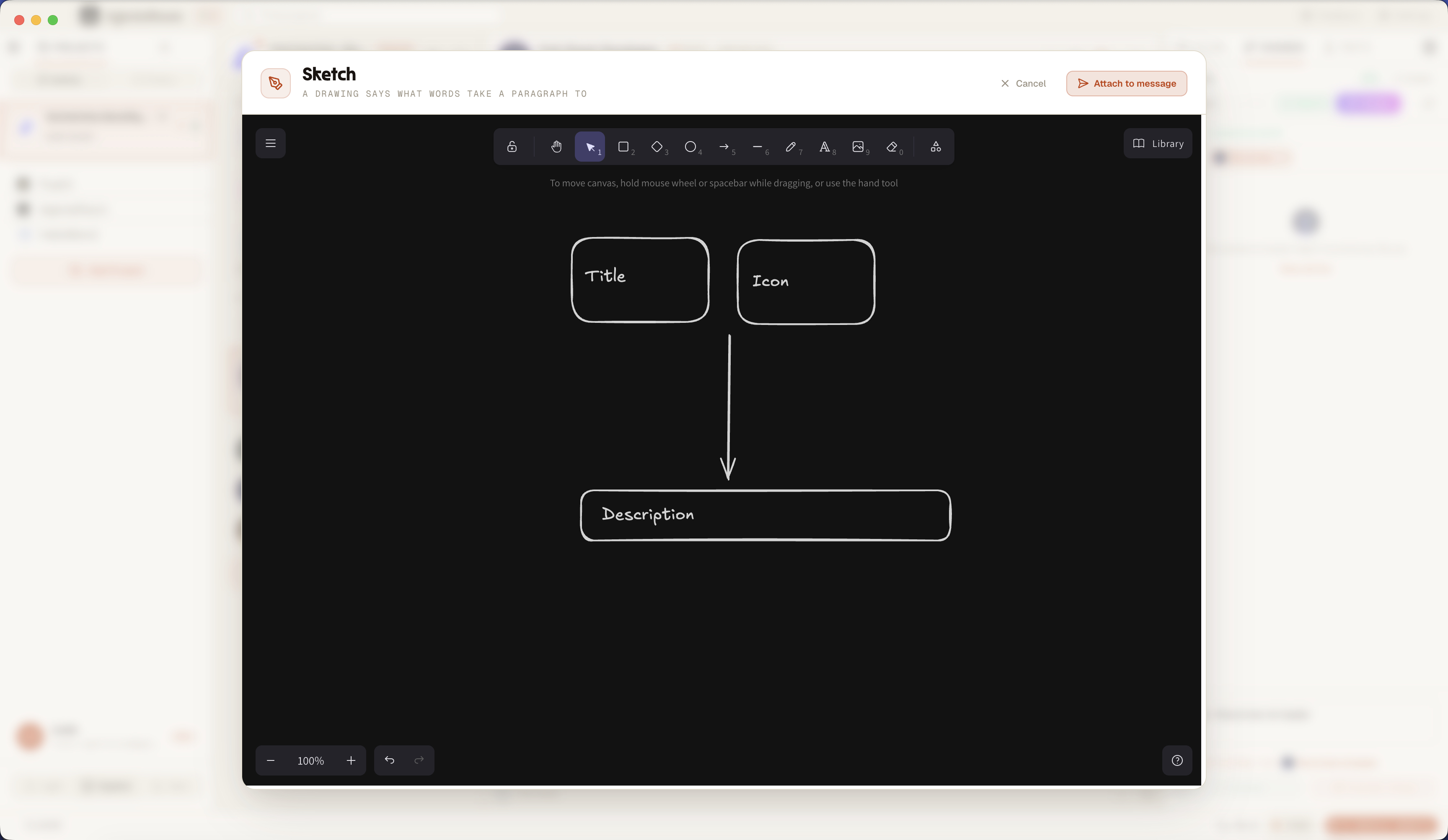
AgentsRoom Sketch : the drawing canvas open over the agent composer, with a screenshot being annotated with a circle and an arrow before being sent to the AI coding agent

The Sketch canvas open from the composer : annotate a screenshot, draw shapes and arrows, then attach the drawing to the message sent to your agent.

Why Sketch belongs in your agent workflow

Precision. A circle on a screenshot points at one exact element. A sentence points at a guess. When you draw the problem, the agent fixes the thing you actually meant, not the thing next to it. No more 'no, the other button, the one below it'.

Speed. Drawing a rectangle around a region takes three seconds. Describing that same region in words takes three sentences, and the sentences are still ambiguous. Sketch turns annotating a visual bug from a chore into a reflex.

Expression. Some ideas are shapes, not sentences. A layout, a flow, a screen. With Sketch you draw the mockup or the diagram directly, freehand or with shapes and arrows, and hand the drawing to the agent as the spec.

Flow. Sketch lives inside the composer. You do not open a separate drawing app, you do not export a file, you do not drag anything around. The drawing and your written prompt travel together in the same message, so the agent gets the full context at once.

How Sketch works, end to end

From the Sketch button in the composer to a drawing attached to the agent message.

01

Open Sketch from the composer

Every agent composer has a Sketch button. Click it and a full-screen drawing canvas opens, ready to use, with the rectangle tool already active so you can frame things right away.

02

Draw on a blank canvas, or annotate an image

Start from a blank canvas to sketch a mockup, a wireframe or a diagram. Or open an existing image : drop a screenshot into the composer, then click the pencil on its thumbnail (or Annotate in the file preview) to draw on top of it.

03

Sketch, circle, arrow, highlight, type

The canvas gives you freehand drawing, rectangles, ellipses, arrows, lines and text. Circle a broken element, point an arrow at it, highlight a zone, write a short note next to it. Whatever makes the visual feedback obvious.

04

Attach the drawing to your message

Click Attach to message. The canvas is exported as a PNG and added as a thumbnail to the composer, exactly like a dropped file. When you annotate an existing image, the annotated version replaces the original thumbnail, so the agent never gets both.

05

Send it to the agent

Type your prompt as usual and send. The PNG is attached to the message through the same pipeline as any other file. The drawing and your text reach the agent together, in one turn.

06

The agent reads the drawing

Your AI coding agent receives the sketch as an image attachment. As long as its model supports image input, it sees exactly what you circled, arrowed and highlighted, and acts on the visual feedback instead of parsing a description.

Two ways to use Sketch

Start from nothing, or draw on top of what is already there.

Blank canvas : sketch a mockup

Open an empty canvas and draw what you want the agent to build. A rough mockup of a screen, a wireframe of a layout, a prototype of a component, a diagram of a data flow. Freehand strokes, boxes, arrows and text labels. A hand-drawn sketch is a spec the agent can follow without you writing a single paragraph of UI description.

Annotate : draw on a screenshot

Load a screenshot or any image into the canvas and mark it up. Circle the misaligned element, draw an arrow at the overflow, highlight the wrong color, write 'fix this' next to the bug. The Sketch canvas opens with your image as the background layer, you draw on top, and the annotated screenshot goes straight to the agent as visual feedback.

What Sketch actually is

Sketch is a full drawing canvas embedded in the AgentsRoom desktop app, opened from the composer of any AI agent. It is not a screenshot viewer with a marker on top. You get real drawing tools : freehand pen, rectangles, ellipses, arrows, lines and text, the same toolkit you expect from a proper sketching surface.

The canvas runs in two modes. Blank mode gives you an empty surface for mockups, wireframes and diagrams. Annotate mode loads an existing image as the background and lets you draw over it. You reach annotate mode from the thumbnail of any image already attached to the composer, or from the Annotate button in the file preview.

When you attach the drawing, Sketch exports the canvas to a PNG on a white background so every stroke stays readable, then drops the file into the composer's attachment tray. From there the drawing follows the normal path : it rides along with your prompt and is sent to the agent as an image. Sketch adds no new send mechanism, it plugs into the one already there.

Everything stays on your machine. Sketches are saved locally on disk and are not committed to your repository or pushed to any third-party service. They are transient by design : a drawing is context for one message, not a file you have to manage. Sketch is local, private, and provider-agnostic : it works with any agent whose model accepts an image, so Claude Code and Codex setups both get the same drawing-to-agent flow.

What people draw with Sketch

Three patterns that turn a drawing into the fastest way to talk to an agent.

Report a visual bug

Screenshot the broken UI, circle the element, arrow the overflow, highlight the wrong spacing. The agent sees the visual bug instead of decoding your description of it. The single fastest way to report a UI regression to an AI agent.

Sketch a mockup or wireframe

Draw the screen before the agent builds it. A rough wireframe, a layout sketch, a low-fidelity mockup of a component. Hand the drawing to the agent as the brief and let it turn your sketch into code.

Draw a diagram or flow

Some explanations are diagrams. A data flow, a state machine, the structure of a page, how two components talk. Sketch it with boxes and arrows and send the diagram to the agent as context.

Describing it in words vs drawing it

Same visual feedback, same agent. One path is slow and ambiguous, the other is a sketch.

Without Sketch

  • : You describe the visual problem in words and hope the agent pictures the same thing.
  • : You write three sentences to point at one element, and it is still ambiguous.
  • : To draw a mockup you open a separate app, export a file, then drag it into the composer.
  • : The context switch breaks your flow and the conversation with the agent.
  • : The agent fixes the wrong element, you re-explain, the loop drags on.

With Sketch

  • : You circle the element on a screenshot and the feedback is unambiguous.
  • : A drawing replaces three sentences of description, in three seconds.
  • : The canvas is in the composer : no separate app, no export, no drag and drop.
  • : You never leave the terminal and never break the thread with the agent.
  • : The agent sees exactly what you meant and fixes it on the first pass.

Sketch is the shortest path between a visual problem and an AI agent that understands it.

Local and private
Your sketches are saved on your own machine. Nothing is committed to your repository, nothing is uploaded to a third-party drawing service.
Works across providers
Sketch attaches a plain PNG image. Any AI agent whose model accepts image input can read it : Claude Code, Codex and beyond.
No context switch
The canvas opens from the composer and the drawing returns to the composer. You stay in the terminal, the conversation with the agent never breaks.

FAQ

What is Sketch in AgentsRoom ?

Sketch is a drawing canvas built into the AI agent composer. You open it from the composer, draw a sketch on a blank canvas or annotate an existing screenshot, and the drawing is exported as a PNG and attached to the message you send to your AI coding agent. It turns visual feedback into something you draw instead of something you describe.

How do I send a drawing to an AI agent ?

Click the Sketch button in the agent composer, draw on the canvas, then click Attach to message. The drawing becomes a PNG thumbnail in the composer. Write your prompt and send : the sketch is attached to the message and reaches the agent together with your text.

Can I annotate a screenshot ?

Yes. Drop a screenshot into the composer, then click the pencil on its thumbnail, or open the file preview and click Annotate. The Sketch canvas opens with your screenshot as the background layer so you can draw on top of it : circle a bug, add an arrow, highlight a region, write a note. The annotated screenshot replaces the original when you attach it.

What can I draw with Sketch ?

The canvas gives you freehand drawing, rectangles, ellipses, arrows, lines and text. You can sketch a mockup, draw a wireframe, lay out a diagram, or mark up a screenshot with circles, arrows and highlights. The rectangle tool is active by default so you can frame an element the moment the canvas opens.

Does the AI agent actually see my sketch ?

The drawing is attached to your message as a PNG image. As long as the agent's model supports image input, it sees the sketch and acts on it. Claude and the GPT-4 class models that power Claude Code and Codex read images, so the agent gets your visual feedback directly.

Which agents and providers work with Sketch ?

Sketch attaches a standard PNG image, so it is provider-agnostic. Any agent whose model accepts an image input works : Claude Code, Codex and other CLIs that AgentsRoom supports. There is no provider-specific setup.

Do I need a separate drawing app or whiteboard ?

No. That is the point of Sketch. The drawing canvas is inside the composer. You do not open Excalidraw, Figma or a screenshot annotator in another window, you do not export a file, you do not drag it back in. Sketch keeps the whole draw-and-send loop in the terminal.

Where are my sketches saved ? Are they private ?

Sketches are saved locally on your own machine. They are not committed to your git repository and not uploaded to any third-party service. They are transient : a sketch is context for one message, and old sketches are cleaned up automatically.

Can I re-edit or re-annotate a sketch ?

Yes. Any image in the composer, including a screenshot you already annotated, can be reopened in the Sketch canvas to draw on it again. When you attach the new version, it replaces the previous thumbnail so the agent never receives the same image twice.

Why draw a bug instead of describing it ?

Because a description is a guess and a drawing is not. When you write 'the top-right button is misaligned', the agent has to reconstruct the screen in its head. When you circle the button on a screenshot, there is nothing to reconstruct. A picture is worth a thousand words, and for visual feedback to an AI agent it is also worth several wasted turns.

Goes well with

Stop describing the bug. Draw it.

Download AgentsRoom and use Sketch : a drawing canvas in the agent composer to sketch mockups and annotate screenshots, then send the drawing to your AI coding agent without ever leaving the terminal.

免费下载 AgentsRoom

配套应用:随时随地监控你的 Agent

使用 Claude、Codex、Gemini CLI 或其他 AI 提供商。

获取扩展
Chrome Web Store

把 Bug 和需求直接发送到您的公开待办清单。

多项目管理
多供应商
多代理运行
实时状态
文件差异与提交
移动应用
实时预览
代理团队
浏览器自动化
Backlog 驱动开发
提示词库
技能库