Sizin backlog'unuz,
onların yürütmesi
Aklınızda on özellik var. Bunları görev olarak yazın, birini Devam Ediyor sütununa sürükleyin ve bir Claude ajanı onu kodlamaya başlasın. Aklınız berrak kalır. Ajanlarınız meşgul kalır.
Artık müşterileriniz de backlog'u besleyebilir
Aynı görev panosunu müşterilerinize, tasarımcılarınıza ve son kullanıcılarınıza açın. Onlar; herkese açık bir geri bildirim portalında, üretim sitenize iliştirilmiş gömülebilir bir bileşen aracılığıyla ya da herhangi bir sayfayı ekran görüntüsü, tam CSS seçicisi, URL ve eksiksiz DOM bağlamıyla yakalayan Chrome uzantısı ile hata bildirir, özellik ister ve talepleri oylar. Aynı zamanda Figma modellerini, tasarım referanslarını ve görsel spesifikasyonları doğrudan bir talebe çekmenin en kısa yoludur: kareyi bırakın, iki satırlık bir özet ekleyin, ajanınız ihtiyaç duyduğu piksel düzeyinde kusursuz bağlamı alsın. Teknik olmayan kullanıcılar tarayıcıdan hiç ayrılmadan üç tıklamayla bir talep açar, siz de hepsini kendi görevlerinizle yan yana takip edersiniz. Her talep doğrudan backlog'unuza düşer: onu Devam Ediyor sütununa sürükleyin ve Claude, Codex, GitHub Copilot CLI, Cursor veya AgentsRoom'un desteklediği diğer 10 ajan CLI'sından herhangi biri üzerinde çalışan bir ajan onu teslim etsin. Sıfır ayıklama vergisiyle, paralel bir Jira panosu olmadan, kaybolan e-posta olmadan, müşteri odaklı bir backlog.
Uzaktan Backlog'u keşfedinYapay zeka ajanları için tasarlanmış bir kanban panosu
Sıradan bir proje yöneticisi değil. Bir kartı Devam Ediyor sütununa sürüklemenin, tam da o görev üzerinde bir Claude ajanını başlattığı bir görev panosu.
Sürükle, çalışsın
Bir görev kartını YAPILACAK sütunundan Devam Ediyor sütununa taşıyın. AgentsRoom, görev başlığını komut olarak kullanan bir Claude ajanı başlatır. Düğme yok, menü yok: sadece sürükleyin.
Dört sütunlu akış
Fikirler için YAPILACAK, aktif ajanlar için Devam Ediyor, takılan görevler için Beklemede, tamamlanan işler için Bitti. Her sütun, görevlerin canlı sayısını gösterir.
Ajan rolleri atayın
Her göreve belirli bir ajan rolü atayın. Güvenlik Mühendisi'niz kimlik doğrulama düzeltmesini, Frontend Geliştiriciniz yeni bileşeni üstlensin. Doğru ajan, doğru görev.
Kartlarda canlı ajan durumu
Her Devam Ediyor görev kartı, bağlı ajanın durumunu gerçek zamanlı gösterir: çalışıyor, girdi bekliyor, tamamlandı ya da boşta. İlerlemeyi terminali açmadan görürsünüz.
Görevlere görsel ekleyin
Ekran görüntülerini, modelleri ya da tasarım referanslarını doğrudan görev kartlarına ekleyin. Ajanlarınız, isabetli sonuçlar üretmek için ihtiyaç duydukları görsel bağlamı alır.
Paralel görev yürütme
Birden fazla görevi aynı anda Devam Ediyor sütununa sürükleyin. Her biri kendi ajanını başlatır. Paralelde beş özellik, her biri kendi terminali, kendi durumu, kendi incelemesiyle.
Deponuzda saklanır
Görevler buluta senkronize edilir ve projenize bağlanır. Ekip üyeleri aynı backlog'u görür. İlerleme; oturumlar ve makineler arasında korunur.
Aklınızı boşaltın
Özellikleri kafanızda taşımayı bırakın. Hepsini yazın, görsel olarak önceliklendirin ve yürütmeyi ajanlara bırakın. Siz önemli olana odaklanın: incelemeye ve teslim etmeye.
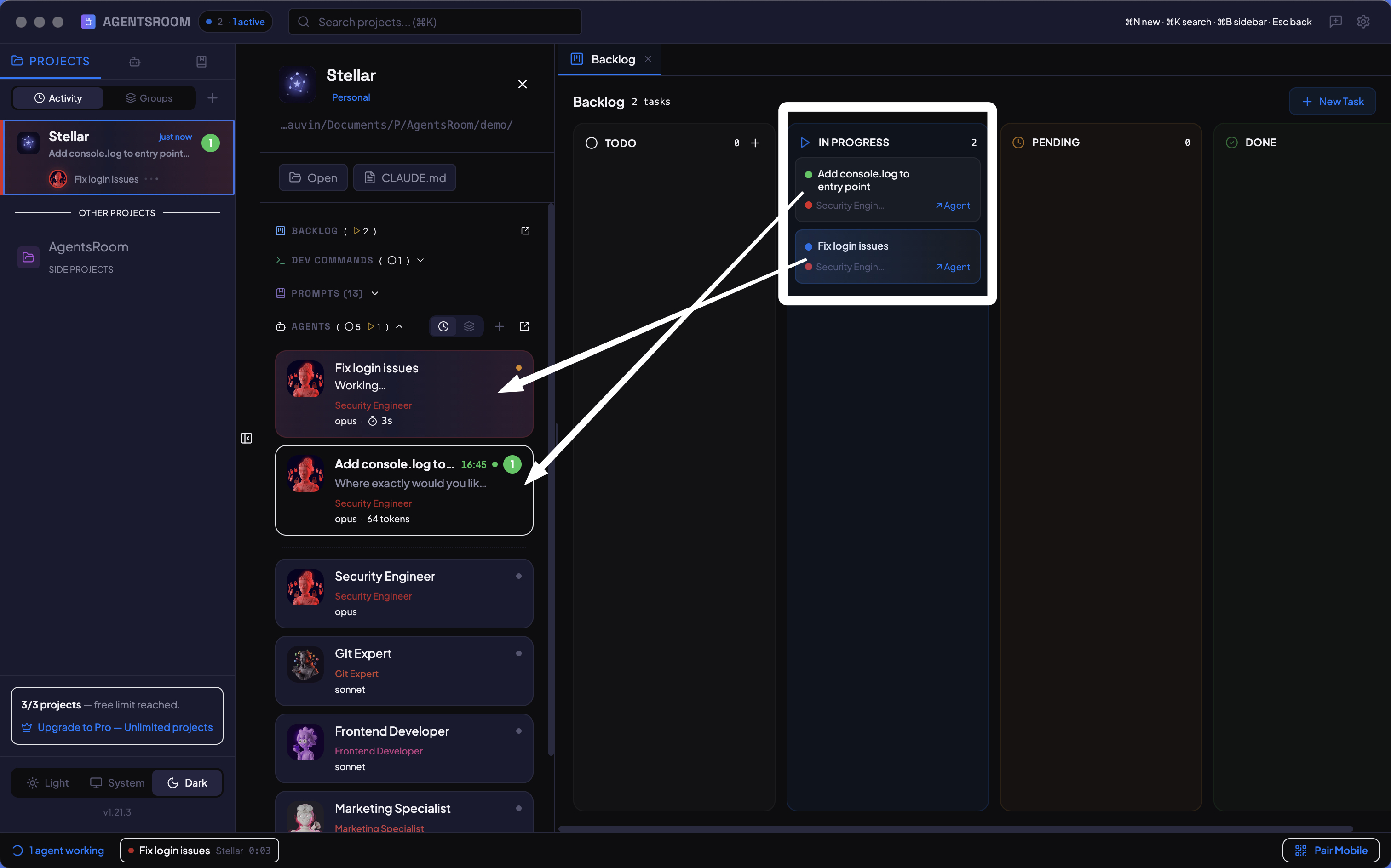
Dört sütun, sınırsız görev. Yürütmek için sürükleyin, görsel olarak takip edin.
Nasıl çalışır
Görevlerinizi oluşturun
+ Yeni Görev'e tıklayın. Bir başlık, isteğe bağlı bir açıklama, etiketler verin ve bir ajan rolü atayın. Gerekirse ekran görüntüleri veya modeller ekleyin. Göreviniz YAPILACAK sütununda belirir.
Devam Ediyor sütununa sürükleyin
Bir görev kartını tutun ve Devam Ediyor sütununa bırakın. AgentsRoom anında, görev başlığını komut olarak kullanan geçici bir Claude ajanı başlatır. Ajan terminali otomatik olarak açılır.
Ajanları çalışırken izleyin
Her görev kartı, ajanına bağlı canlı bir durum göstergesi sunar. Sarı yanıp sönme düşünüyor, yeşil bitti demektir. Ajanın terminaline atlayıp tüm çıktıyı görmek için karta tıklayın.
İnceleyin ve Bitti'ye taşıyın
Bir ajan bitirdiğinde, değişikliklerini fark görüntüleyicide inceleyin. Memnun musunuz? Görevi Bitti'ye sürükleyin. Değişiklik mi gerekiyor? Onu Devam Ediyor'da bırakın ve ajana yeni talimatlar verin.
Ölçekte tekrarlayın
Sprint'iniz için on görev ekleyin. Paralelde üçünü Devam Ediyor sütununa sürükleyin. Ajanlar kodlarken, aklınıza yeni gelen başka görevler ekleyin. Backlog'unuz büyür, ajanlarınız teslim eder, aklınız berrak kalır.
Kendi kendini yürüten görevler
Jira, Linear ya da Notion'da görevler durağan kartlardır. Görevi okursunuz, sonra IDE'nize geçersiniz, sonra kodlamaya başlarsınız. AgentsRoom'da bir görevi Devam Ediyor sütununa sürüklemek, hemen kodlamaya başlayan bir ajan başlatır. Pano yalnızca takip için değildir: tetikleyicinin ta kendisidir.
GitHub Issues, JIRA Cloud ve Notion'daki ticket'larınız
İşin bir kısmı zaten başka bir araçta yaşıyor. Bir kaynak seçin, bağlayın, neyi getireceğinizi seçin, önizleyin, içe aktarın. Sonra aynı içe aktarmayı istediğiniz zaman tekrarlayın.
Üç kaynak, tek pano
Bir depo, bir durum ve etiketlerle GitHub Issues. Bir proje ya da bir JQL sorgusuyla JIRA Cloud. Entegrasyonla paylaşılan bir veritabanıyla Notion. Bir şey panoya düşmeden önce sonucu önizlersiniz ve bir arama alanı, referansını zaten bildiğiniz ticket'ı bulur. Yalnızca onu mu istiyorsunuz? Referansını doğrudan YAPILACAK sütununa yapıştırın, kendi başına gelir.
İçe aktarmayı tekrarlayın, kopya oluşmaz
Aynı içe aktarmayı tekrar çalıştırmak, kopya oluşturmak yerine zaten içe aktarılmış ticket'ları günceller. Başlık, açıklama, tür, etiketler ve issue'ya eklenmiş ekran görüntüleri her geçişte kaynaktan yeniden yazılır, böylece iki pano birbirinden uzaklaşmayı bırakır.
Kendi çalışmanız asla üzerine yazılmaz
Atanan ajan, dahili notlar, pano üzerindeki sıra ve ticket'lar arasındaki bağlantılar her yenilemede korunur. Burada zaten Devam Ediyor ya da Bitti durumundaki bir ticket asla YAPILACAK'a geri düşmez, sorgudan çıkan bir issue kendi ticket'ını korur.
Salt okunur, asla geri yazılmaz
İçe aktarma sadece okur, başka bir şey yapmaz. GitHub, JIRA ya da Notion'a hiçbir şey geri gönderilmez: durum değişikliği yok, yorum yok, kapatılan issue yok, ticket burada teslim edilmiş olsa bile.
Token makinenizde kalır
Erişim token'ınız yerel olarak şifrelenir ve sunucularımıza asla ulaşmaz. Hesabınızda yalnızca sorgu kaydedilir, böylece yenileme projeyi bir makineden diğerine takip eder.
Her ticket nereden geldiğini söyler
İçe aktarılan bir ticket kaynağını gösterir, tek tıkla orijinal issue'ya geri bağlanır ve tüm sorguyu yeniden çalıştırmadan kendi başına güncellenebilir. Kurulum masaüstünde yapılır; telefondan içe aktarmanın tamamını yenileyebilir ya da tek bir ticket'ı getirebilirsiniz, ikisi de bilgisayarınızda çalışır.
Henüz projesi olmayan fikirler için bir pano
Bazı fikirler bir depo için henüz hazır değildir. Onları fikir kutusuna bırakın: bir projeye değil hesabınıza bağlı bir kanban. Fikir gerçek işe dönüştüğü gün her ticket'ı doğru panoya taşıyın.
Projesi olmayan ticket'lar
Fikir kutusu, tek bir farkla sıradan bir backlog panosudur: bir depoya değil size aittir. Fikri açıklaması, etiketleri ve ekran görüntüleriyle bir ticket olarak yazın ve onu aklınızda taşımayı bırakın. Diğer tüm panolar gibi hesabınızda senkronize edilir ve mobil uygulama onu projeler listesindeki ampul simgesinden açar.
Bir ticket'ı başka bir panoya taşıyın
Kart menüsünden ya da birkaç ticket seçiliyken Başka bir panoya taşı seçeneğini seçin ve bir proje belirleyin. Ticket açıklaması, ekleri ve geçmişiyle olduğu gibi gider ve sütununun en üstüne yerleşir. Yanlış panoya açılmış bir ticket için iki proje arasında da çalışır.
Bir fikri başlatmak onu taşımak demektir
Fikir kutusu asla bir ajan başlatmaz: onu çalıştıracak bir proje yoktur. Bir fikri Devam Ediyor sütununa sürükleyin ya da Görevi başlat düğmesine basın, AgentsRoom hangi projeye taşınacağını sorar. Pano ticket'ı takip eder ve ajan orada, gerçek kod üzerinde başlar.
Panoyu kapatmadan pano değiştirin
Panonun üstündeki proje adı bir menüdür: önce fikir kutusu, sonra bu oturumda açık projeler, sonra diğerleri. Birini seçin, pano ona geçer; pencereyi kapatıp kenar çubuğunda dolaşmanıza gerek kalmaz.
FAQ
Bir görevi Devam Ediyor sütununa sürüklemek nasıl bir ajan başlatır?
Bir görevi Devam Ediyor sütununa bıraktığınızda, AgentsRoom görev başlığını ilk komut olarak kullanan geçici bir ajan oluşturur. Göreve belirli bir ajan rolü atadıysanız, o rolün sistem komutu kullanılır. Ajanın terminali otomatik olarak açılır, böylece çalışmasını izleyebilirsiniz.
Birden fazla görevi paralelde çalıştırabilir miyim?
Evet. İstediğiniz kadar görevi Devam Ediyor sütununa sürükleyin. Her biri kendi terminaliyle kendi ajanını başlatır. Yalnızca makinenizle ve sağlayıcınızın hız sınırlarıyla kısıtlı olarak beş, on ya da yirmi görevi aynı anda çalıştırabilirsiniz.
Bir ajan bitirir ama ben memnun kalmazsam ne olur?
Görev Devam Ediyor sütununda kalır. Ajana doğrudan terminalinden yeni talimatlar verebilirsiniz. Sonuçtan memnun kaldığınızda görevi Bitti'ye sürükleyin. Devam etmeden önce başka bir şeyi beklemeniz gerekiyorsa onu Beklemede sütununa da taşıyabilirsiniz.
Görevler cihazlarım arasında paylaşılır mı?
Evet. Görevler AgentsRoom buluta senkronize edilir ve .agentsroom/project.json içinde saklanan kararlı bir backlog kimliği aracılığıyla projenize bağlanır. Aynı projeye sahip her cihaz aynı backlog'u görür.
Görevlere görsel veya ekran görüntüsü ekleyebilir miyim?
Evet. Her görev görsel eklerini destekler. Modelleri, ekran görüntülerini, hata yakalamalarını ya da tasarım referanslarını doğrudan görev kartına ekleyin. Bunlar güvenli bir şekilde yüklenir ve saklanır.
Yinelenen ticketleri birleştirebilir miyim?
Evet. Panoda birkaç ticket seçin ya da kart menüsünü kullanın ve onları tek bir tickette birleştirin. AI, başlıklarını ve açıklamalarını onaylamadan önce düzenleyeceğiniz bir taslakta yeniden birleştirir, oylar toplanır, yorumlar, ekran görüntüleri ve bağlantılar ayakta kalan tickete taşınır. Asıl kural şu: hiçbir bildiren kaybolmaz. Emilen bir ticketi bildiren herkes ayakta kalan tickete abone kalır ve düzeltme yayınlandığında haberdar edilir, kendilerine daha önce gönderilmiş herkese açık bağlantılar da ona yönlendirir.
Tek bir ticket, diğerlerinden farklı bir sağlayıcı veya modelde çalışabilir mi?
Evet. Bir ticket kendi sağlayıcısını, modelini, akıl yürütme çabasını, hesap profilini ve skill'lerini sabitleyebilir ve ticket kendi ajanını başlattığında bu geçersiz kılmalar varsayılan ajan profiline üstün gelir. Sütunlar ayrıca masaüstünde ve mobilde istendiğinde sıralanabilir, ajanlar da terminalden çıkmadan MCP üzerinden ticket oluşturabilir, güncelleyebilir, yorumlayabilir, yeniden sıralayabilir ve silebilir.
Bir ticket, bir başkasının bitmesini bekleyebilir mi?
Evet. İki ticket'ı engelliyor ve engelleniyor olarak bağlayın; pano bu bağı yalnızca belgelemekle kalmaz, uygular: engel hâlâ açıkken engellenen ticket YAPILACAK yerine Beklemede sütununda durur, böylece Sıradakini başlat onu asla almaz. Son engel kapandığında kendiliğinden YAPILACAK sütununa döner, o engel yeniden açılırsa yine Beklemede sütununa geçer. Zaten incelemede ya da bitmiş bir ticket asla kenara çekilmez, elinizle kenara çektiğiniz bir ticket ise koyduğunuz yerde kalır. Ajanlar bu bağları MCP üzerinden kendileri yönetir: çalışmanın ortasında bir ön koşul keşfeden ajan o ticket'ı oluşturur ve tek bir çağrıda bağlar, devam ederken engellendiği ortaya çıkan bir ticket ise onu çalıştıran terminal öldürülmeden yoldan çekilir.
Henüz hiçbir projeye ait olmayan fikirleri nerede tutarım?
Fikir kutusunda: bir projeye değil hesabınıza bağlı bir pano. Herhangi bir projenin backlog panosunu açın, üstteki proje adına tıklayın ve Fikir kutusu'nu seçin. Oradaki ticket'lar diğerleri gibi çalışır: başlık, açıklama, etiketler, ekran görüntüleri, hesabınızda senkronize ve mobil uygulamadan görünür. Fikir kutusunun yapamadığı tek şey bir ajan başlatmaktır, çünkü onu çalıştıracak bir proje yoktur: bir fikri başlatmak taşıma penceresini açar ve ticket seçtiğiniz projede çalışır.
Bir ticket'ı başka bir projeye taşıyabilir miyim?
Evet. Kart menüsünü açın ya da birkaç ticket seçin ve Başka bir panoya taşı seçeneğini seçin. Ticket açıklamasını, eklerini ve geçmişini korur ve hedef panoda sütununun en üstüne yerleşir; masaüstünden ya da telefondaki ticket ayrıntısından. İki şey bilerek geride bırakılır: bu makinede atanan ajan ve diğer ticket'lara bağlantılar, çünkü iki pano arasındaki bir bağımlılık hiçbirinden görülemezdi. Bir müşterinin herkese açık backlog üzerinden bildirdiği ticket asla taşınmaz: herkese açık sayfası ve konuşma dizisi, gönderildiği panoya aittir.
Bir ticket, sürümlerinin geçmişini tutar mı?
Evet, AgentsRoom 1.194.0 sürümünden beri. Bir ticket'ın metnini ya da yapılandırmasını değiştiren her kaydetme işlemi (başlık, açıklama, tür, etiketler, özel not, atanan ajan ya da ekip, skill'ler, sağlayıcı, model, akıl yürütme çabası, hesap profili, worktree seçenekleri, inceleyici) önceki sürümü saklar; bir ajanın MCP üzerinden yaptığı değişiklik de buna dahildir. Masaüstünde, önceki herhangi bir sürümü mevcut sürümle karşılaştırmak ve geri yüklemek için ticket'ın üst kısmından Geçmiş'i açın; telefonda sürüm, ticket formuna taslak olarak yüklenir ve normal şekilde kaydedilir. Pano durumu sürümlenmez: bir kartı sürüklemek, önceliğini değiştirmek ya da onu Çözülmeyecek olarak işaretlemek sürüm oluşturmaz. Aynı geçmiş artık zamanlanmış ajanlar ve bellek notları için de var (bellek yalnızca masaüstünde), promptların ve skill'lerin zaten sahip olduğu geçmişin yanında.
Ajanlarım bir ticket'a ekibin geri kalanı için not bırakabilir mi?
Evet. Her ticket'ın bir Yorumlar bölümü vardır, ekibin iç yazışması: siz ticket'tan, ajanlarınız AgentsRoom MCP üzerinden buraya yazarak ilerlemeyi, bir devri, bir engeli ya da bir soruyu kaydeder. Bu bölüm, ticket'ı bildiren kişiye asla gösterilmez ve asla e-postayla gönderilmez. Kart, ticket'ın kaç yorumu olduğunu gösterir ve ticket üzerinde başlatılan bir ajan, işe koyulmadan önce en son yorumları okur. Proje ayarlarında bir lider aracı belirleyebilirsiniz: ürün yöneticisi gibi bir rol ya da kayıtlı tek bir ajan. Başka bir ajan her yorum yaptığında lider bir mesaj alır; böylece ticket üzerinde yanıt verebilir, ticket'ı yeniden atayabilir ya da sizi dahil edebilir.
Hangi ticket'ların kendi worktree'sinde çalışacağını nasıl görürüm?
Kartın üzerinde. Ayrı bir worktree'de çalışacak şekilde ayarlanmış bir ticket, dal adını kartın altında gösterir, masaüstünde de telefonda da; üzerine geldiğinizde dalın tam adı ve kendi kendine geri birleşip birleşmeyeceği görünür. Paralel planlanan iki ticket artık aynı checkout'u paylaşan iki ticket gibi görünmez.
Şunları da beğenebilirsiniz
Ticket kapsam belirleme
Bir ajan bir geri bildirim ticket'ını geliştirmeden önce kapsamını belirleyin: bir Product Manager yapay zeka ajanı talebi ürününüze sadık bir makete dönüştürür ve bildiren kişiyle doğrular.
Herkese açık uzak backlog
Müşterilerin ve ekip arkadaşlarının, doğrudan ajanlarınızın geliştirdiği backlog'a düşen geri bildirim ticket'ları açmasına izin verin.
Konuyla ilgili yazılar
Yapay zeka ajanları için geri bildirim panosu: promptu kullanıcıların yazsın
Geri bildirim araçları talep toplar, hiçbiri o talebi geliştiremez. Kullanıcılarının yazdığı pano ile kodlama ajanlarının çalıştığı pano aynı olduğunda, yeniden yazma adımı ortadan kalkar.
3 ila 8 Kodlama Ajanını Paralel Olarak Takip Kaybetmeden Nasıl Çalıştırılır
Birden fazla Claude Code veya Codex ajanını aynı anda başlatmak kolaydır. Kontrolü sağlamak ise işin zor kısmıdır. İşte gerçekten işe yarayan yöntem.
Kodu artık ajanlar yazıyor. Geliştiricinin işi neye dönüştü?
Kod yazmak altı halkalı bir zincirin tek halkasıydı ve ajanların aldığı halka o oldu. Diğer beşi ağırlaştı. Geriye kalan işin dökümü: talebi duymak, karar vermek, brief yazmak, yürütmeyi yönetmek, incelemek, yayına çıkarmak.
Backlog'unuzu çalışan ajanlara dönüştürün
AgentsRoom'u indirin ve görevleri yürütmeye sürüklemeye başlayın. 2 projeye kadar ücretsiz.
Yardımcı uygulama: hareket halindeyken ajanlarınızı izleyin
Claude, Codex, Antigravity CLI veya başka bir AI sağlayıcı kullan.
Hataları ve istekleri doğrudan genel backlogunuza gönderin.