Sketch:
dibújalo, y el agente entiende lo que quieres decir
Sketch es un lienzo de dibujo integrado directamente en el composer del agente IA. Abre un lienzo en blanco para esbozar un mockup o un diagrama, o abre una captura para anotarla. Rodea el bug, dibuja una flecha, resalta la zona, añade una nota. El dibujo se adjunta a tu mensaje y se envía a tu agente IA de código.
Una imagen vale más que mil palabras, y eso se multiplica con un agente IA. En lugar de escribir «el botón de arriba a la derecha del modal está demasiado pegado al borde», lo rodeas. El dibujo aterriza junto a tu prompt, el agente recibe el feedback visual de una sola vez, y nunca saliste del terminal.
Sketch en acción: abre el lienzo desde el composer, rodea el bug visual en una captura, adjunta el dibujo, envíaselo al agente.
Este es el problema que Sketch resuelve. Estás haciendo vibe coding con un agente IA y algo se ve mal en pantalla. Una tarjeta se desborda, un botón queda unos píxeles fuera de sitio, el espaciado de una fila está roto. Para que el agente lo arregle, tienes que describir el problema visual con palabras. «La segunda tarjeta de la columna central, la del avatar, tiene el padding demasiado ajustado a la derecha.» Escribes tres frases, el agente adivina, arregla el elemento equivocado, escribes tres más.
Sketch elimina las conjeturas. Haces una captura, la abres en el lienzo de Sketch, dibujas un círculo rojo alrededor de la tarjeta rota, añades una flecha y la palabra «demasiado ajustado aquí», y la adjuntas a tu mensaje. El agente ya no interpreta un párrafo. Mira el dibujo. El feedback visual es inequívoco porque es visual.
Sketch funciona también al revés. Empieza desde un lienzo en blanco y dibuja lo que quieres antes de que el agente lo construya: un mockup rápido de una pantalla, un wireframe de un layout, un diagrama ágil de un flujo. Un boceto hecho a mano encuadra al agente mejor que un muro de texto. Dibujas el prototipo, el agente lo programa.
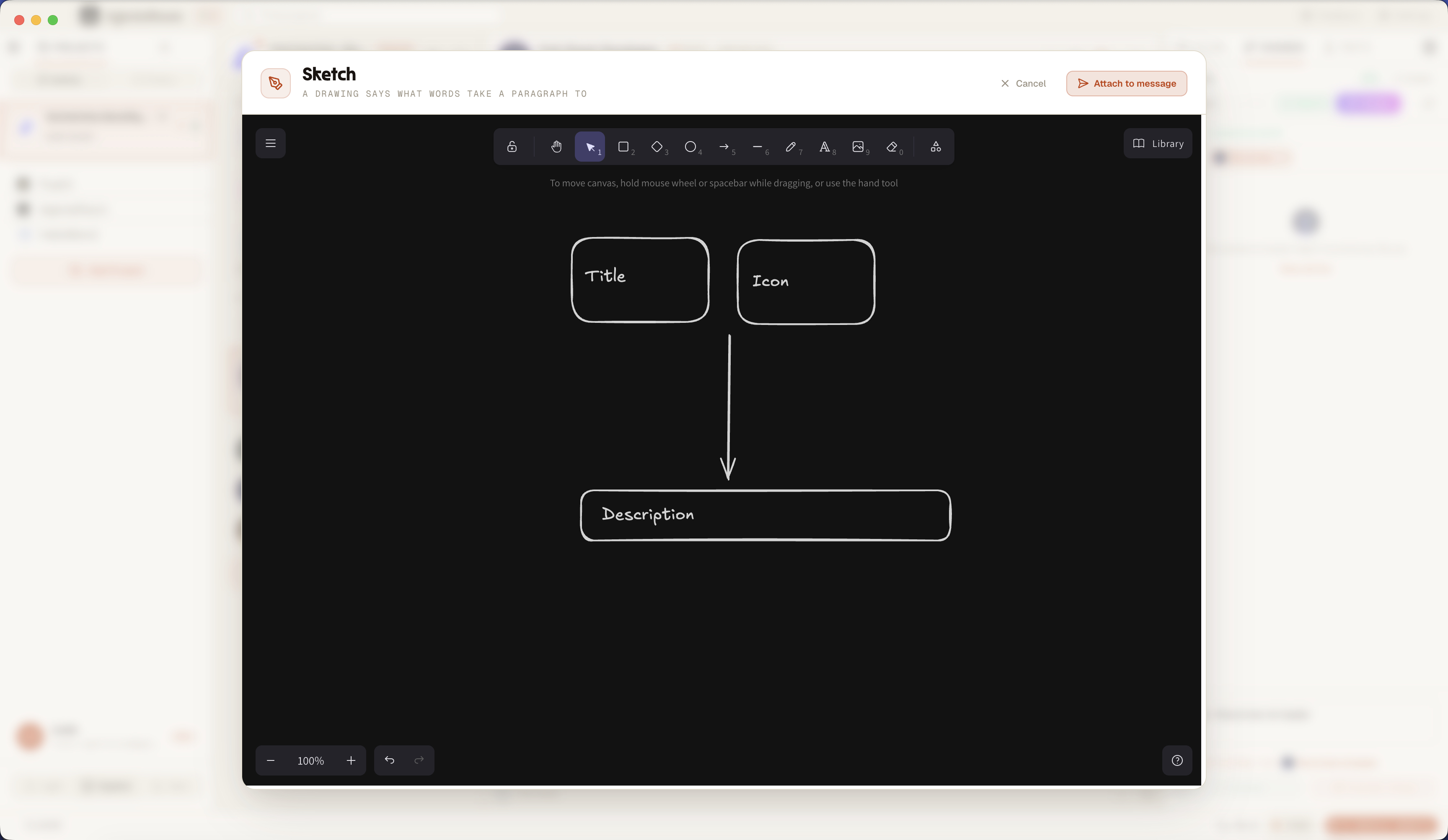
El lienzo de Sketch abierto desde el composer: anota una captura, dibuja formas y flechas, luego adjunta el dibujo al mensaje que envías a tu agente.
Por qué Sketch encaja en tu flujo con agentes
Precisión. Un círculo en una captura señala un elemento exacto. Una frase señala una conjetura. Cuando dibujas el problema, el agente arregla justo lo que querías decir, no lo de al lado. Se acabó el «no, el otro botón, el de abajo».
Velocidad. Dibujar un rectángulo alrededor de una zona lleva tres segundos. Describir esa misma zona con palabras lleva tres frases, y las frases siguen siendo ambiguas. Sketch convierte anotar un bug visual de tarea en reflejo.
Expresión. Algunas ideas son formas, no frases. Un layout, un flujo, una pantalla. Con Sketch dibujas el mockup o el diagrama directamente, a mano alzada o con formas y flechas, y le das el dibujo al agente como spec.
Flow. Sketch vive dentro del composer. No abres una app de dibujo aparte, no exportas un archivo, no arrastras nada de un lado a otro. El dibujo y tu prompt escrito viajan juntos en el mismo mensaje, así que el agente recibe todo el contexto de golpe.
Cómo funciona Sketch, de principio a fin
Del botón de Sketch en el composer a un dibujo adjunto al mensaje del agente.
Abre Sketch desde el composer
Cada composer de agente tiene un botón de Sketch. Haz clic y se abre un lienzo de dibujo a pantalla completa, listo para usar, con la herramienta de rectángulo ya activa para que puedas encuadrar cosas de inmediato.
Dibuja en un lienzo en blanco, o anota una imagen
Empieza desde un lienzo en blanco para esbozar un mockup, un wireframe o un diagrama. O abre una imagen existente: suelta una captura en el composer, luego haz clic en el lápiz de su miniatura (o en Anotar en la vista previa del archivo) para dibujar encima.
Dibuja, rodea, flecha, resalta, escribe
El lienzo te da dibujo a mano alzada, rectángulos, elipses, flechas, líneas y texto. Rodea un elemento roto, apunta una flecha hacia él, resalta una zona, escribe una nota corta al lado. Lo que haga obvio el feedback visual.
Adjunta el dibujo a tu mensaje
Haz clic en Adjuntar al mensaje. El lienzo se exporta como PNG y se añade como miniatura al composer, igual que un archivo soltado. Cuando anotas una imagen existente, la versión anotada reemplaza la miniatura original, así que el agente nunca recibe las dos.
Envíaselo al agente
Escribe tu prompt como siempre y envía. El PNG se adjunta al mensaje por el mismo canal que cualquier otro archivo. El dibujo y tu texto llegan al agente juntos, en un solo turno.
El agente lee el dibujo
Tu agente IA de código recibe el boceto como imagen adjunta. Mientras su modelo soporte entrada de imágenes, ve exactamente lo que rodeaste, marcaste con flechas y resaltaste, y actúa sobre el feedback visual en lugar de interpretar una descripción.
Dos formas de usar Sketch
Empieza desde cero, o dibuja encima de lo que ya hay.
Lienzo en blanco: esboza un mockup
Abre un lienzo vacío y dibuja lo que quieres que el agente construya. Un mockup rápido de una pantalla, un wireframe de un layout, un prototipo de un componente, un diagrama de un flujo de datos. Trazos a mano alzada, cajas, flechas y etiquetas de texto. Un boceto hecho a mano es una spec que el agente puede seguir sin que escribas un solo párrafo de descripción de UI.
Anotar: dibuja sobre una captura
Carga una captura o cualquier imagen en el lienzo y márcala. Rodea el elemento desalineado, dibuja una flecha en el desbordamiento, resalta el color erróneo, escribe «arregla esto» junto al bug. El lienzo de Sketch se abre con tu imagen como capa de fondo, dibujas encima, y la captura anotada llega directa al agente como feedback visual.
Qué es Sketch en realidad
Sketch es un lienzo de dibujo completo embebido en la app de escritorio de AgentsRoom, que se abre desde el composer de cualquier agente IA. No es un visor de capturas con un rotulador encima. Tienes herramientas de dibujo de verdad: pluma a mano alzada, rectángulos, elipses, flechas, líneas y texto, el mismo conjunto que esperas de una superficie de dibujo en condiciones.
El lienzo funciona en dos modos. El modo en blanco te da una superficie vacía para mockups, wireframes y diagramas. El modo de anotación carga una imagen existente como fondo y te deja dibujar encima. Llegas al modo de anotación desde la miniatura de cualquier imagen ya adjunta al composer, o desde el botón Anotar en la vista previa del archivo.
Cuando adjuntas el dibujo, Sketch exporta el lienzo a un PNG sobre fondo blanco para que cada trazo se mantenga legible, luego deja el archivo en la bandeja de adjuntos del composer. A partir de ahí el dibujo sigue el camino normal: viaja con tu prompt y se envía al agente como imagen. Sketch no añade ningún mecanismo de envío nuevo, se conecta al que ya está ahí.
Todo se queda en tu máquina. Los bocetos se guardan en local en disco y no se commitean a tu repositorio ni se envían a ningún servicio de terceros. Son transitorios por diseño: un dibujo es contexto para un mensaje, no un archivo que tengas que gestionar. Sketch es local, privado y agnóstico de proveedor: funciona con cualquier agente cuyo modelo acepte una imagen, así que las configuraciones de Claude Code y Codex obtienen el mismo flujo de dibujo a agente.
Qué dibuja la gente con Sketch
Tres patrones que convierten un dibujo en la forma más rápida de hablar con un agente.
Reporta un bug visual
Captura la UI rota, rodea el elemento, marca el desbordamiento con una flecha, resalta el espaciado erróneo. El agente ve el bug visual en lugar de descifrar tu descripción de él. La forma más rápida que existe de reportar una regresión de UI a un agente IA.
Esboza un mockup o wireframe
Dibuja la pantalla antes de que el agente la construya. Un wireframe rápido, un boceto de layout, un mockup de baja fidelidad de un componente. Dale el dibujo al agente como briefing y deja que convierta tu boceto en código.
Dibuja un diagrama o flujo
Algunas explicaciones son diagramas. Un flujo de datos, una máquina de estados, la estructura de una página, cómo se comunican dos componentes. Esbózalo con cajas y flechas y envíale el diagrama al agente como contexto.
Describirlo con palabras vs dibujarlo
El mismo feedback visual, el mismo agente. Un camino es lento y ambiguo, el otro es un boceto.
Sin Sketch
- : Describes el problema visual con palabras y esperas que el agente imagine lo mismo.
- : Escribes tres frases para señalar un elemento, y sigue siendo ambiguo.
- : Para dibujar un mockup abres una app aparte, exportas un archivo y lo arrastras al composer.
- : El cambio de contexto rompe tu flow y la conversación con el agente.
- : El agente arregla el elemento equivocado, vuelves a explicar, el bucle se alarga.
Con Sketch
- : Rodeas el elemento en una captura y el feedback es inequívoco.
- : Un dibujo reemplaza tres frases de descripción, en tres segundos.
- : El lienzo está en el composer: sin app aparte, sin exportar, sin arrastrar y soltar.
- : Nunca sales del terminal y nunca rompes el hilo con el agente.
- : El agente ve exactamente lo que querías decir y lo arregla a la primera.
Sketch es el camino más corto entre un problema visual y un agente IA que lo entiende.
FAQ
¿Qué es Sketch en AgentsRoom?
Sketch es un lienzo de dibujo integrado en el composer del agente IA. Lo abres desde el composer, dibujas un boceto en un lienzo en blanco o anotas una captura existente, y el dibujo se exporta como PNG y se adjunta al mensaje que envías a tu agente IA de código. Convierte el feedback visual en algo que dibujas en lugar de algo que describes.
¿Cómo envío un dibujo a un agente IA?
Haz clic en el botón de Sketch en el composer del agente, dibuja en el lienzo, luego haz clic en Adjuntar al mensaje. El dibujo se convierte en una miniatura PNG en el composer. Escribe tu prompt y envía: el boceto se adjunta al mensaje y llega al agente junto con tu texto.
¿Puedo anotar una captura?
Sí. Suelta una captura en el composer, luego haz clic en el lápiz de su miniatura, o abre la vista previa del archivo y haz clic en Anotar. El lienzo de Sketch se abre con tu captura como capa de fondo para que puedas dibujar encima: rodea un bug, añade una flecha, resalta una zona, escribe una nota. La captura anotada reemplaza la original cuando la adjuntas.
¿Qué puedo dibujar con Sketch?
El lienzo te da dibujo a mano alzada, rectángulos, elipses, flechas, líneas y texto. Puedes esbozar un mockup, dibujar un wireframe, montar un diagrama o marcar una captura con círculos, flechas y resaltados. La herramienta de rectángulo está activa por defecto para que puedas encuadrar un elemento en cuanto se abre el lienzo.
¿El agente IA ve de verdad mi boceto?
El dibujo se adjunta a tu mensaje como imagen PNG. Mientras el modelo del agente soporte entrada de imágenes, ve el boceto y actúa sobre él. Claude y los modelos de clase GPT-4 que impulsan Claude Code y Codex leen imágenes, así que el agente recibe tu feedback visual directamente.
¿Qué agentes y proveedores funcionan con Sketch?
Sketch adjunta una imagen PNG estándar, así que es agnóstico de proveedor. Cualquier agente cuyo modelo acepte entrada de imágenes funciona: Claude Code, Codex y otros CLI que AgentsRoom soporta. No hay configuración específica por proveedor.
¿Necesito una app de dibujo o una pizarra aparte?
No. Ese es el sentido de Sketch. El lienzo de dibujo está dentro del composer. No abres Excalidraw, Figma ni un anotador de capturas en otra ventana, no exportas un archivo, no lo arrastras de vuelta. Sketch mantiene todo el bucle de dibujar y enviar dentro del terminal.
¿Dónde se guardan mis bocetos? ¿Son privados?
Los bocetos se guardan en local en tu propia máquina. No se commitean a tu repositorio git ni se suben a ningún servicio de terceros. Son transitorios: un boceto es contexto para un mensaje, y los bocetos antiguos se limpian automáticamente.
¿Puedo reeditar o reanotar un boceto?
Sí. Cualquier imagen del composer, incluida una captura que ya anotaste, se puede reabrir en el lienzo de Sketch para dibujar de nuevo encima. Cuando adjuntas la nueva versión, reemplaza la miniatura anterior, así que el agente nunca recibe la misma imagen dos veces.
¿Por qué dibujar un bug en lugar de describirlo?
Porque una descripción es una conjetura y un dibujo no. Cuando escribes «el botón de arriba a la derecha está desalineado», el agente tiene que reconstruir la pantalla en su cabeza. Cuando rodeas el botón en una captura, no hay nada que reconstruir. Una imagen vale más que mil palabras, y para el feedback visual a un agente IA vale también varios turnos desperdiciados.
Combina bien con
Browser Automation
Tu agente de QA pilota un navegador real y captura pantallas. Sketch es la forma de anotar una de esas capturas y devolver el feedback marcado.
Scratchpad
Un bloc de notas para prompts y apuntes dentro de AgentsRoom. Scratchpad se encarga del texto, Sketch se encarga del dibujo: ambos alimentan el mismo composer del agente.
Vibe Coding Review
Observa cada archivo que el agente cambia en tiempo real. Cuando un cambio se ve mal en pantalla, Sketch es la forma más rápida de señalarlo.
Figma to AI Agents
Lleva un diseño de Figma al flujo de trabajo con agentes. Sketch es el primo más rápido y tosco: un mockup hecho a mano directo en el composer cuando no necesitas un archivo de diseño completo.
Deja de describir el bug. Dibújalo.
Descarga AgentsRoom y usa Sketch: un lienzo de dibujo en el composer del agente para esbozar mockups y anotar capturas, y luego enviar el dibujo a tu agente IA de código sin salir nunca del terminal.
App complementaria: supervisa tus agentes en movimiento
Usa Claude, Codex, Antigravity CLI u otro proveedor de IA.
Envía bugs y peticiones directamente a tu backlog público.